Unit 2 - Year 1 Lessons
Overview
Students will complete Unit 2 Year 1 activities using digital art workflows.
Target skills:
- Visual Communication
- Digital Illustration
- Creative Problem Solving
Tools:
- Pixilart
Outputs:
- Student-created digital artifact(s) saved to class folder.
Week 1 - Thaumatrope (Paper Flip Animation)
Lesson 1 - Make a Thaumatrope
Goal: Create a spinning paper disc that blends two drawings into one.
Materials
- 2 small papers per student (circle or square, ~ 5×5 cm)
- Pencils, color pencils, erasers
- Tape or stapler
- Small straw, stick, or round handle
Steps
-
Introduction - What is animation?
Explain that animation is showing pictures quickly so they look like they’re moving. A thaumatrope is one of the first and easiest animation toys. -
Show examples. Spin a sample to show how two images combine.
-
Design time - Choose a simple pair that lines up in the center:
- Cloud + lightning
- Fish + bowl
- Bird + cage
- Flower + pot
- Snowman + snow globe
- Chair + person
Tip: Avoid tiny details (e.g., fingers, ants). Keep designs big and bold.
-
Draw together. As a class, rough one example (e.g., fish + bowl). Center each drawing so they align when spun.
-
Color & assemble. Color the drawings, then tape or staple them to opposite sides of the stick/straw.
-
Spin to animate! Hold the stick and spin between fingers to see the images blend.
Lesson 2 - Iterate
Brainstorm new pairs and make another thaumatrope repeating the steps above.
Week 2 - Digital Thaumatrope (Pixilart)
Lesson 1 - Two-Frame Blend Animation
Goal: Make a 2-frame animation in Pixilart.com that blends like a thaumatrope.
-
Talk about animation
Ask: “What is animation?” > “When two or more pictures are shown quickly so they look like they’re moving.”
Show a quick thaumatrope example (real or video). Say: “Today we’ll make a digital version with two drawings that blend when animated.” -
Start a new drawing
- File > New
- Canvas size: 64×64 px (or 128×128 for more room)
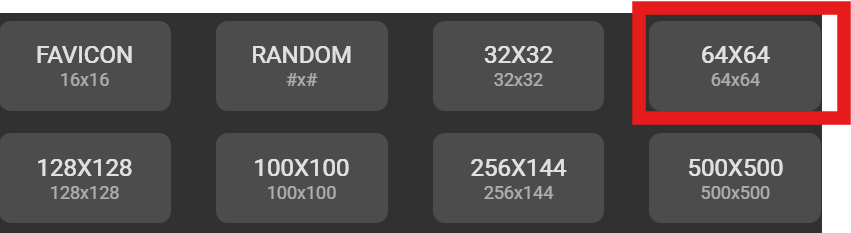
- Click Create > OK
-
Plan your design (two parts of one idea)
Example pairs: Bird + cage, Fish + bowl, Flower + pot, Cloud + lightning, Snowman + globe, Light bulb off > on
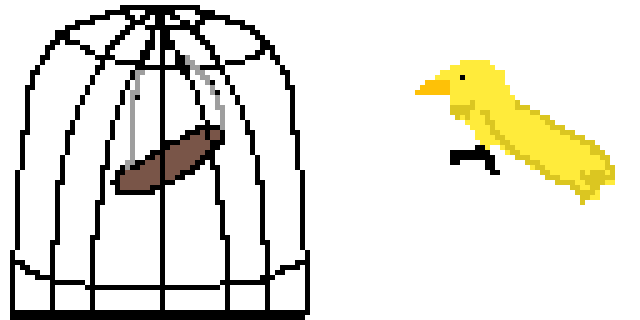
Keep drawings big and simple so they read clearly. -
Draw Frame 1
Use the pencil and fill tools. Keep the art centered so Frame 1 and Frame 2 will align. -
Add Frame 2
Click + Add Frame in the timeline.

Draw the second image, matching placement so the two frames combine when animated. -
Preview
Press Play (or Spacebar) to watch the two drawings blend. Use the speed slider to adjust playback. -
Finish & Save
- Click Download (arrow/box icon) > Export as GIF
- Save to Google Drive > Students > NAME >
file.gif
Lesson 2 - Repeat with New Idea
Repeat the previous lesson with a different pair, still limited to 2 frames.