Unit 21 - Year 2 Lessons
Overview
Students will practice portrait drawing in Sketchbook and then create a game-inspired digital art scene.
Target skills:
- Observation Drawing
- Visual Communication
- Creative Iteration
Tools:
- Pixilart
- Google Drive
- Sketchbook
Outputs:
- Portrait drawing
- Game-inspired scene artwork
Week 1 - Sketchbook Face Study
Lesson 1 - Draw a Face in Sketchbook
Goal: Using Sketchbook application.
Teacher prep:
- Prepare access to Pixilart, Google Drive, Sketchbook and any sample files needed for demonstration.
Steps:
- Using Sketchbook application
- Refer to the image example for this step.
- And trying to draw their face first (need a mirror or computer camera)
- If time allows draws partner faces
- Start from pencil. ---file-- share/ export---move drag it to the students file from the downloads file.
- Open sketchbook - clear or make a new sketch
- Begin with using this reference and getting the students to understand it
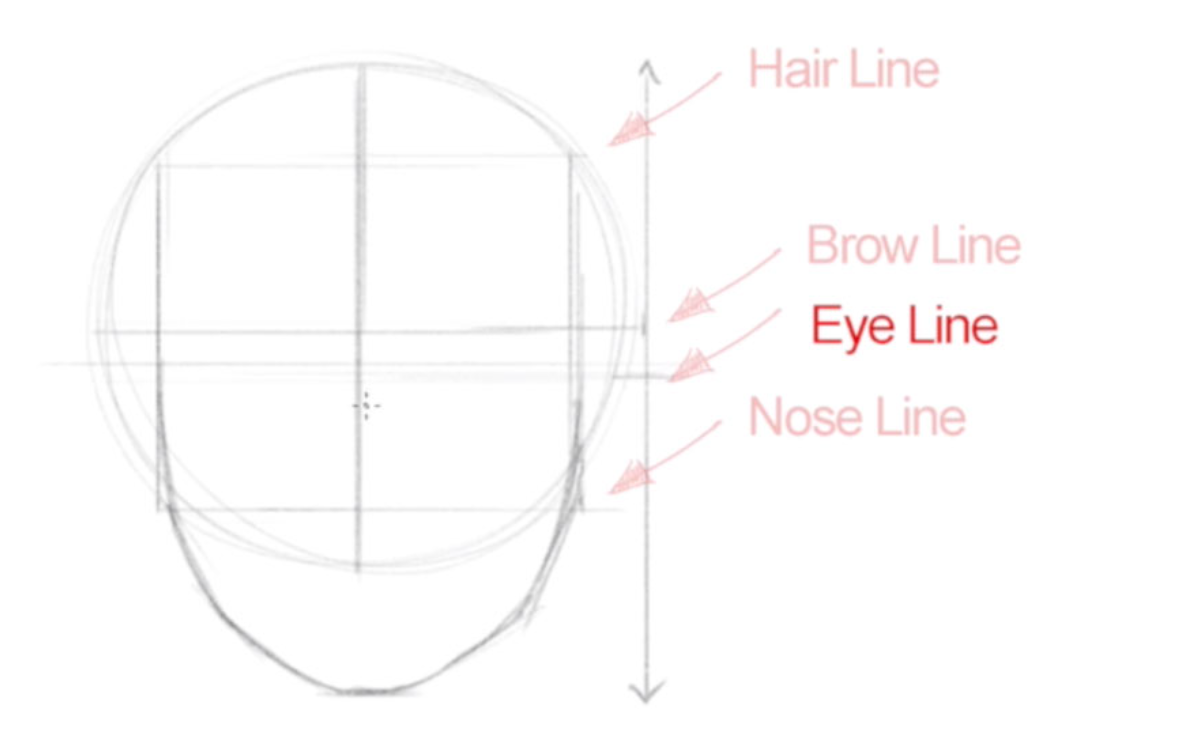
- After drawing the guide, they may begin to try and draw their faces or friends' faces using the camera or mirror.
- This is not a rush activity they can keep trying and trying.
Check for understanding:
- Students complete the core workflow for the lesson.
- Students can explain at least one design choice or animation decision.
Extension: Create a second variation or extend the project with extra details if time allows.
Lesson 2 - Draw a Partner Portrait
Goal: Draws partner faces , use wheelofnames.com to pick a partner if there are enough students. Or just draw who is sitting next to or across from them.
Teacher prep:
- Prepare access to Pixilart, Google Drive, Sketchbook and any sample files needed for demonstration.
Steps:
- Draws partner faces , use wheelofnames.com to pick a partner if there are enough students. Or just draw who is sitting next to or across from them.
Check for understanding:
- Students complete the core workflow for the lesson.
- Students can explain at least one design choice or animation decision.
Extension: Create a second variation or extend the project with extra details if time allows.
Week 2 - Game Art Scene
Lesson 1 - Create a Pixel Game Scene
Goal: Try to draw a game scene.
Teacher prep:
- Prepare access to Pixilart, Google Drive, Sketchbook and any sample files needed for demonstration.
Steps:
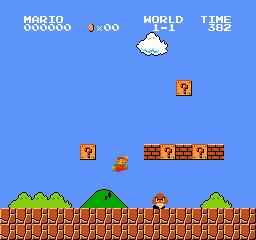
- Try to draw a game scene.
- Picking a game like mario to draw a scene
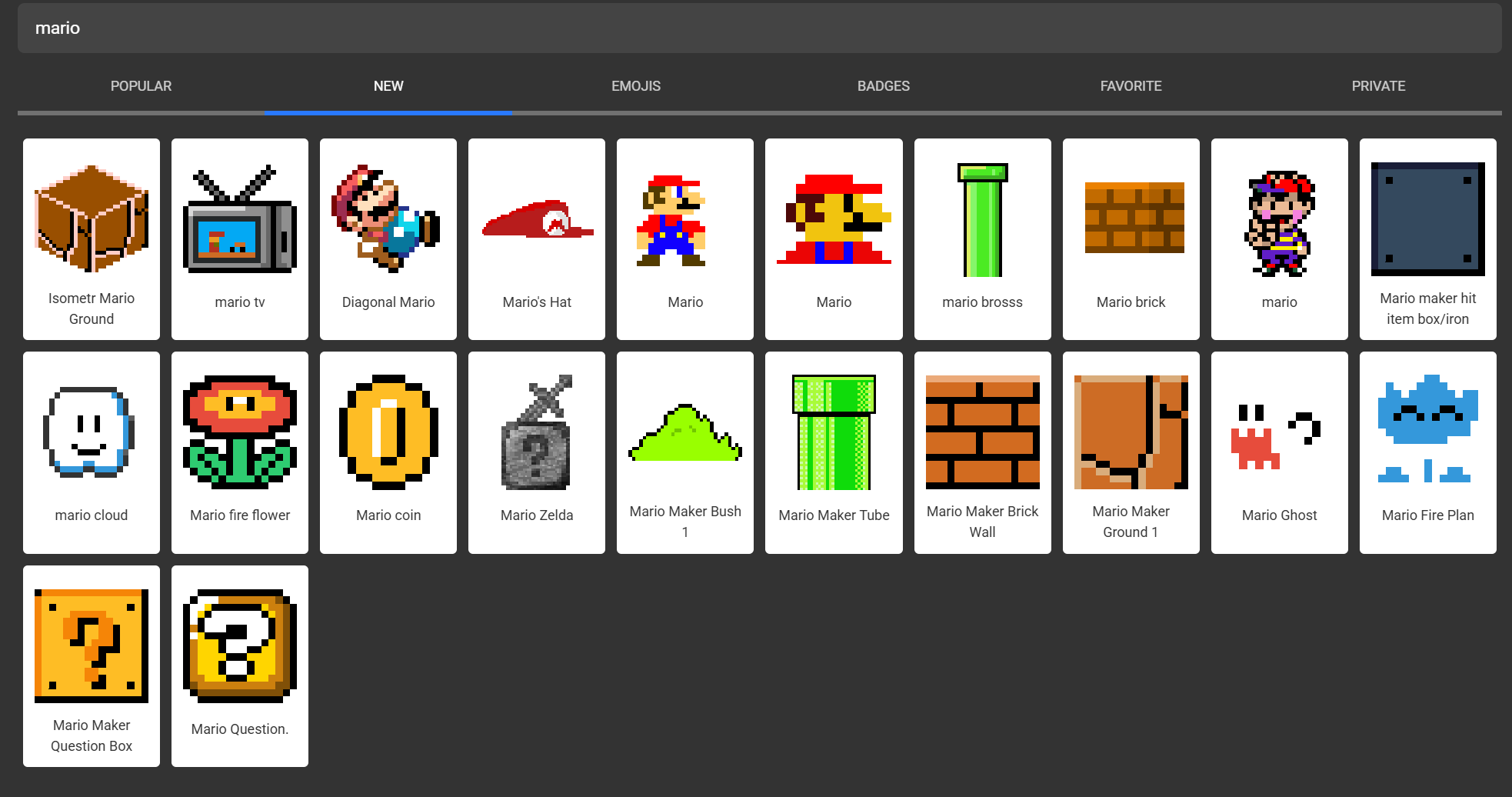
- There are mario stickers in pixil art the students may use.
- They can draw the artwork if they'd like too
- Refer to the image example for this step.
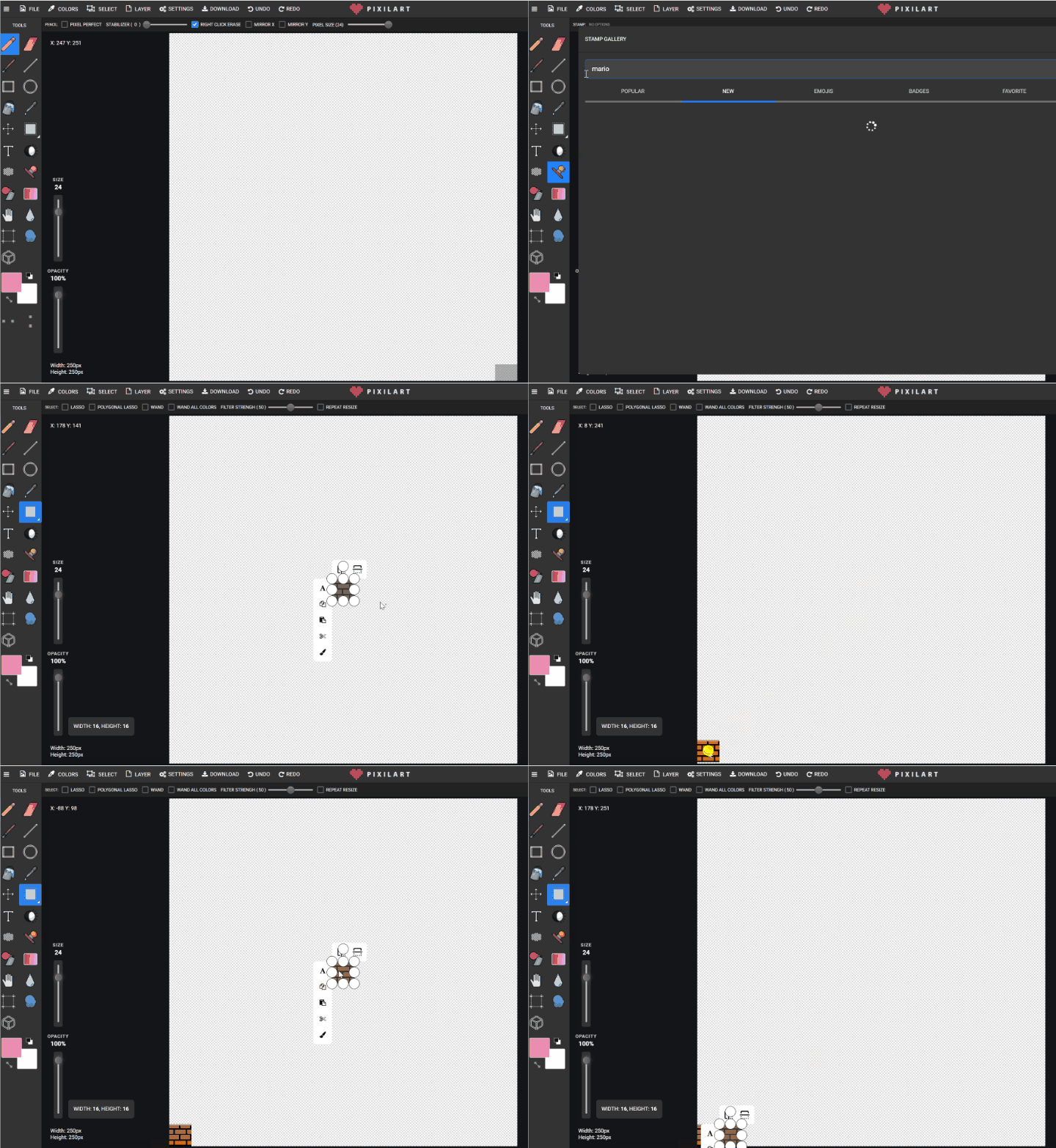
- Open pixil art
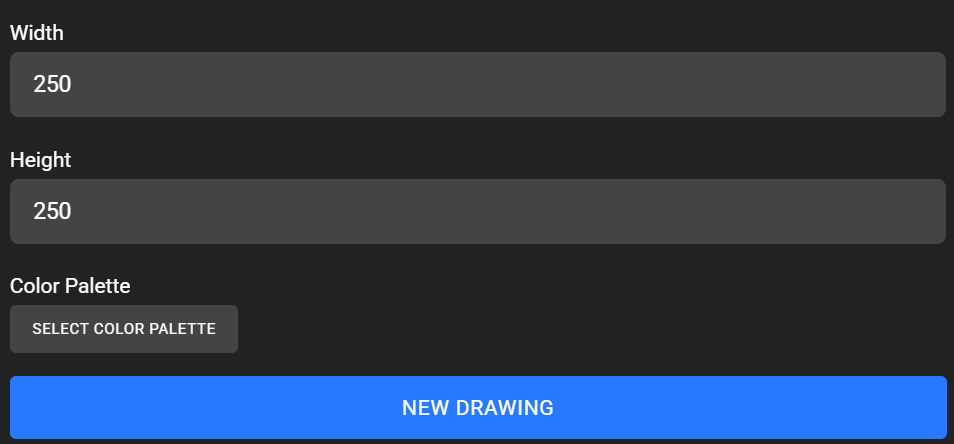
- FILE - NEW Canvas size 250x250
- Using stamps


- Searching “MARIO” | “CLOUDS” |“HOUSE” | ”CASTLE” | “BOWSER” | “PEACH” And selecting and moving it into place.
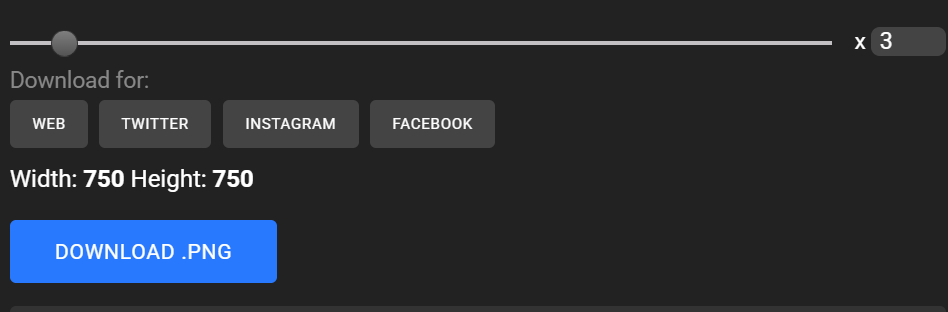
- If finished download x3 to students google drive file. or sometimes just on the top bar. Download .PNG


- If finished try thinking of a new game or scene from mario.
Check for understanding:
- Students complete the core workflow for the lesson.
- Students can explain at least one design choice or animation decision.
Extension: Create a second variation or extend the project with extra details if time allows.
Lesson 2 - Repeat and Refine the Scene
Goal: Repeat lesson 1.
Teacher prep:
- Prepare access to Pixilart, Google Drive, Sketchbook and any sample files needed for demonstration.
Steps:
- Repeat lesson 1
Check for understanding:
- Students complete the core workflow for the lesson.
- Students can explain at least one design choice or animation decision.
Extension: Try the same workflow again with a new idea, subject, or visual style.