Unit 20 - Year 3 Lessons
Overview
Students will organize their work in a portfolio slide deck and then prepare a QR-linked display for sharing.
Target skills:
- Information Organization
- Data Entry
- Digital Presentation
Tools:
- Pixilart
- Google Slides
- Google Drive
Outputs:
- Portfolio slide deck
- QR-linked display slide
Week 1 - Own Portfolio
Lesson 1 - Build a Portfolio Slide Deck
Goal: Go to google drive - students - Name students.
Teacher prep:
- Prepare access to Pixilart, Google Slides, Google Drive and any sample files needed for demonstration.
Steps:
- Go to google drive - students - Name students
- Create the google slides inside (+) Go to google drive - students - Name students Once in their folder
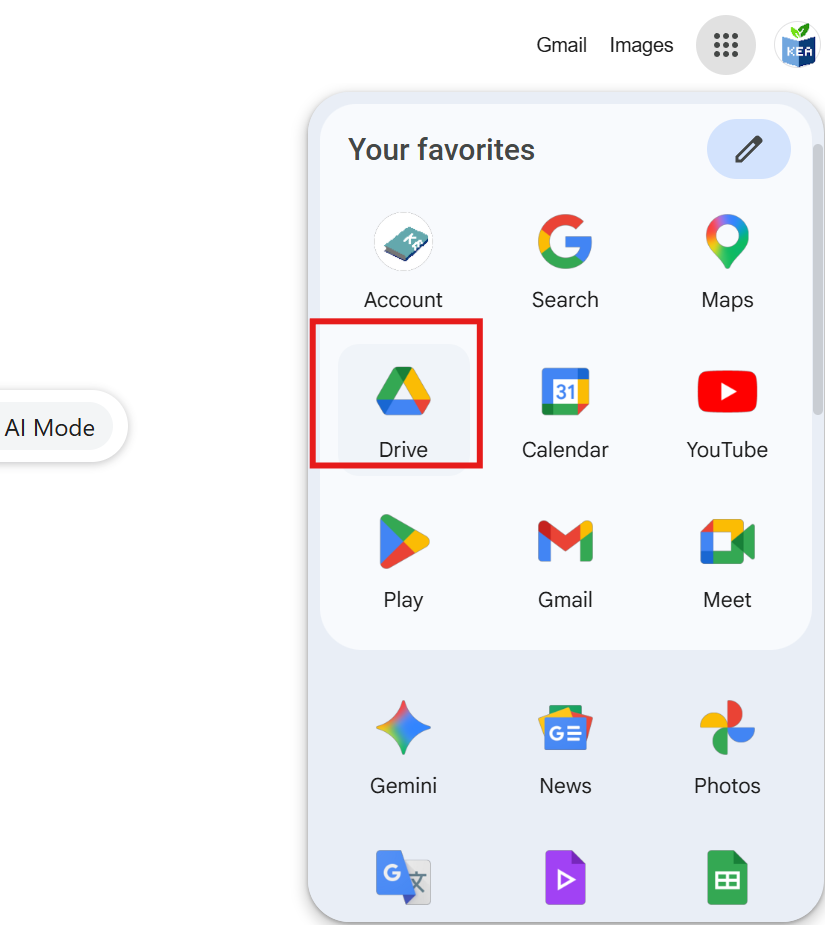

- Refer to the image example for this step.
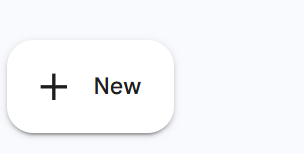
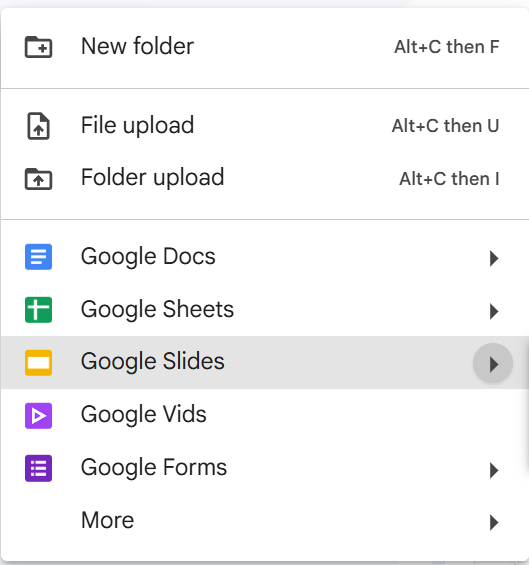
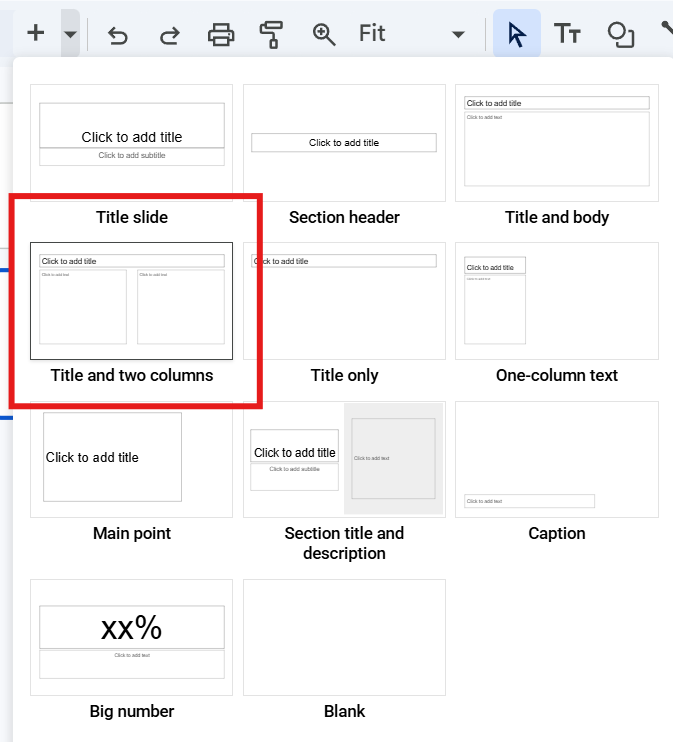
- Slide 1 ) Portfolio - Name Click the small triangle next to + And find the title and two columns option
- Refer to the image example for this step.
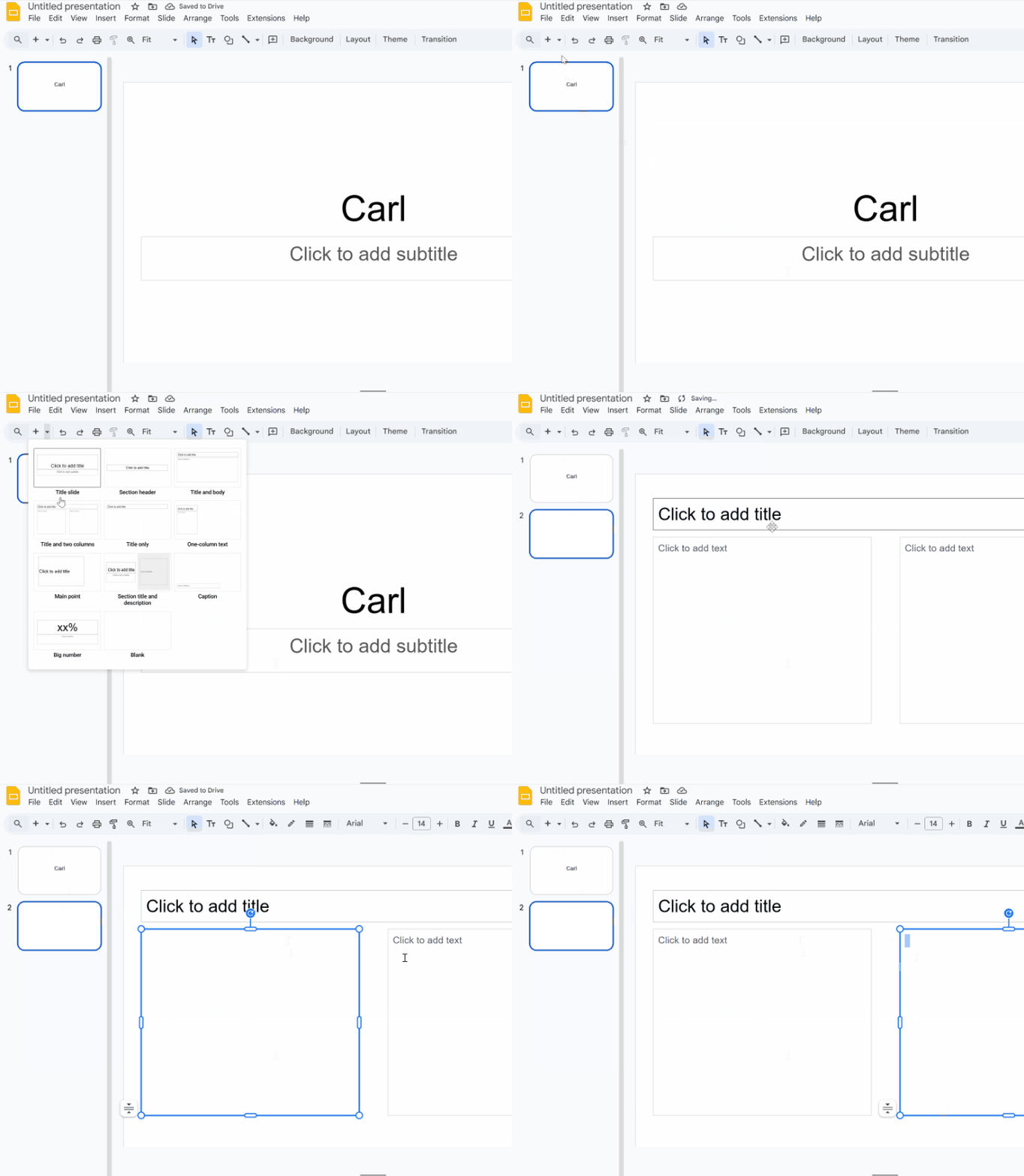
- Slide 2 ) etc) Each slide has 2 pictures/drawings they have done and named Adding pictures from google drive and directing to students file
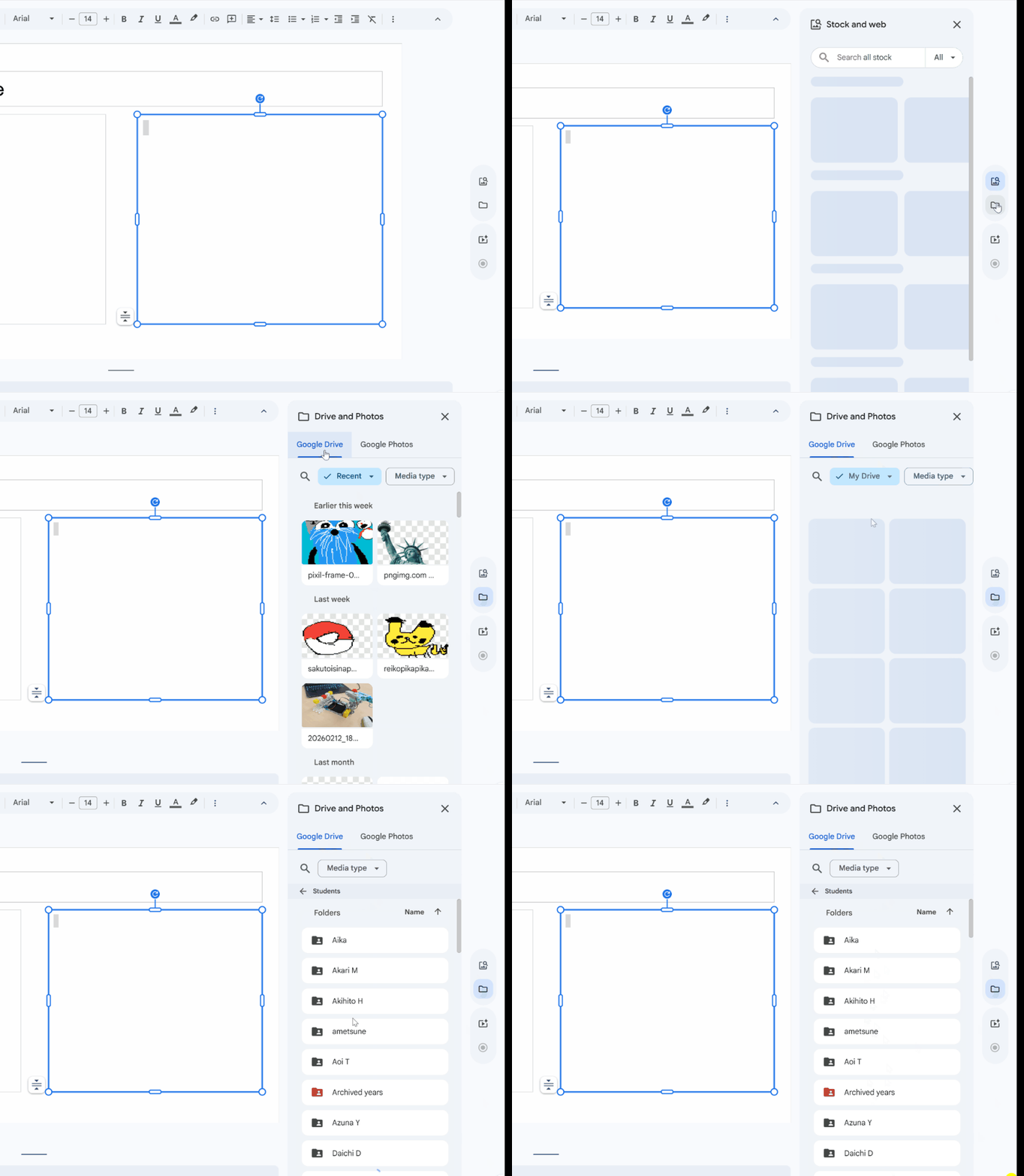
- Continue until all pictures/drawings
- *students who do not have enough pictures, works, they can draw new projects in the process, pixil art. Download go to the slide add to slide.
Check for understanding:
- Students organize information clearly in the document or sheet.
- Students save or share the file in the correct place.
Extension: Try the same workflow again with a new idea, subject, or visual style.
Lesson 2 - Continue the Portfolio
Goal: Continue repeat.
Teacher prep:
- Prepare access to Pixilart, Google Slides, Google Drive and any sample files needed for demonstration.
Steps:
- Continue repeat
Check for understanding:
- Students organize information clearly in the document or sheet.
- Students save or share the file in the correct place.
Extension: Try the same workflow again with a new idea, subject, or visual style.
Week 2 - QR Code Display
Lesson 1 - Create a QR Code Display
Goal: Create QR code for display outside that.
Teacher prep:
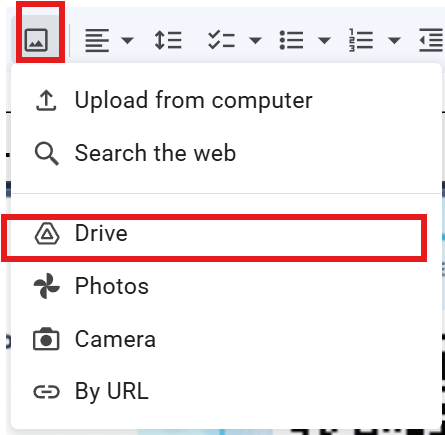
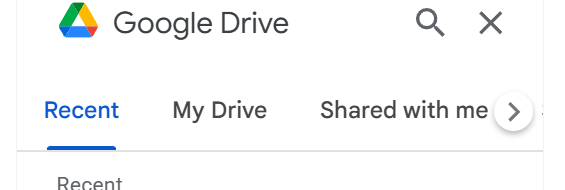
- TEACHER Open new google doc document after every one as done so Add the students qr from drive, most recents should be Select the qr code and resize where needed Might also need to name the qr codes below them.
Steps:
- Create QR code for display outside that
- Go to the file.
- Copy link
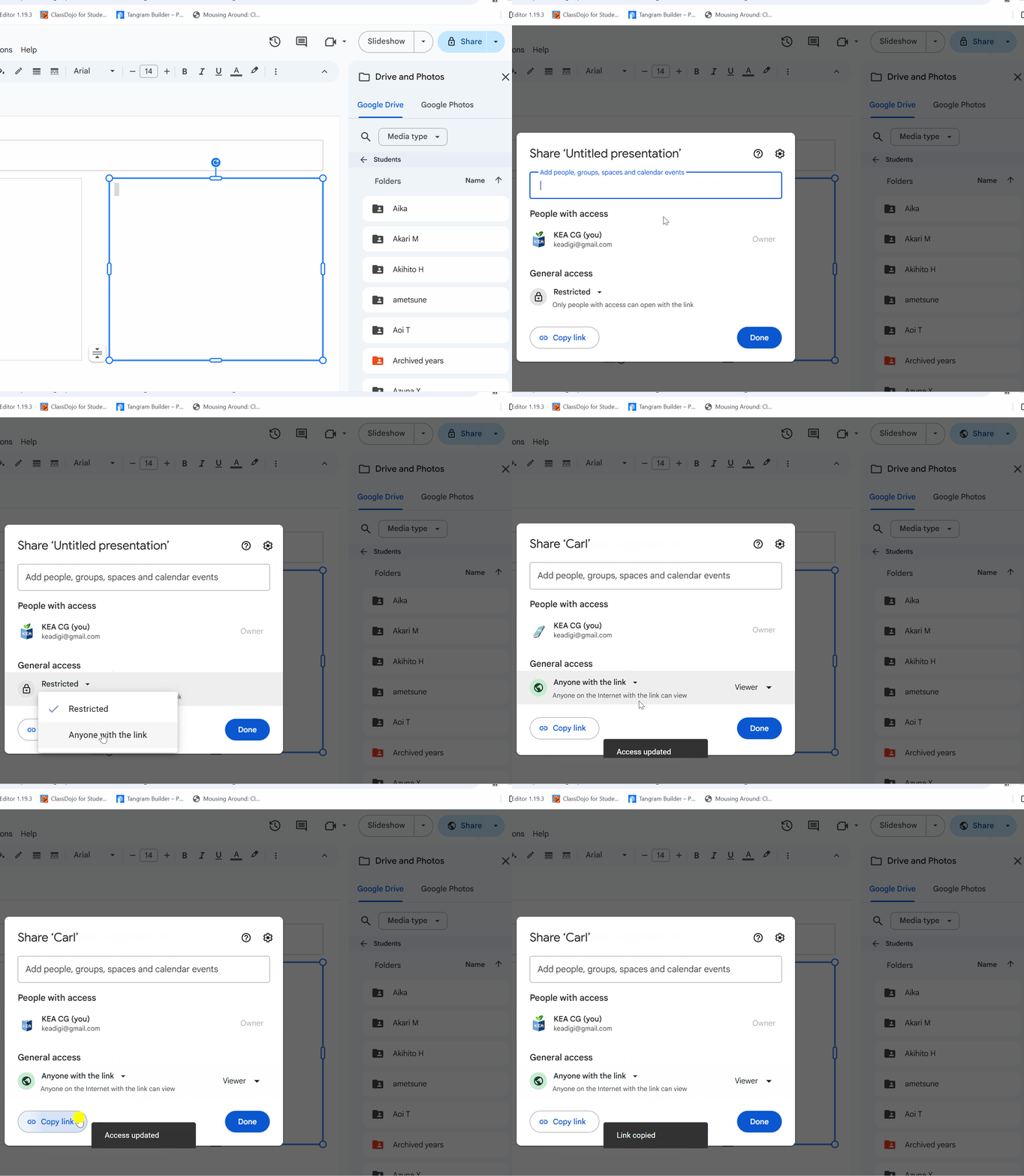
- Search qr generator - one of the first links should be fine Paste code it into the spot need CTRL + V Right click picture and save to student file
- Refer to the image example for this step.
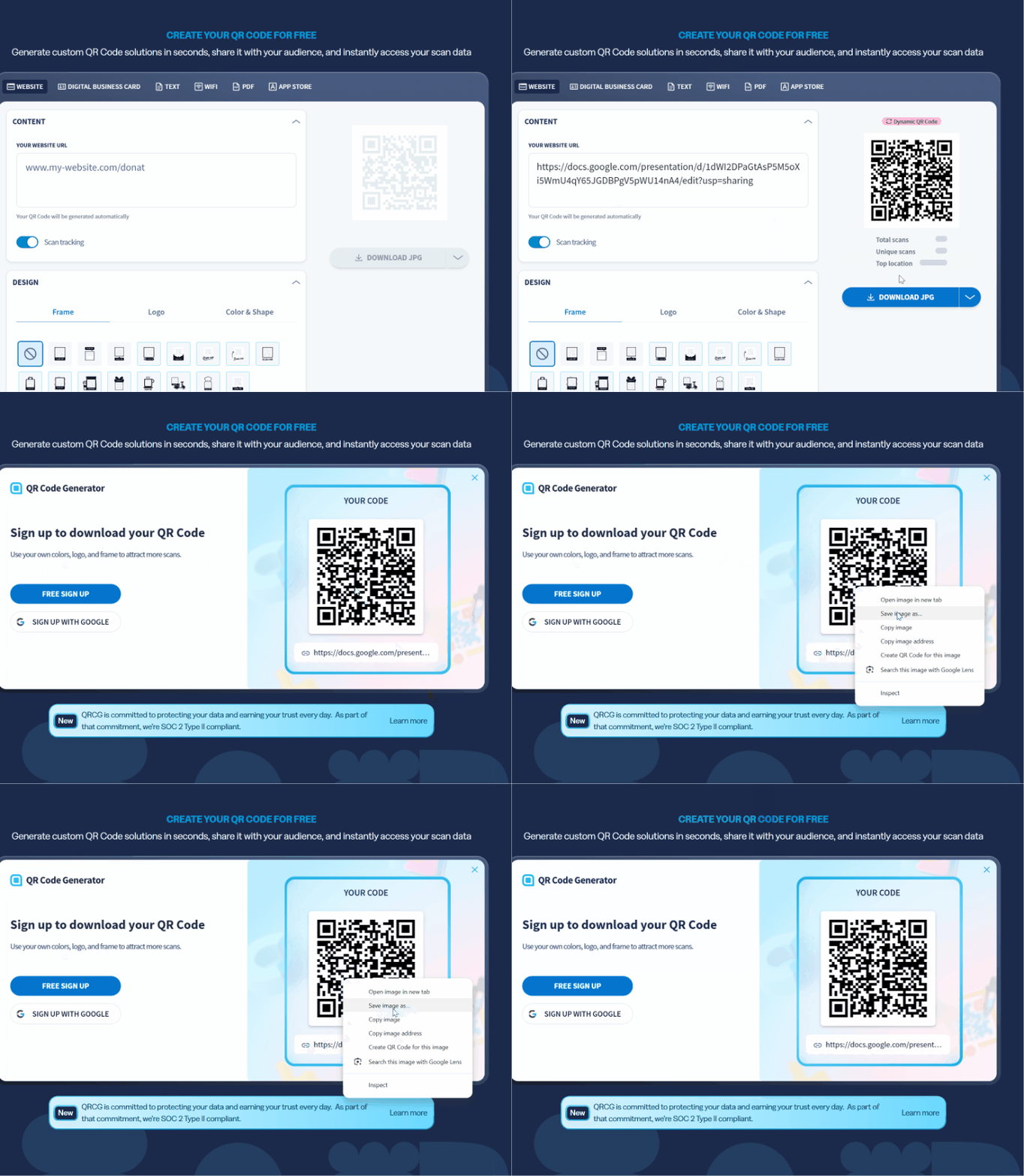
- TEACHER Open new google doc document after every one as done so Add the students qr from drive, most recents should be Select the qr code and resize where needed Might also need to name the qr codes below them.
Check for understanding:
- Students organize information clearly in the document or sheet.
- Students save or share the file in the correct place.
Extension: Create a second variation or extend the project with extra details if time allows.
Lesson 2 - Decorate and Finish
Goal: Additionally, students can also decorate slides.
Teacher prep:
- Prepare access to Pixilart, Google Slides, Google Drive and any sample files needed for demonstration.
Steps:
- Continue
- Additionally, students can also decorate slides.
Check for understanding:
- Students organize information clearly in the document or sheet.
- Students save or share the file in the correct place.
Extension: Try the same workflow again with a new idea, subject, or visual style.