Unit 21 - Year 3 Lessons
Overview
Students will draw full-body portraits from reference and create endless-runner-style art assets for a later unit.
Target skills:
- Observation Drawing
- Visual Communication
- Creative Iteration
Tools:
- Scratch
- Google Drive
- Sketchbook
Outputs:
- Full-body portrait drawing
- Endless runner art assets
Week 1 - Sketchbook Self Portrait
Lesson 1 - Draw a Full-Body Self Portrait
Goal: Using Sketchbook application.
Teacher prep:
- The students could try taking a picture and posing for the camera for the drawing to be referenced on. - take a picture would require help from students or teacher.
Steps:
- Using Sketchbook application
- Refer to the image example for this step.
- Try to draw the whole body.
- Use a webcam to have students see themselves entirely.
- Drawing face, body, clothes etc
- The students could try taking a picture and posing for the camera for the drawing to be referenced on. - take a picture would require help from students or teacher.
- Open sketchbook - clear or make a new sketch paper
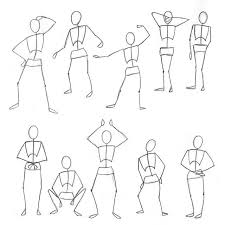
- Begin by outlining the pose using this reference Drawing a simple stick figure of the students pose first
- Change to a new layer to draw on top of the pose drawing.
- Start by drawing in the cloths etc first then the face
Check for understanding:
- Students complete the core workflow for the lesson.
- Students can explain at least one design choice or animation decision.
Extension: Create a second variation or extend the project with extra details if time allows.
Lesson 2 - Draw a Teacher or Friend Pose
Goal: Draw friends, teachers 1) take a picture of the teachers/ students pose 2) and begin by using the same method as lesson 1 by using the reference to map out the pose.
Teacher prep:
- Draw friends, teachers 1) take a picture of the teachers/ students pose 2) and begin by using the same method as lesson 1 by using the reference to map out the pose
Steps:
- Draw friends, teachers 1) take a picture of the teachers/ students pose 2) and begin by using the same method as lesson 1 by using the reference to map out the pose
Check for understanding:
- Students complete the core workflow for the lesson.
- Students can explain at least one design choice or animation decision.
Extension: Create a second variation or extend the project with extra details if time allows.
Week 2 - Endless Runner Game Art
Lesson 1 - Draw Endless Runner Assets
Goal: Drawing endless runner - scenery --save it (will use it in Unit 22).
Teacher prep:
- Uploading Go to google drive - students and find the drawings we have done IF students have not drawn something they may use teachers' drawings.
- To google drive students folder *** Teachers also save to the main folder for students that need to catch up.
Steps:
- Drawing endless runner - scenery --save it (will use it in Unit 22)
- Canvas 64x64
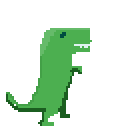
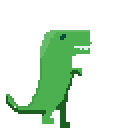
- Drawing a simple character - Two frames for quick running animation DOWNLOAD x5 to students folder
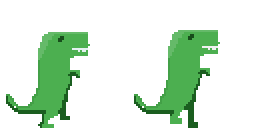
- CLEAR canvas
- Drawing an object to jump over, cactus, box, building, another dinosaur, anything within reason. Making 3 variants DOWNLOAD x5 to students folder
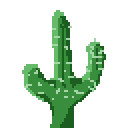
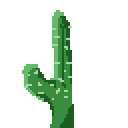
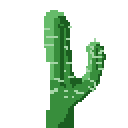
- CLEAR canvas Draw a bird Two frames again fly the opposite of the dinosaur DOWNLOAD x5 to students folder
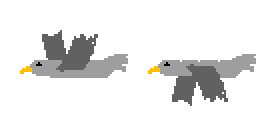
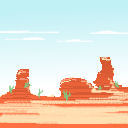
- NEW CANVAS Drawing the background of the game., so think together what the background could be. And no “ground” just background. Like mountains, sunny day clouds etc DOWNLOAD x 5 to Students folder
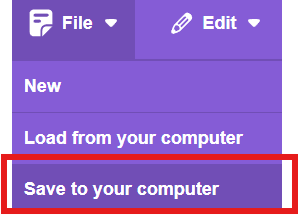
- How to Make an Endless Runner Game in Scratch (Part 1) UPLOADING TO SCRATCH
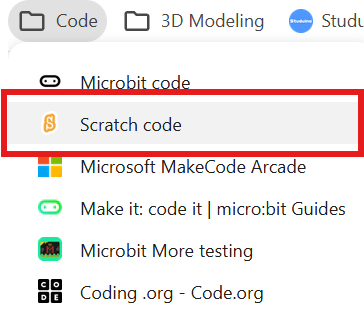
- Open scratch
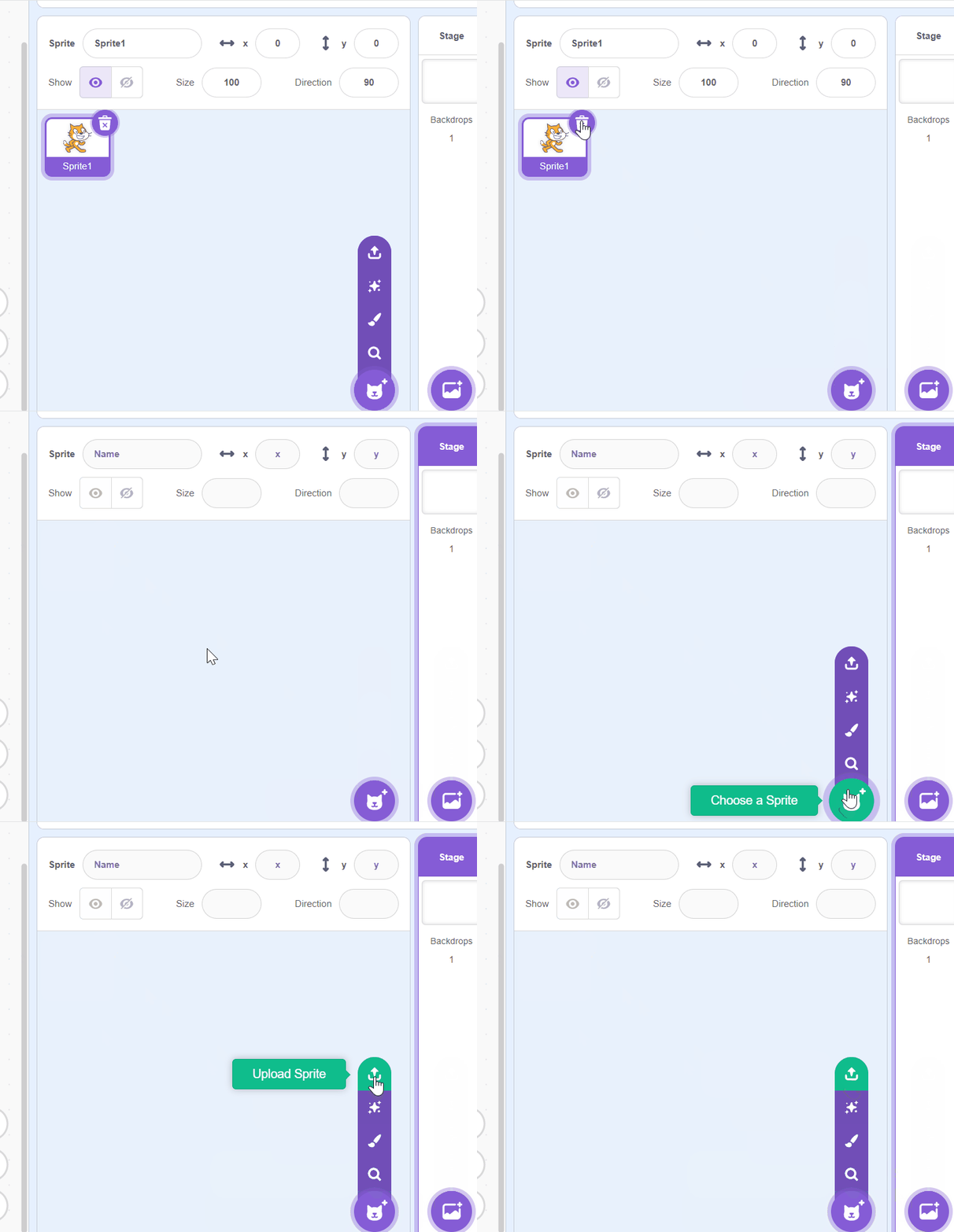
- Uploading Go to google drive - students and find the drawings we have done IF students have not drawn something they may use teachers' drawings.
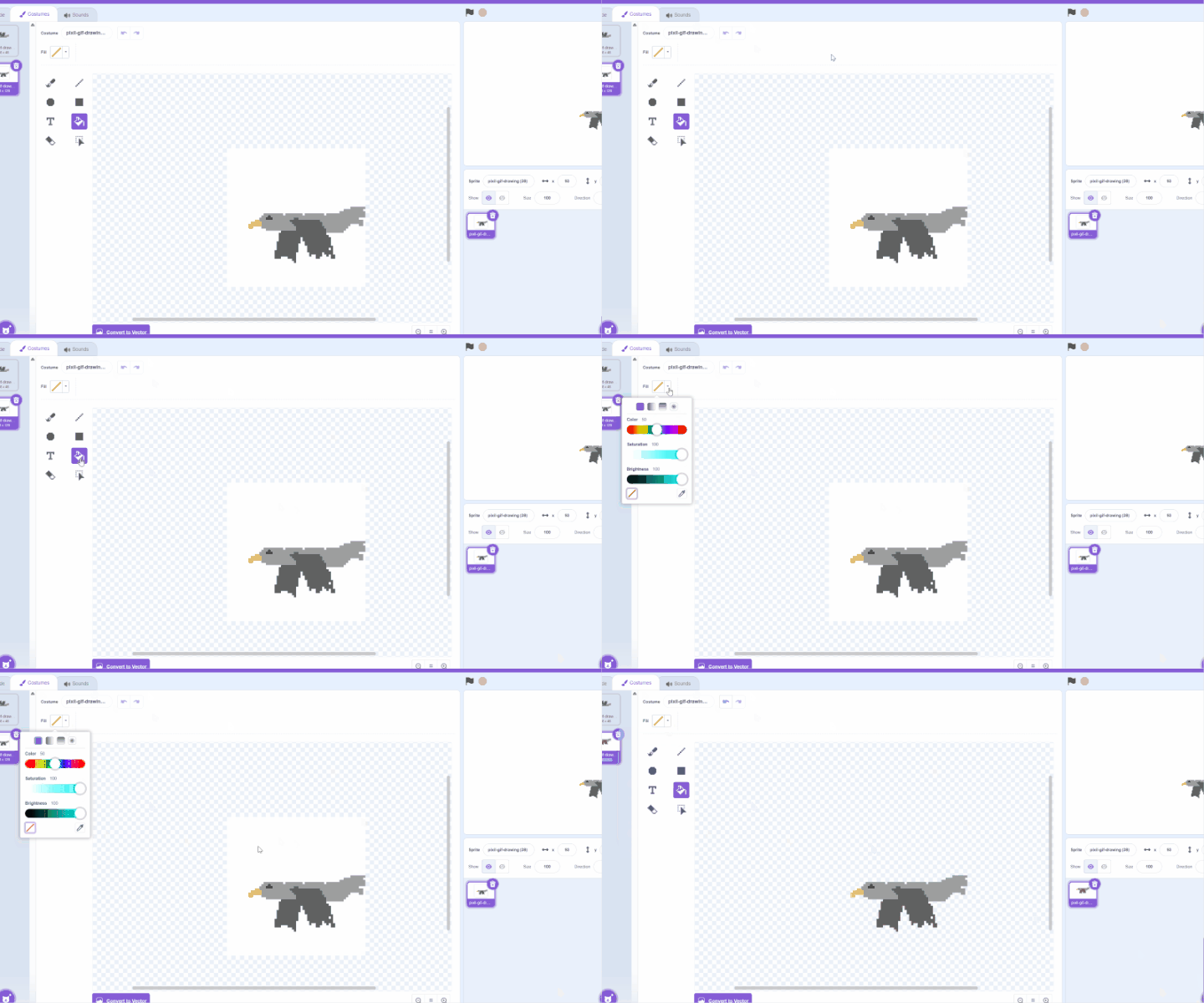
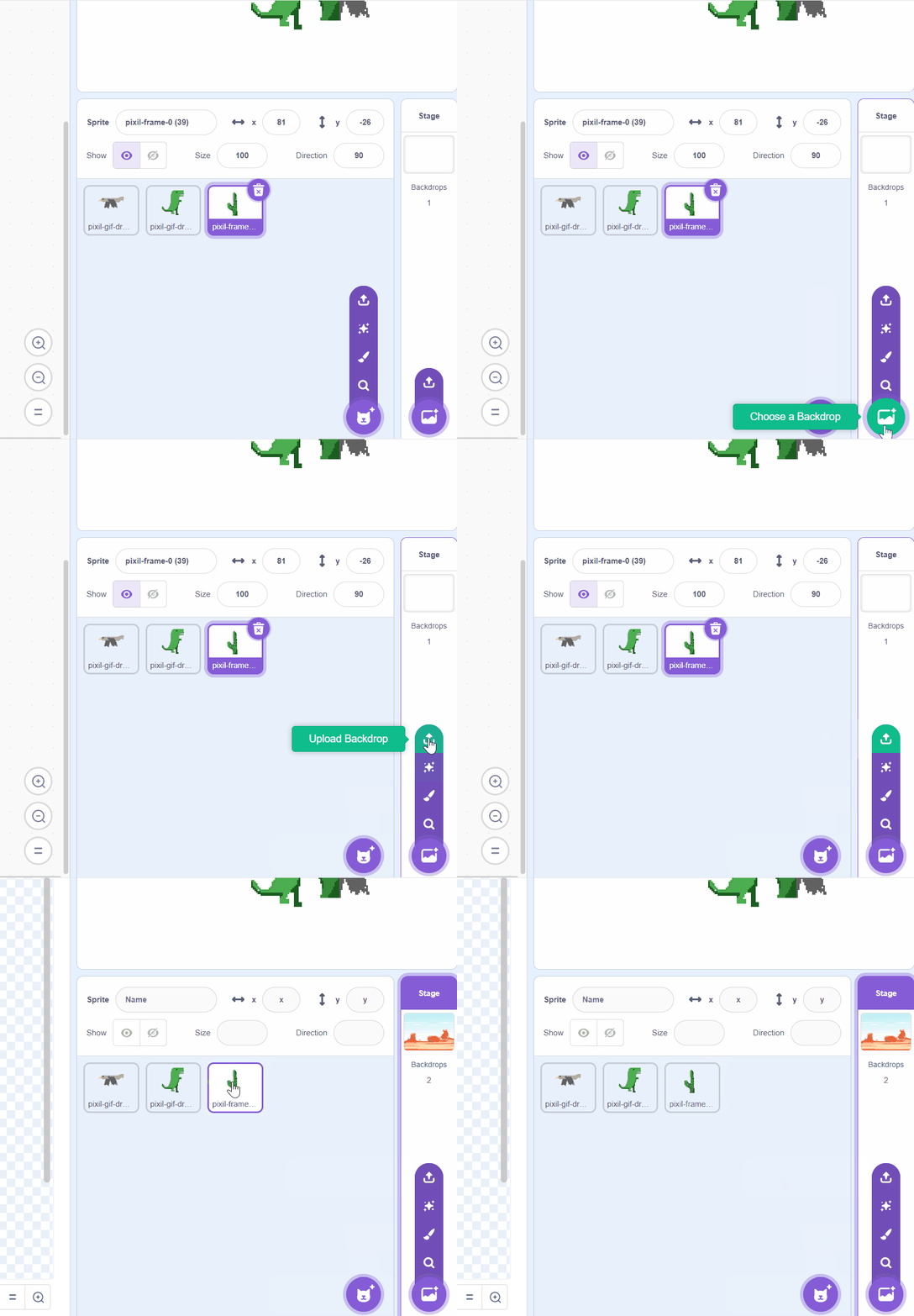
- Once characters are uploaded lets edit them to make sure they have no additional colors like a white box around them, Click on character > costume tab> click bucket >fill = no color> click the area with white Repeat this for ALL CHARACTERS
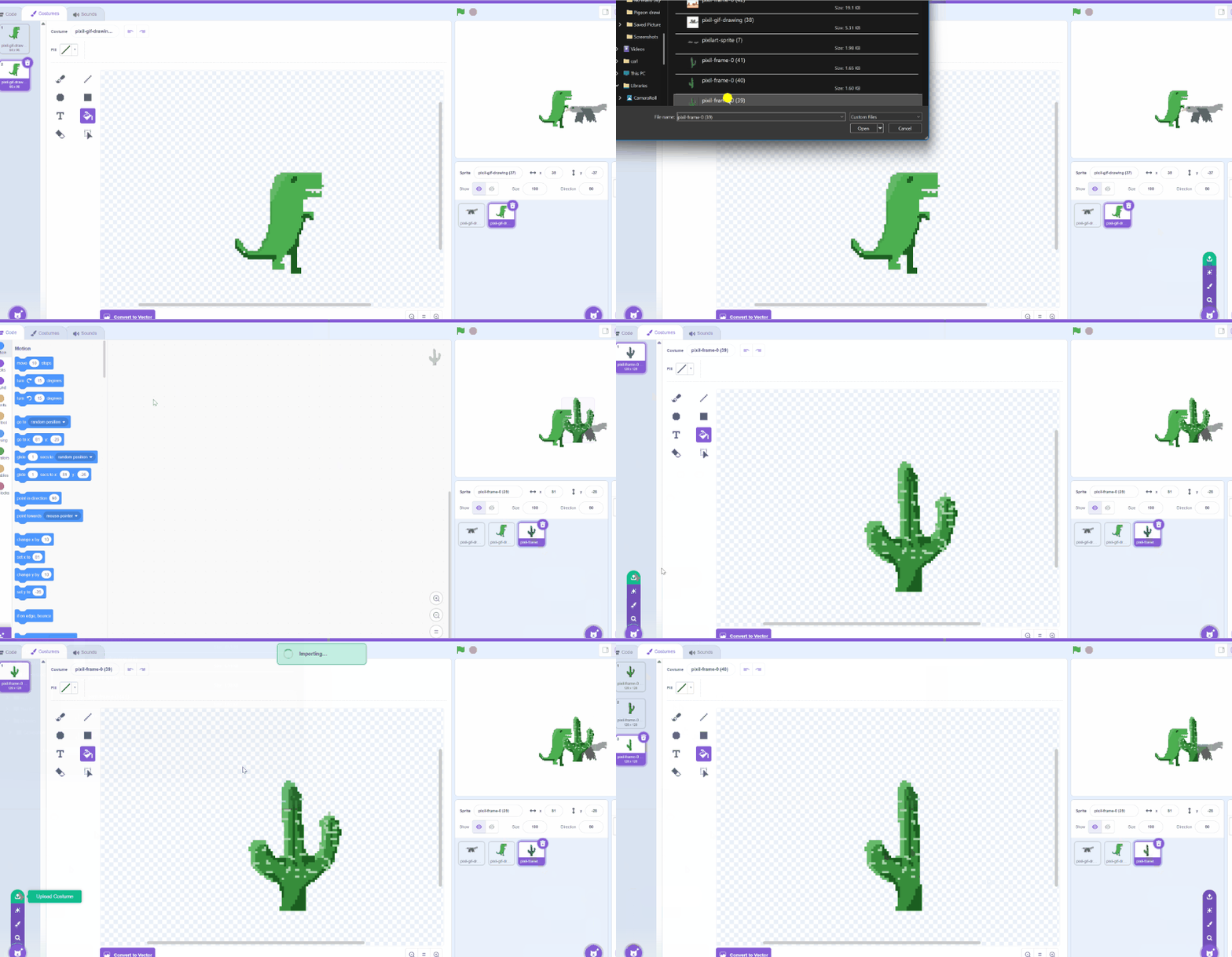
- For uploading multiple designs like the cactus, Upload one first and then add the rest through costumes.
- Upload BACKGROUND
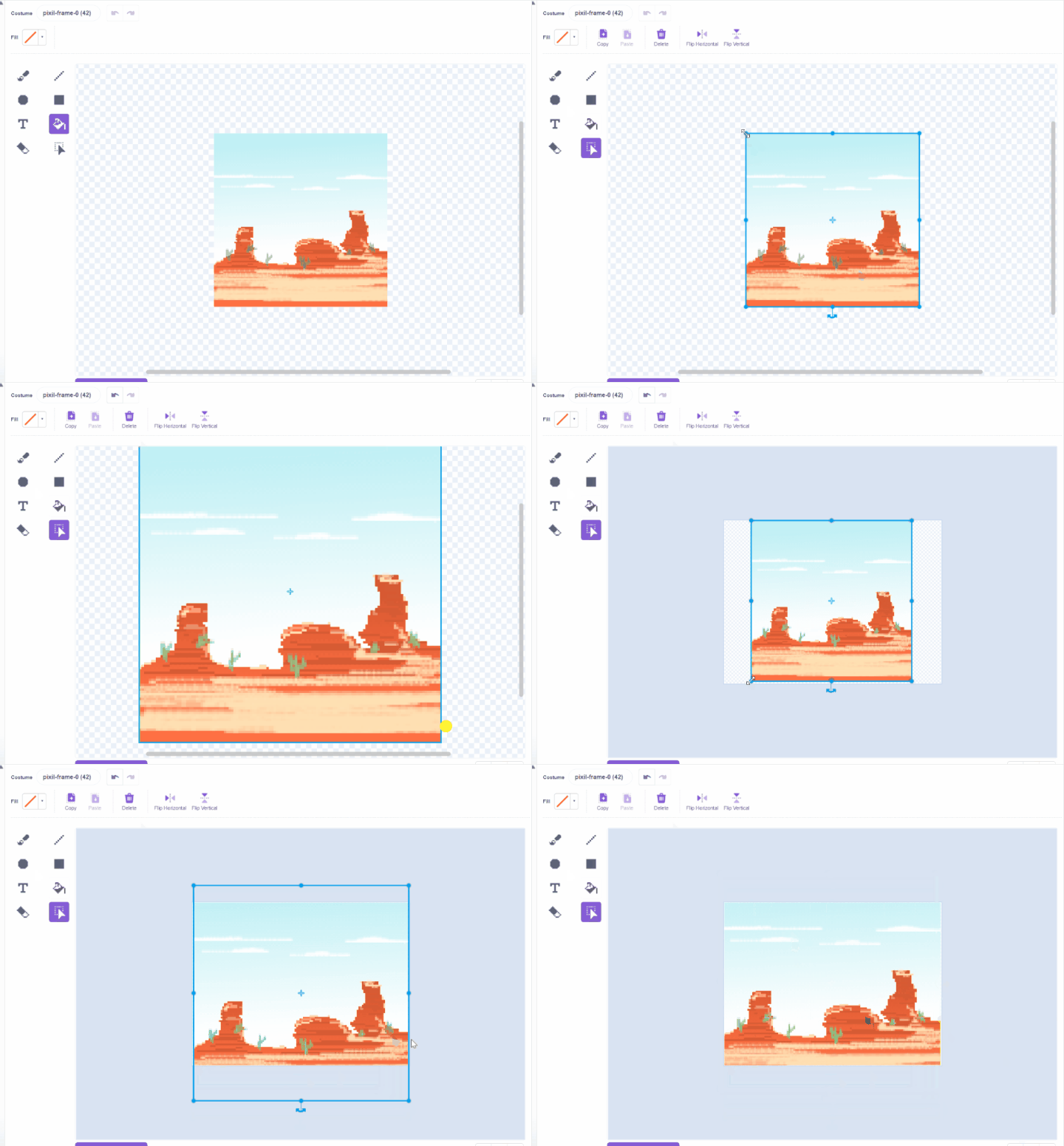
- Change size Click and select all of the background Use the mouse wheel or the pinch to see all of the scene Make the background as big as the scene.
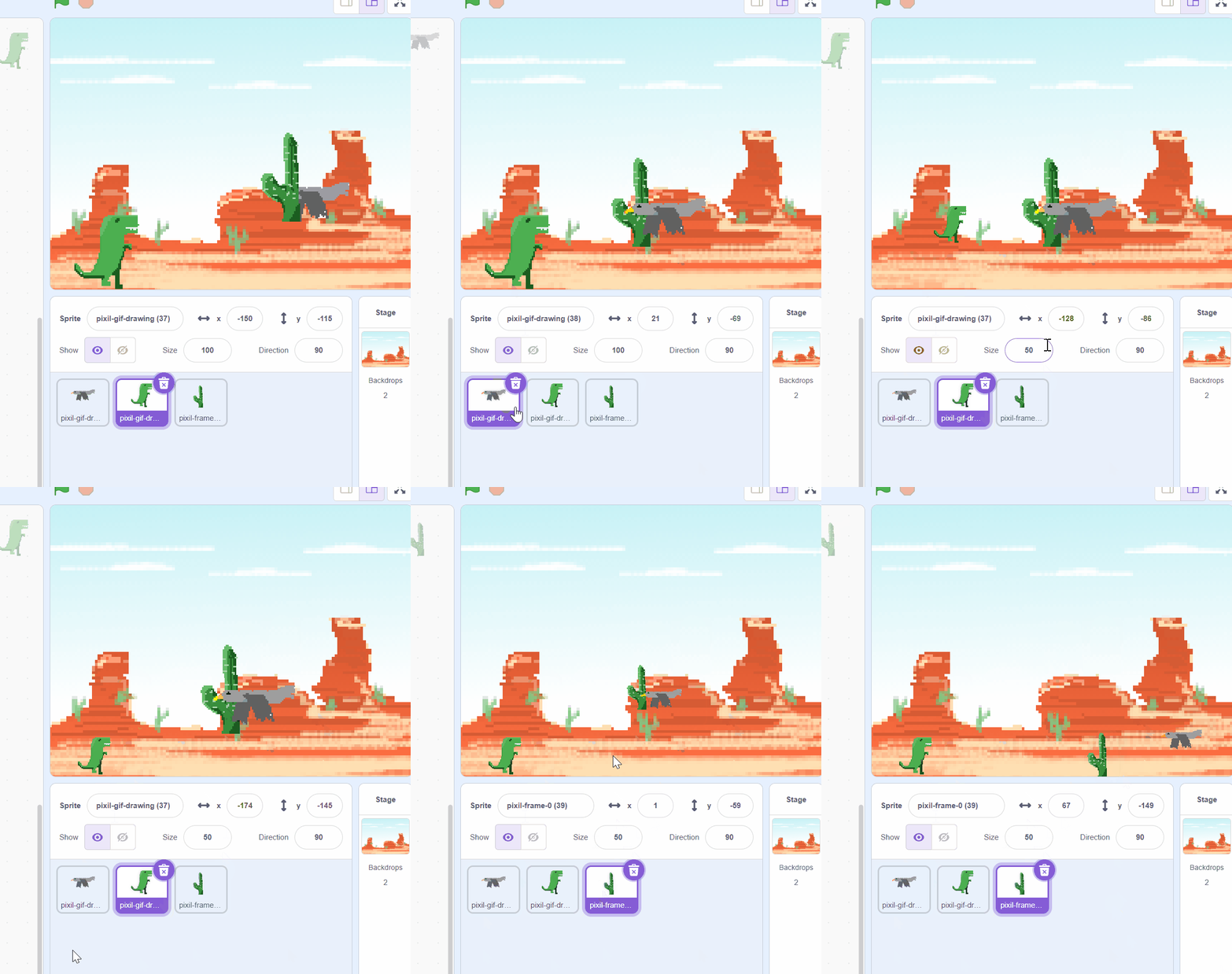
- Adjust size and position Click the correct character and moving it by clicking it in the scene Change the size in the options
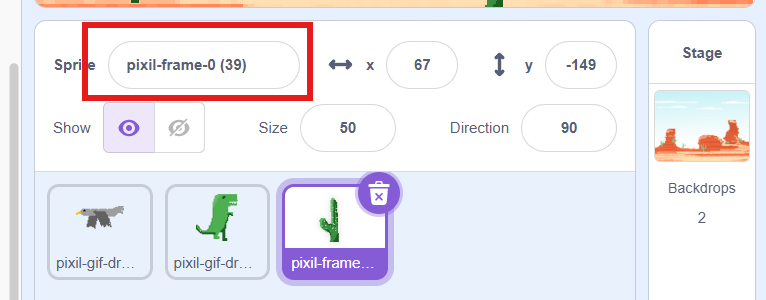
- Change name here to be correct if not named when saved
- To google drive students folder *** Teachers also save to the main folder for students that need to catch up.
Check for understanding:
- Students complete the core workflow for the lesson.
- Students can explain at least one design choice or animation decision.
Extension: Try the same workflow again with a new idea, subject, or visual style.
Lesson 2 - Finish and Extend the Art
Goal: Repeat previous lesson until finished. Is finished students may play class dojo.
Teacher prep:
- Prepare access to Scratch, Google Drive, Sketchbook and any sample files needed for demonstration.
Steps:
- Repeat previous lesson until finished. Is finished students may play class dojo.
Check for understanding:
- Students complete the core workflow for the lesson.
- Students can explain at least one design choice or animation decision.
Extension: Try the same workflow again with a new idea, subject, or visual style.