Unit 14 - Year 2 Lessons
Overview
Students will build simple parallax scenes in pixel art and then recreate layered movement in Wick Editor.
Target skills:
- Animation Planning
- Frame Sequencing
- Creative Problem Solving
Tools:
- Pixilart
- Wick Editor
- Google Drive
Outputs:
- Parallax pixel-art scene
- Wick Editor parallax animation
Week 1 - Parallax Pixel Art
Lesson 1 - Build a Train Parallax Scene
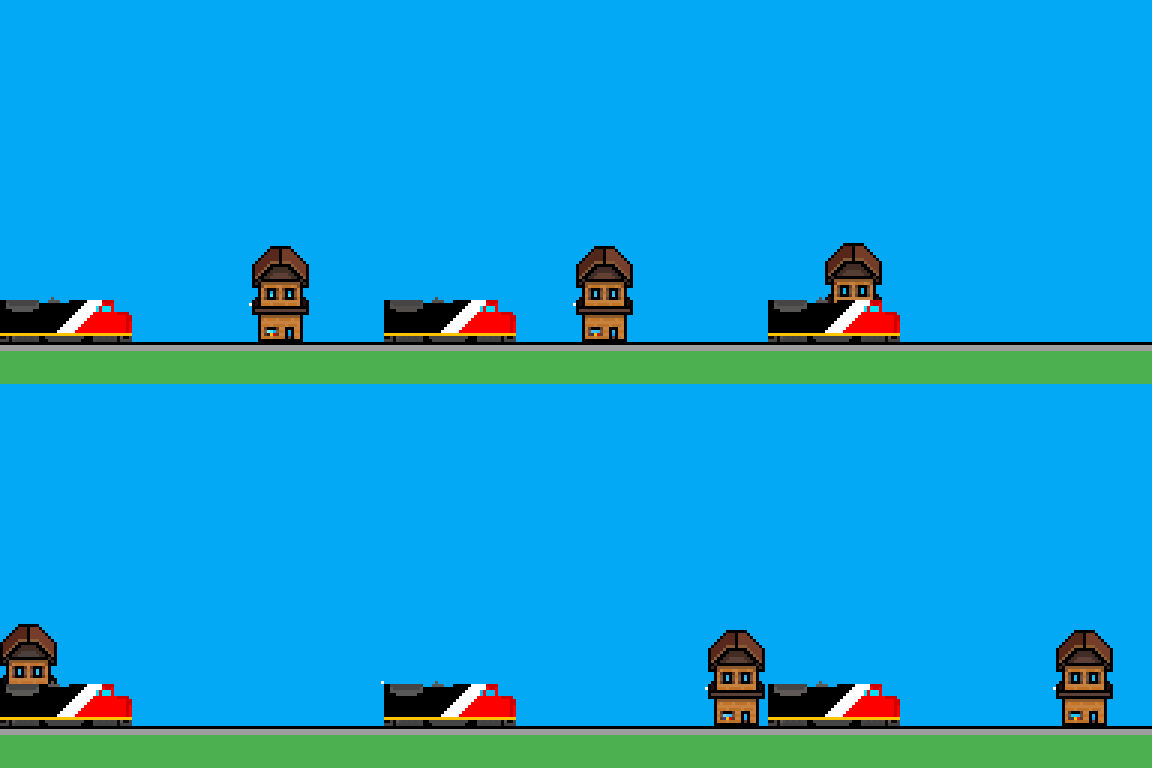
Goal: TRAIN parallax.
Teacher prep:
- Prepare access to Pixilart, Wick Editor, Google Drive and any sample files needed for demonstration.
Steps:
- TRAIN parallax
- Canvas size 100x100
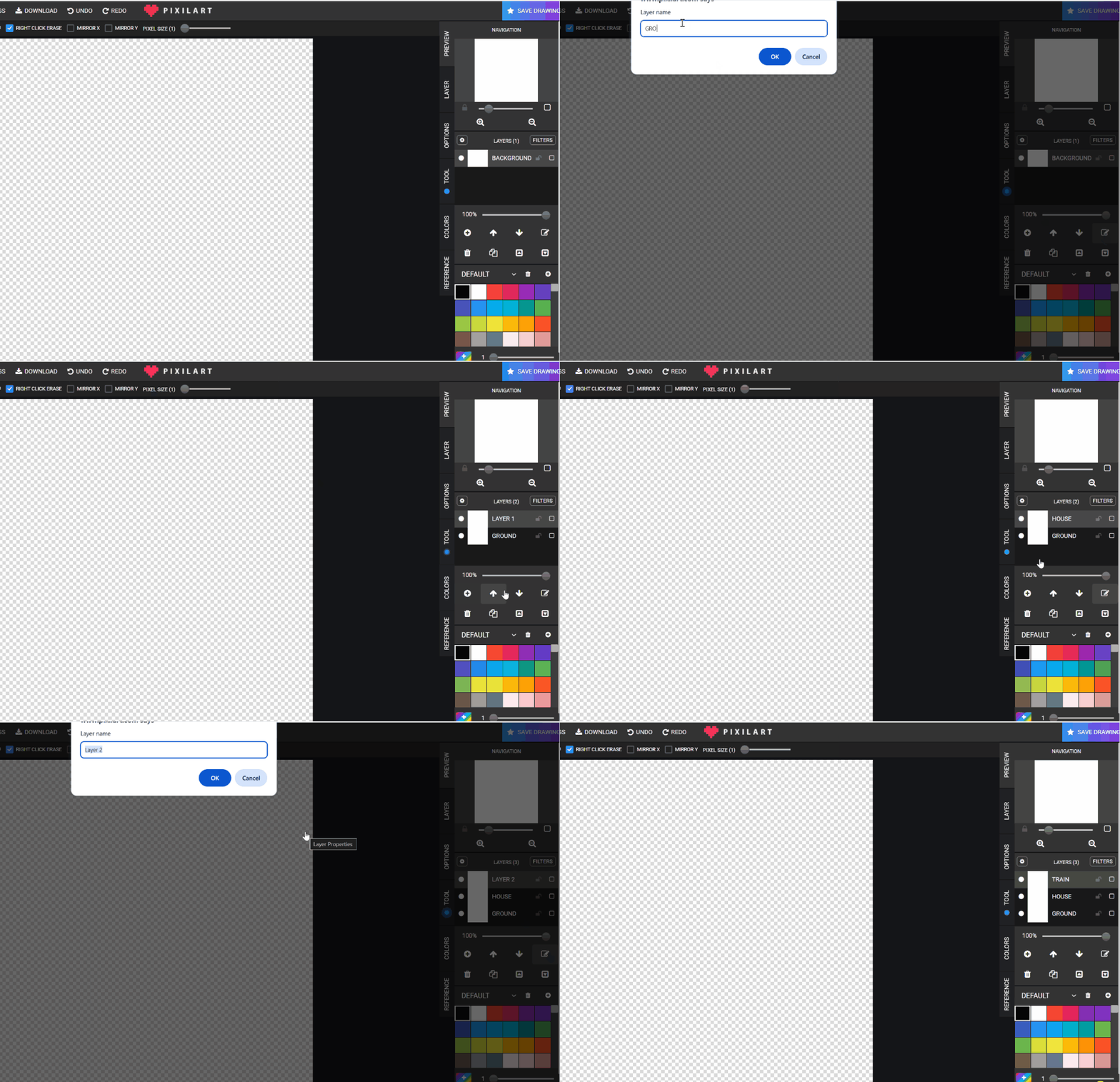
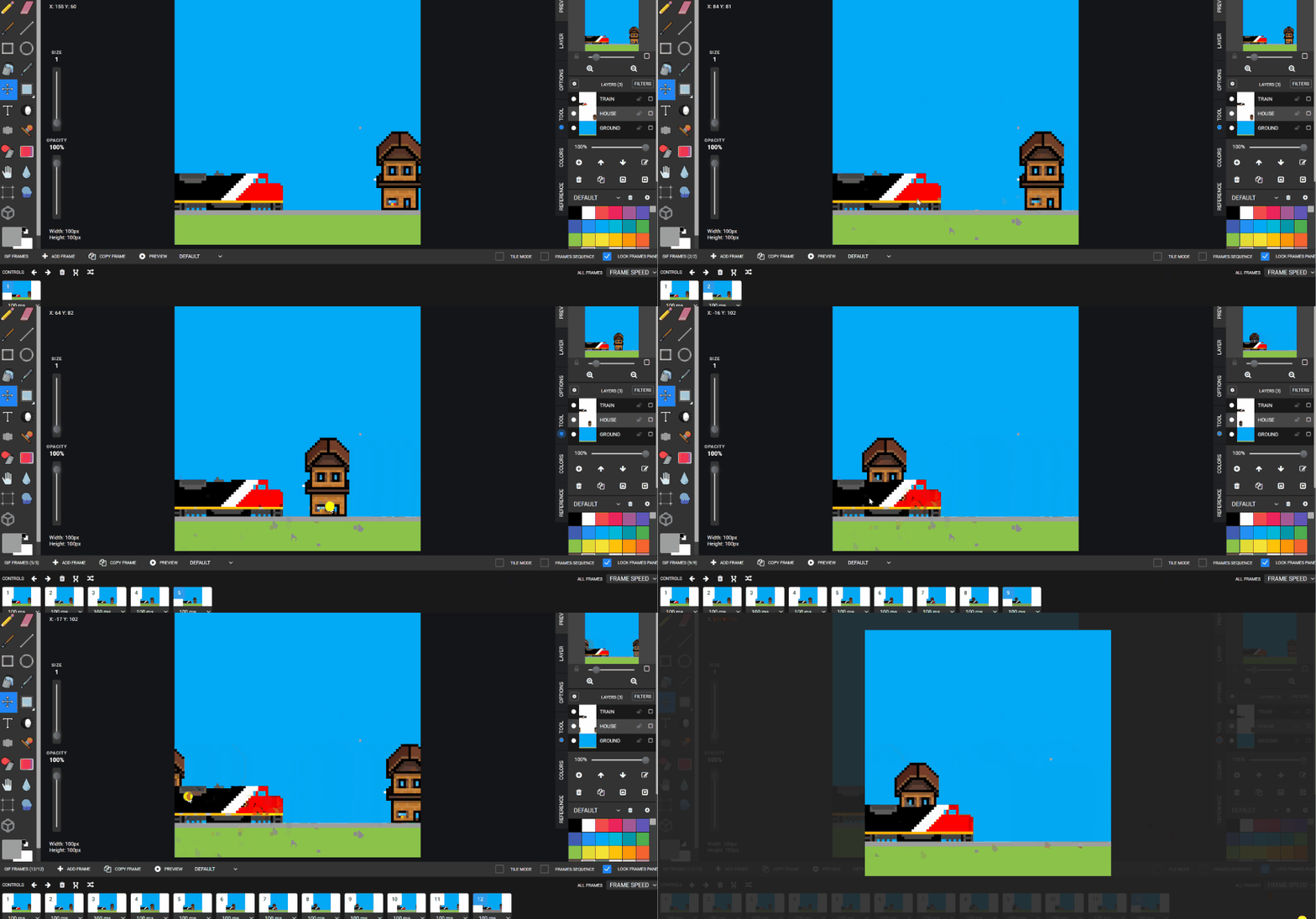
- Make and rename the layers - train - House - ground
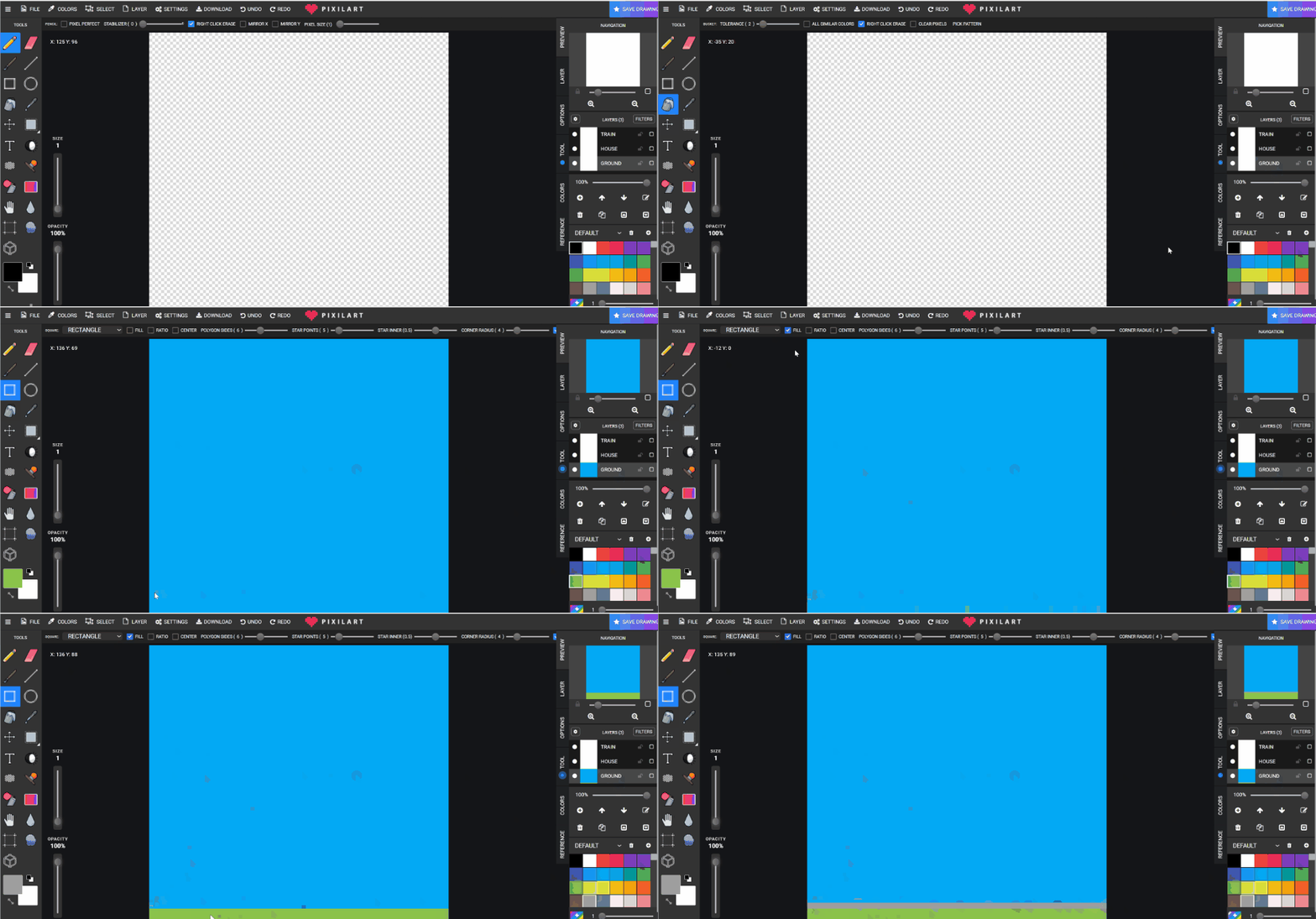
- CLICK on GROUND layer - bucket fill for sky - SQUARE TOOL - with FILL ON - Green for the ground click and pull to make a the ground from one side to other - Grey for the TRAIN tracks

- CLICK on HOUSE layer - go to stamps - Search HOUSE -click on a house
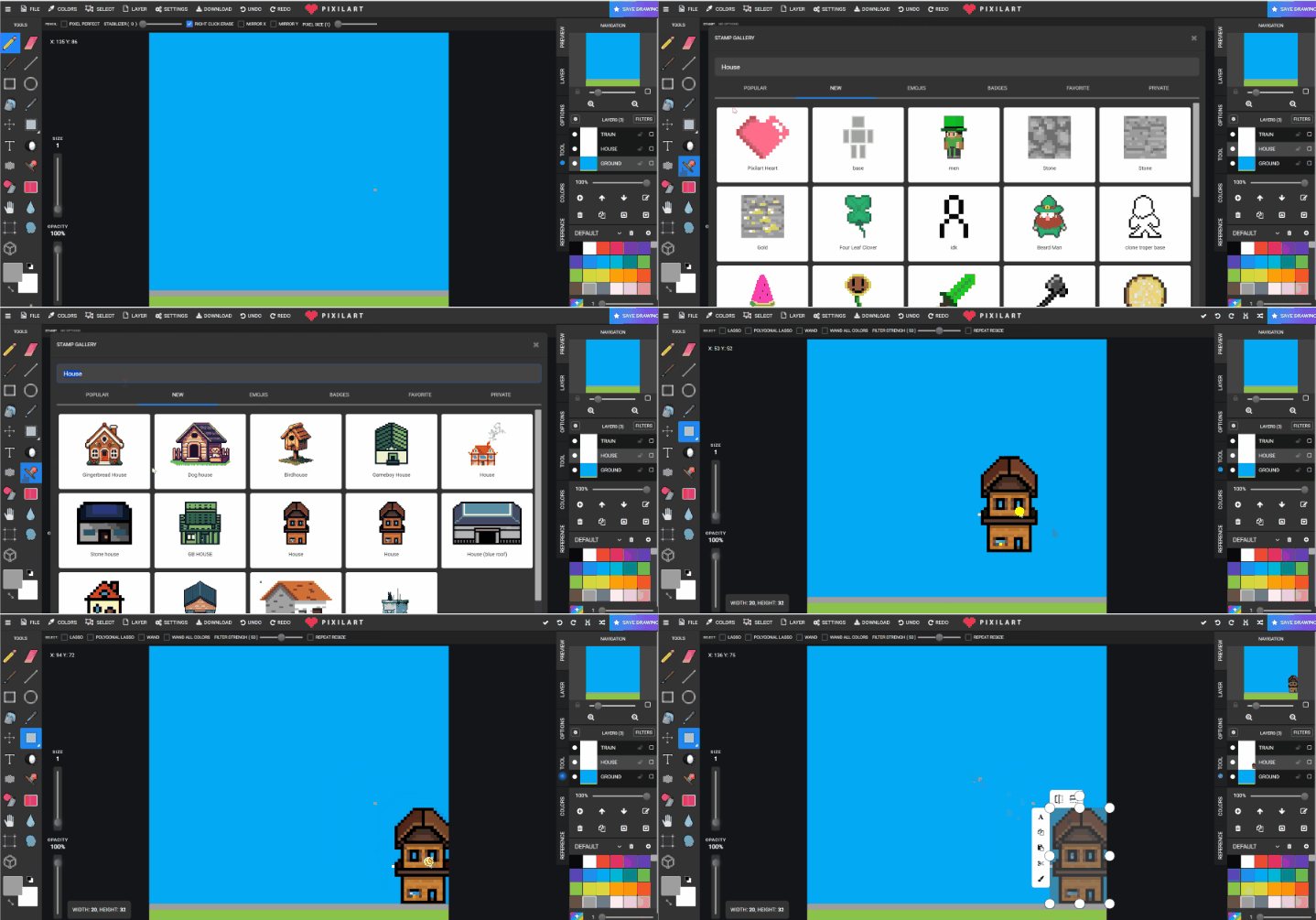
- CLICK on TRAIN layer - Go to stamps - Search TRAINS - Move the train on to the “tracks”
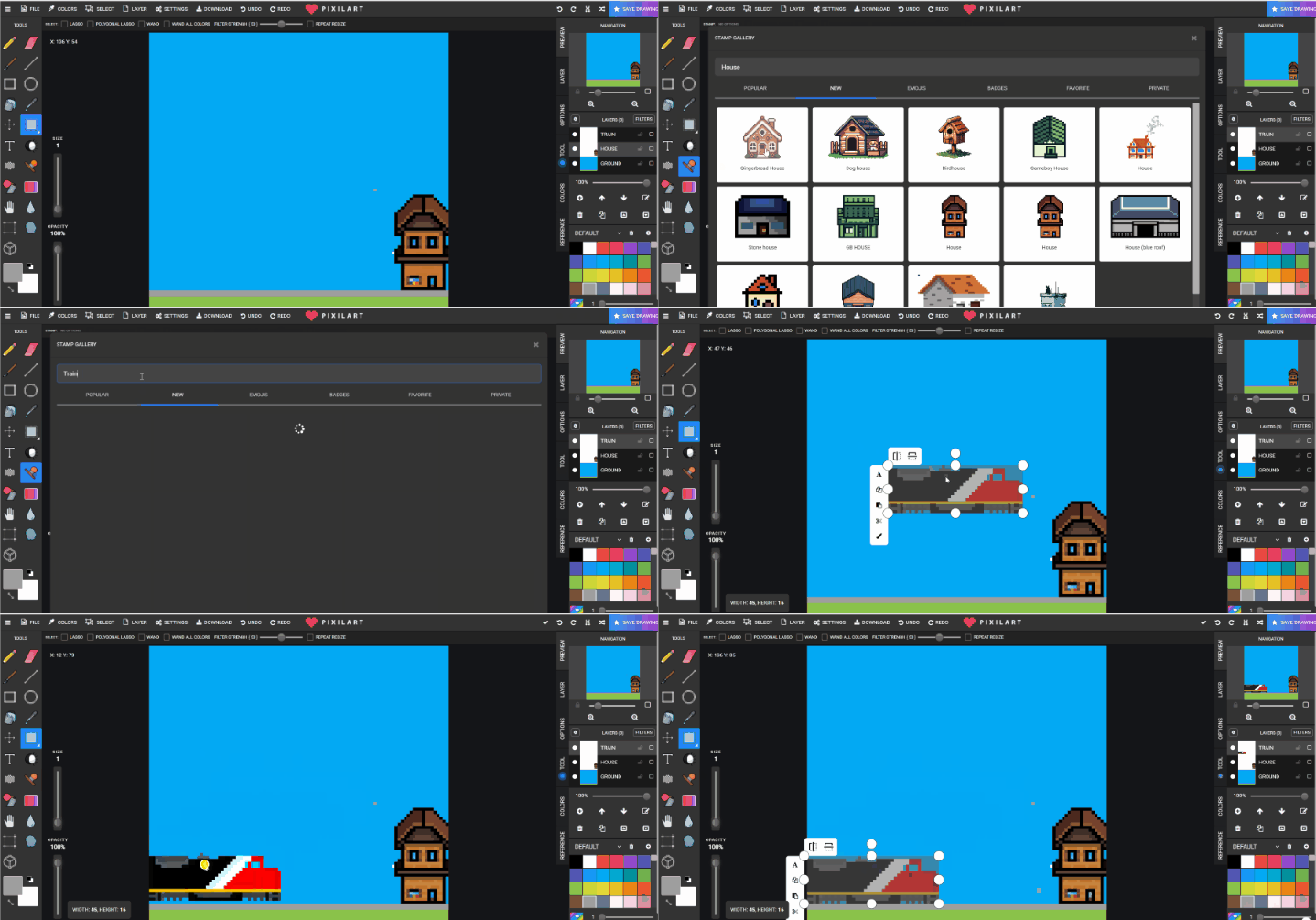
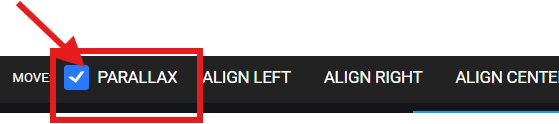
- Go to HOUSE layer - Using MOVE TOOL - Turn on PARALLAX

- Turn LOCK FRAMES PANEL on
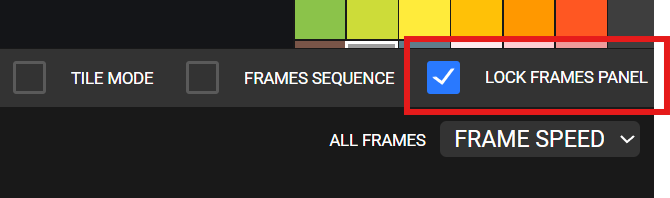
- COPY FRAME

- Move the house to the left about half of the house size. REPEAT this step until at the other side.
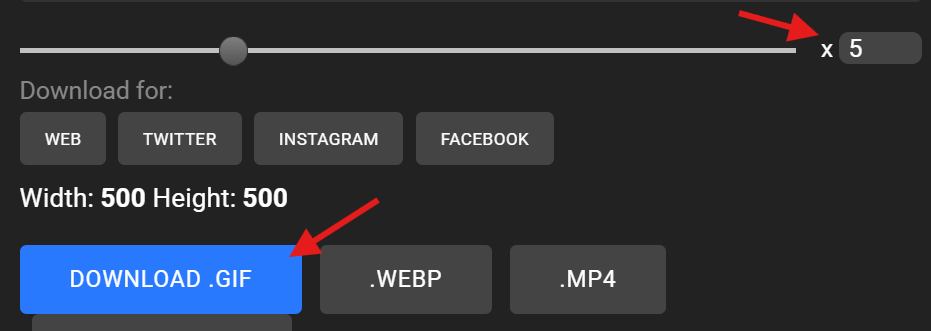
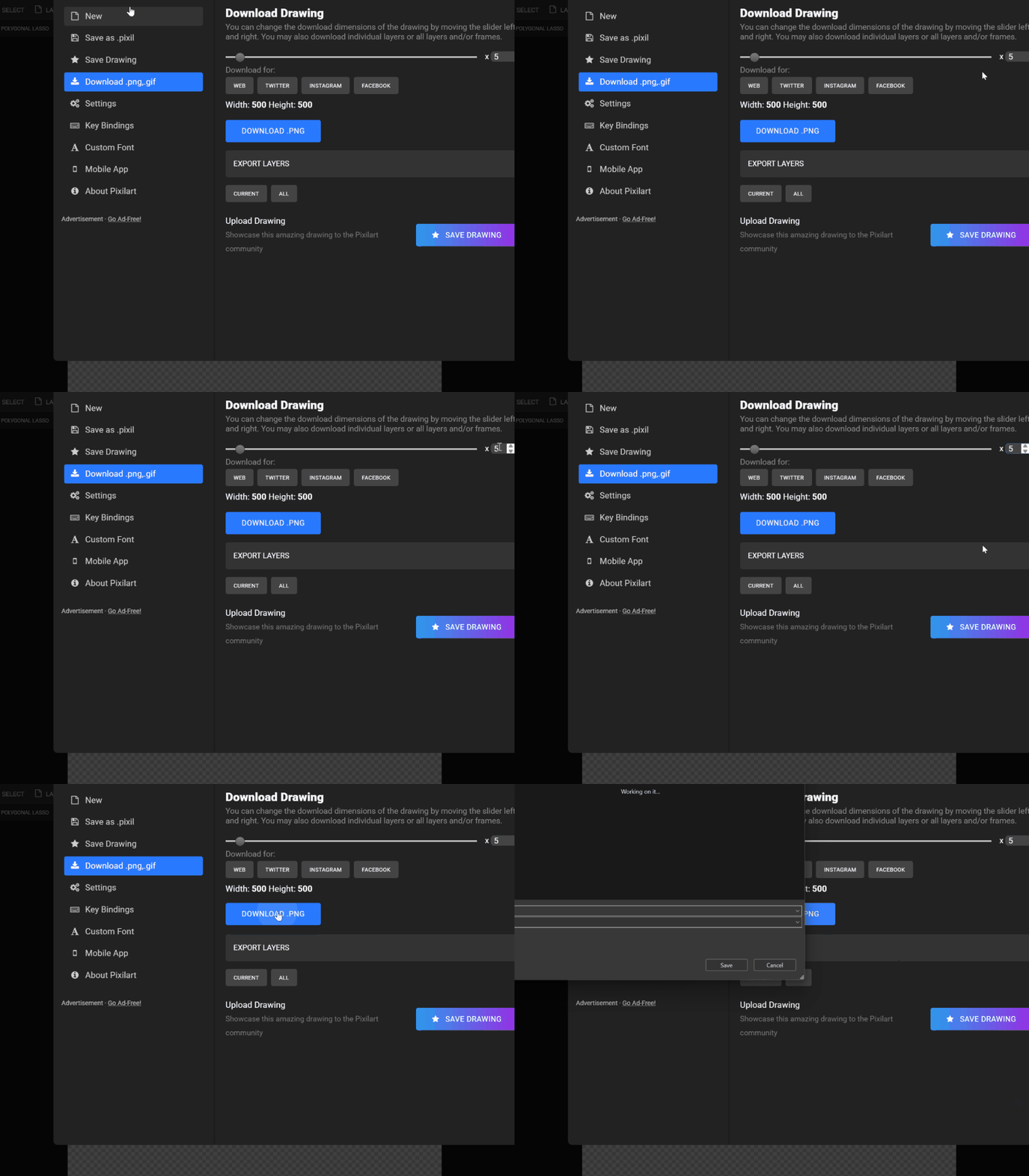
- Finished DOWNLOAD - x5 -DOWNLOAD .GIF
-
- GO to GOOGLE DRIVE - STUDENTS - STUDENTS NAME - TRAIN.GIF
- GO to GOOGLE DRIVE - STUDENTS - STUDENTS NAME - TRAIN.GIF
- Other ideas
- Flowers +bugs
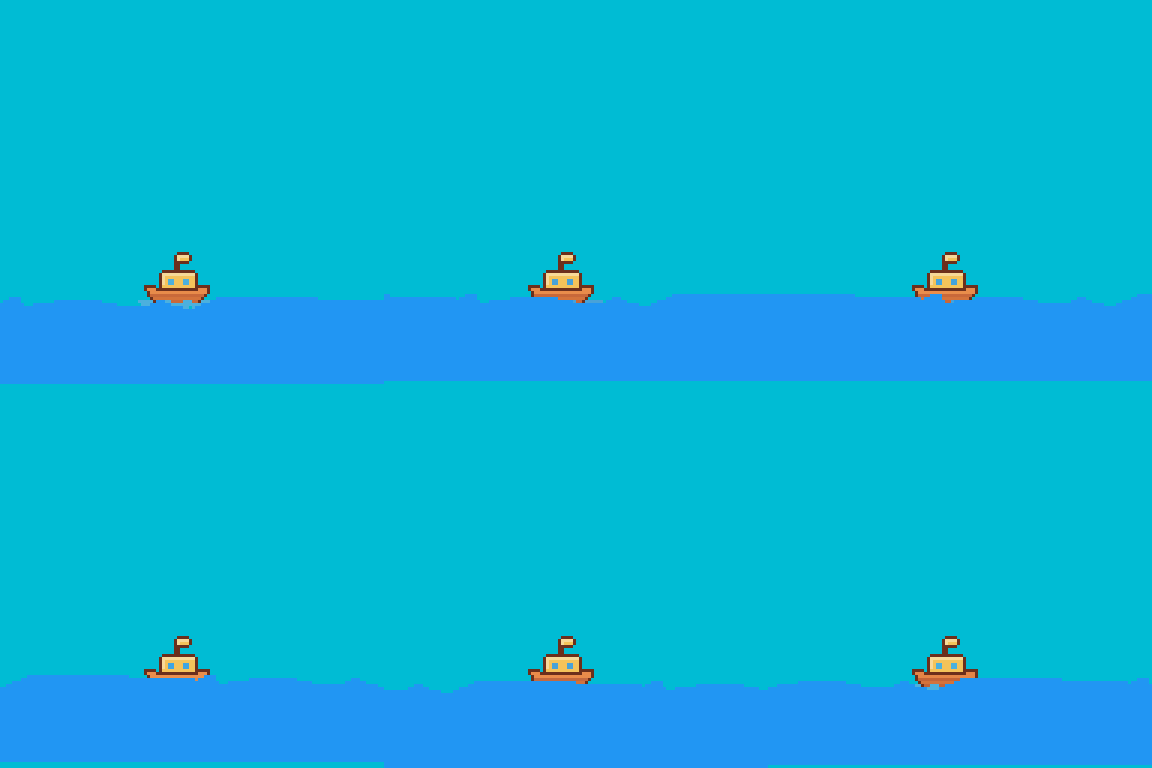
- Boat and clouds or water
Check for understanding:
- Students complete the core workflow for the lesson.
- Students can explain at least one design choice or animation decision.
Extension: Try the same workflow again with a new idea, subject, or visual style.
Lesson 2 - Create a New Parallax Variation
Goal: Continue again, choice another idea but same process.
Teacher prep:
- Prepare access to Pixilart, Wick Editor, Google Drive and any sample files needed for demonstration.
Steps:
- Continue again, choice another idea but same process
- 3 layers - TRAIN / BOAT / bee
-
- Water / house / FLOWER
-
- GROUND / sky
Check for understanding:
- Students complete the core workflow for the lesson.
- Students can explain at least one design choice or animation decision.
Extension: Try the same workflow again with a new idea, subject, or visual style.
Week 2 - Parallax Motion in Wick Editor
Lesson 1 - Animate a Parallax Scene in Wick Editor
Goal: Download picture(items) from PIxil art or draw the necessary images.
Teacher prep:
- Prepare access to Pixilart, Wick Editor, Google Drive and any sample files needed for demonstration.
Steps:
- Download picture(items) from PIxil art or draw the necessary images
- Canvas size 100x100
- Go to stamps

- SEARCH CAR
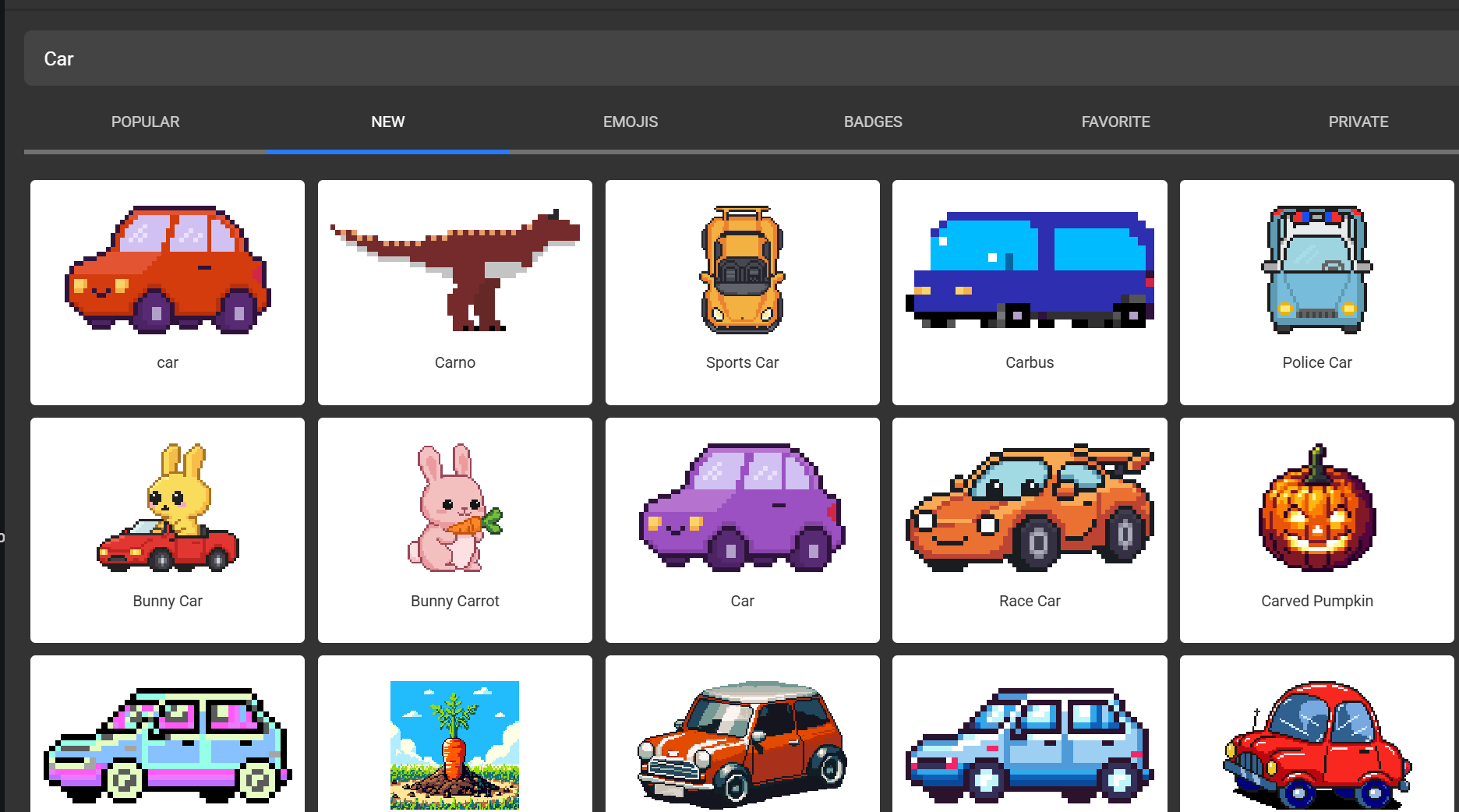
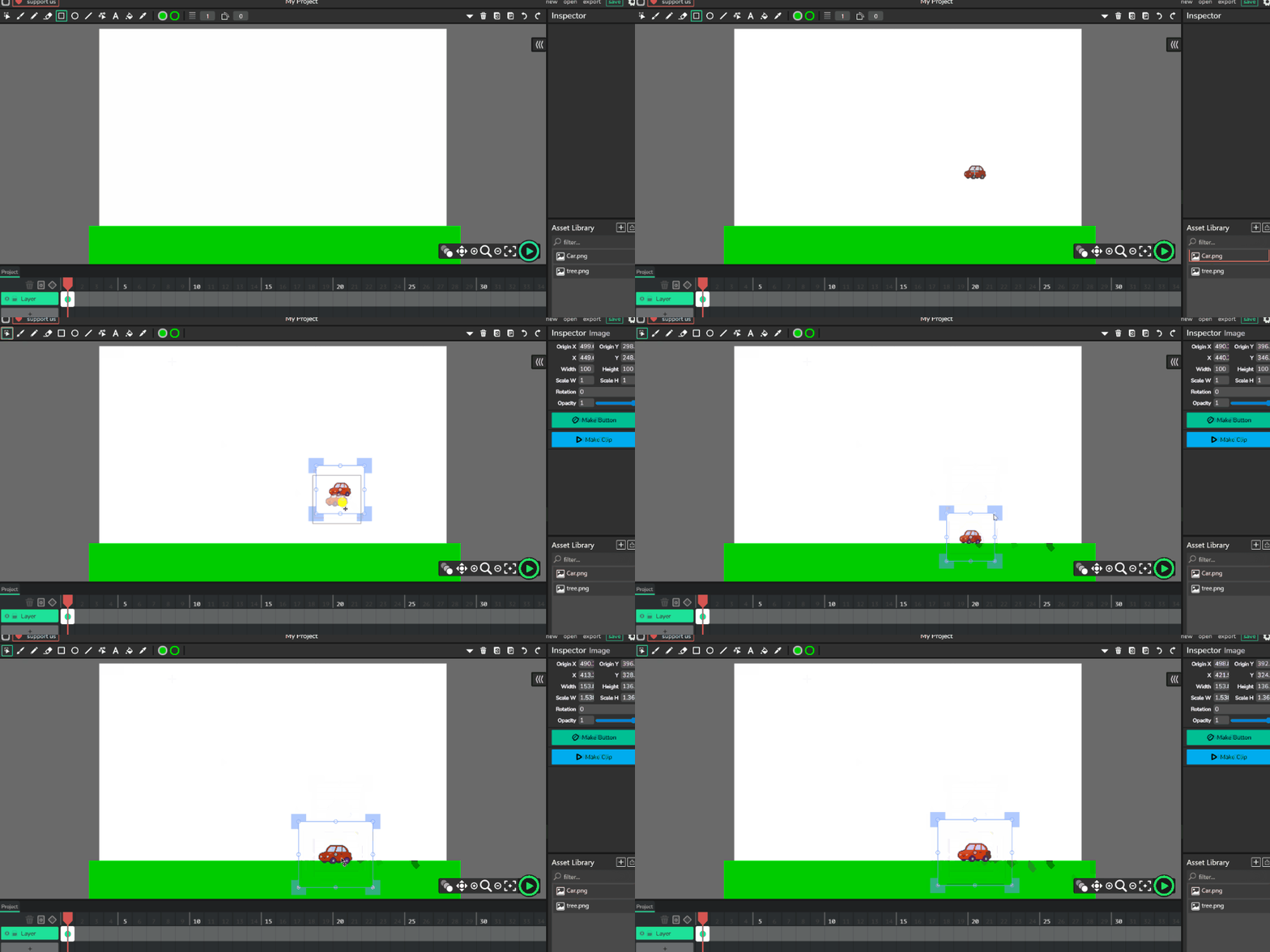
- Pick a car and download to students folder -
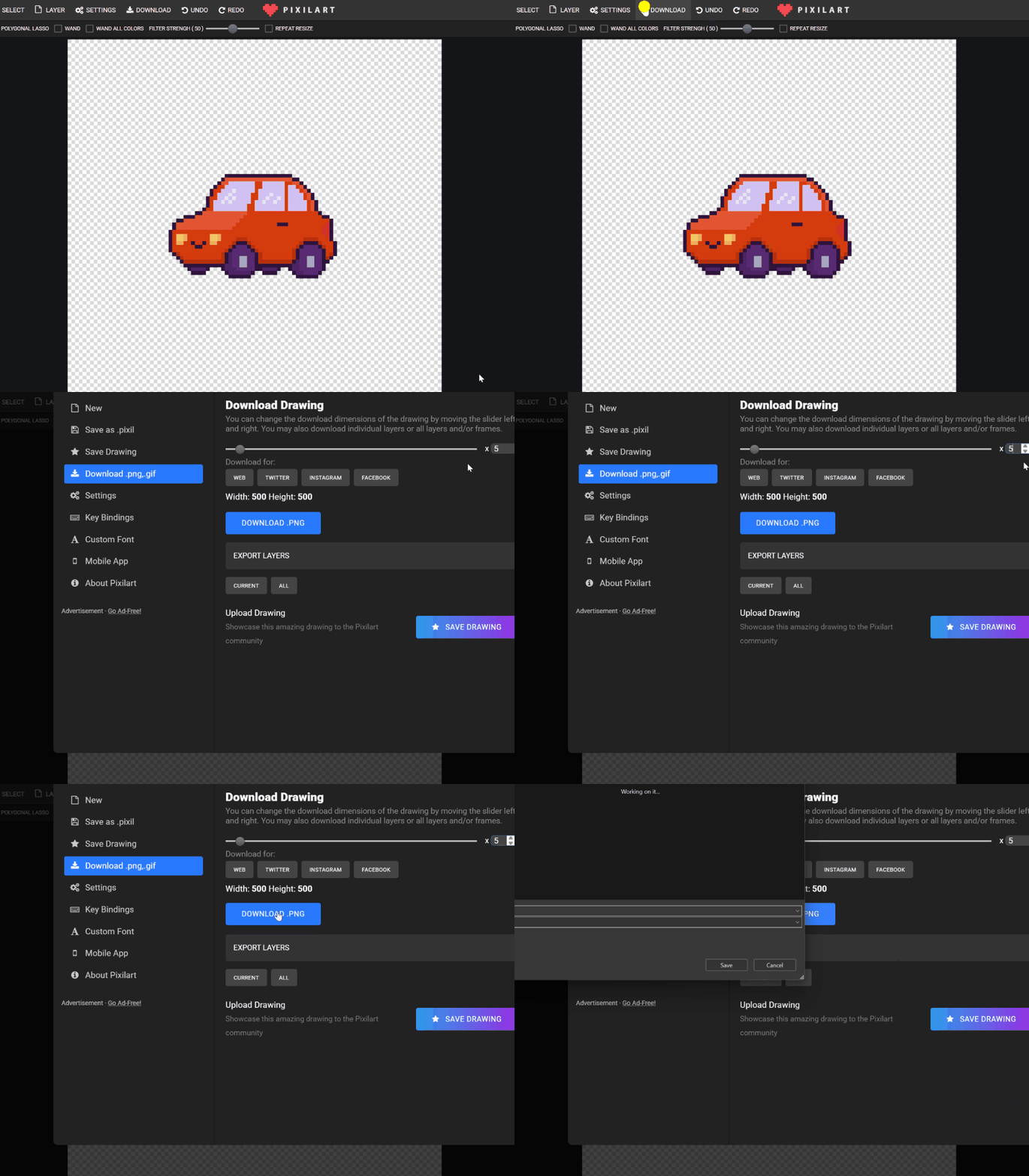
- Reset canvas
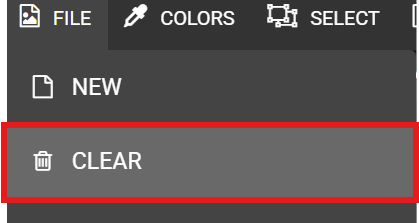
- Go to stamps Students can pick either a tree / house / or something else that will be moving past the car.
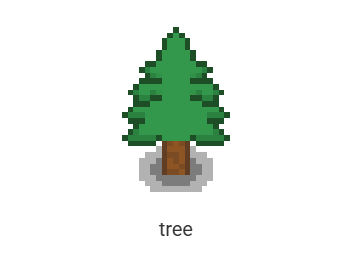
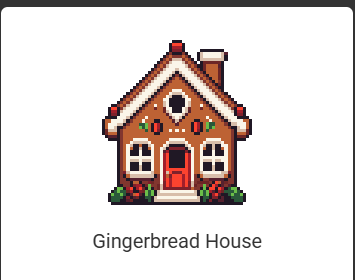
- Download again to students folder
- After getting the stamps
- Open wickeditor
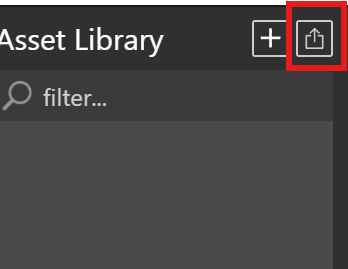
- Import pictures from students folder GOOGLE DRIVE - STUDENTS - STUDENTS NAME - THE CAR AND OTHER OBJECT
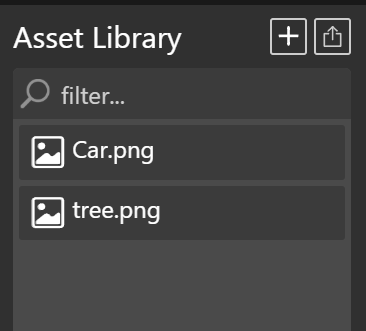
- USE square tool to make the ground - change colors
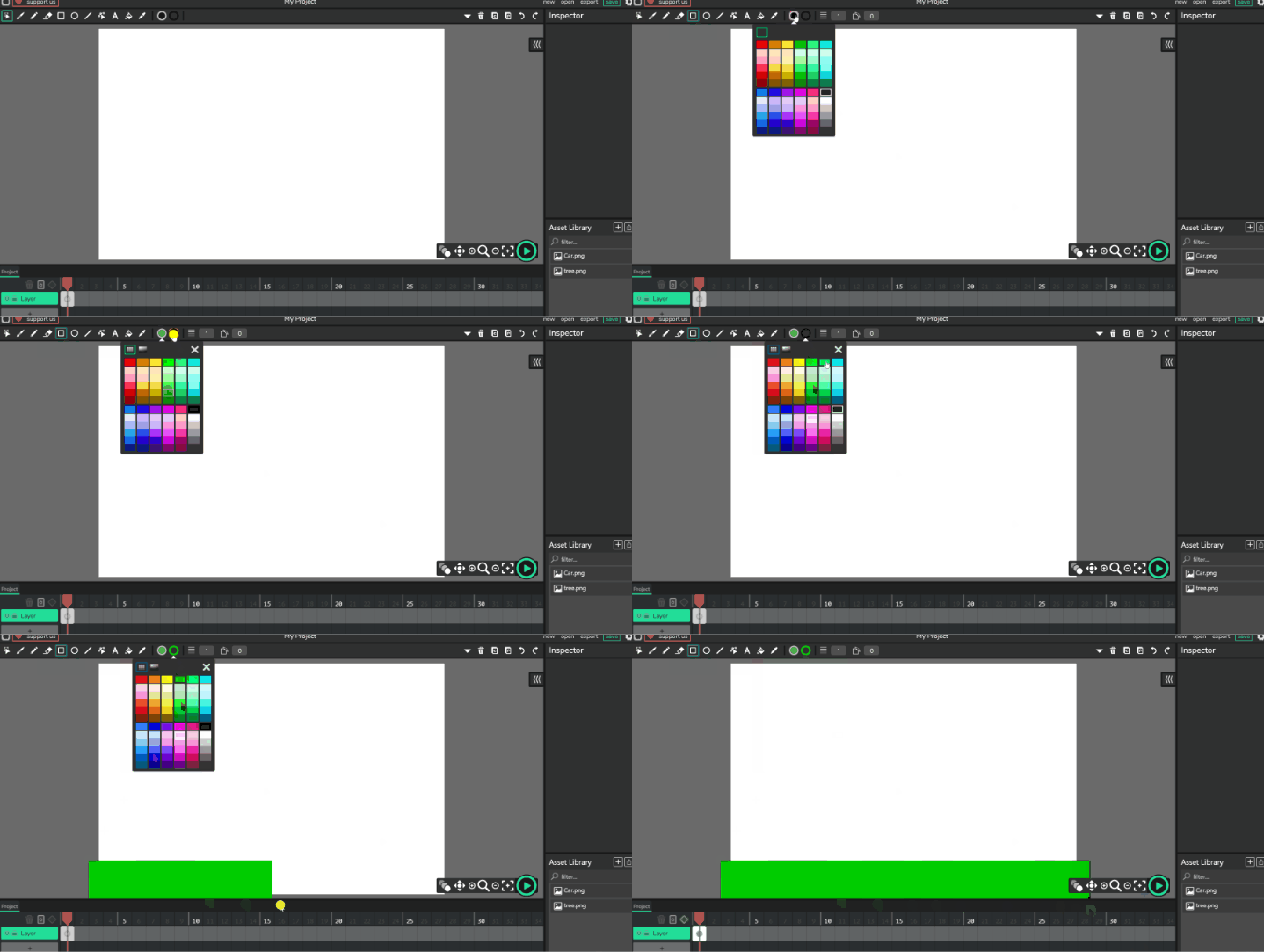
- Click and drag or ADD TO CANVAS the car RESIZE and move to the “ground”.
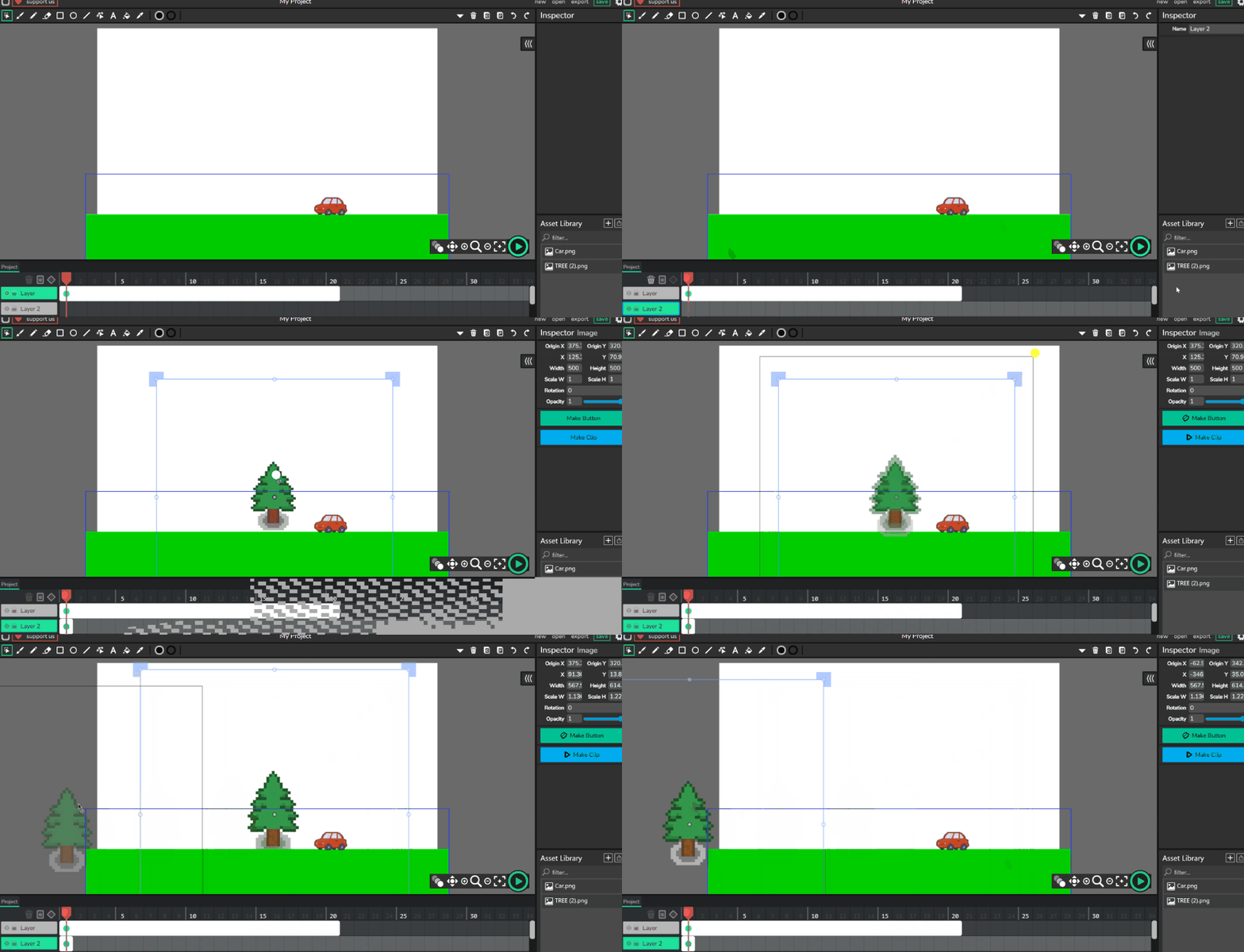
- Make New layer (layer 2 ) Click and drag or ADD TO CANVAS RESIZE the tree and move to the left side or the side the car is going towards.
- Click on layer 2 - green dotted box and change the length to 20
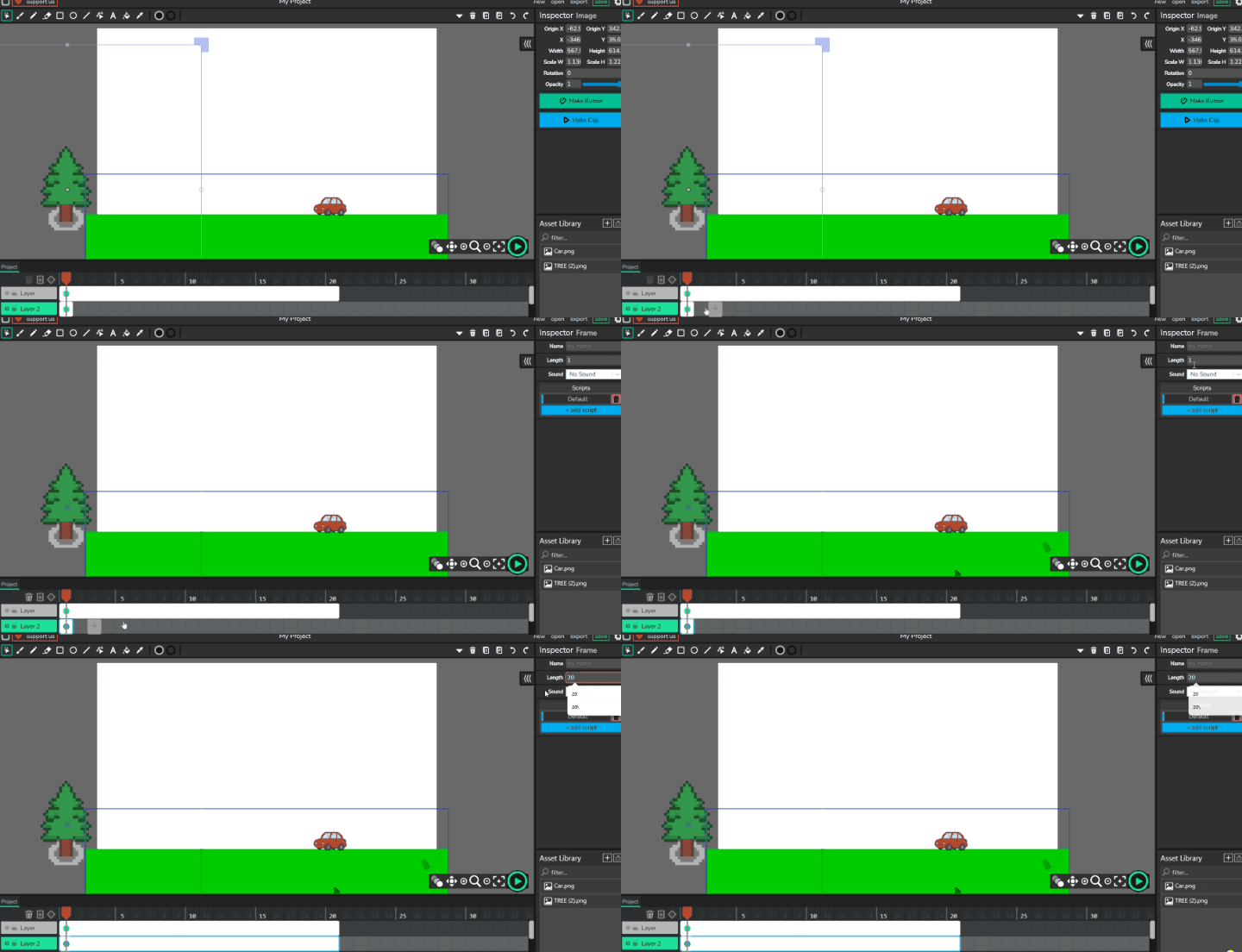
- Make sure your on layer 2 Enable Tweening Move the tree to the opposite side of the car.

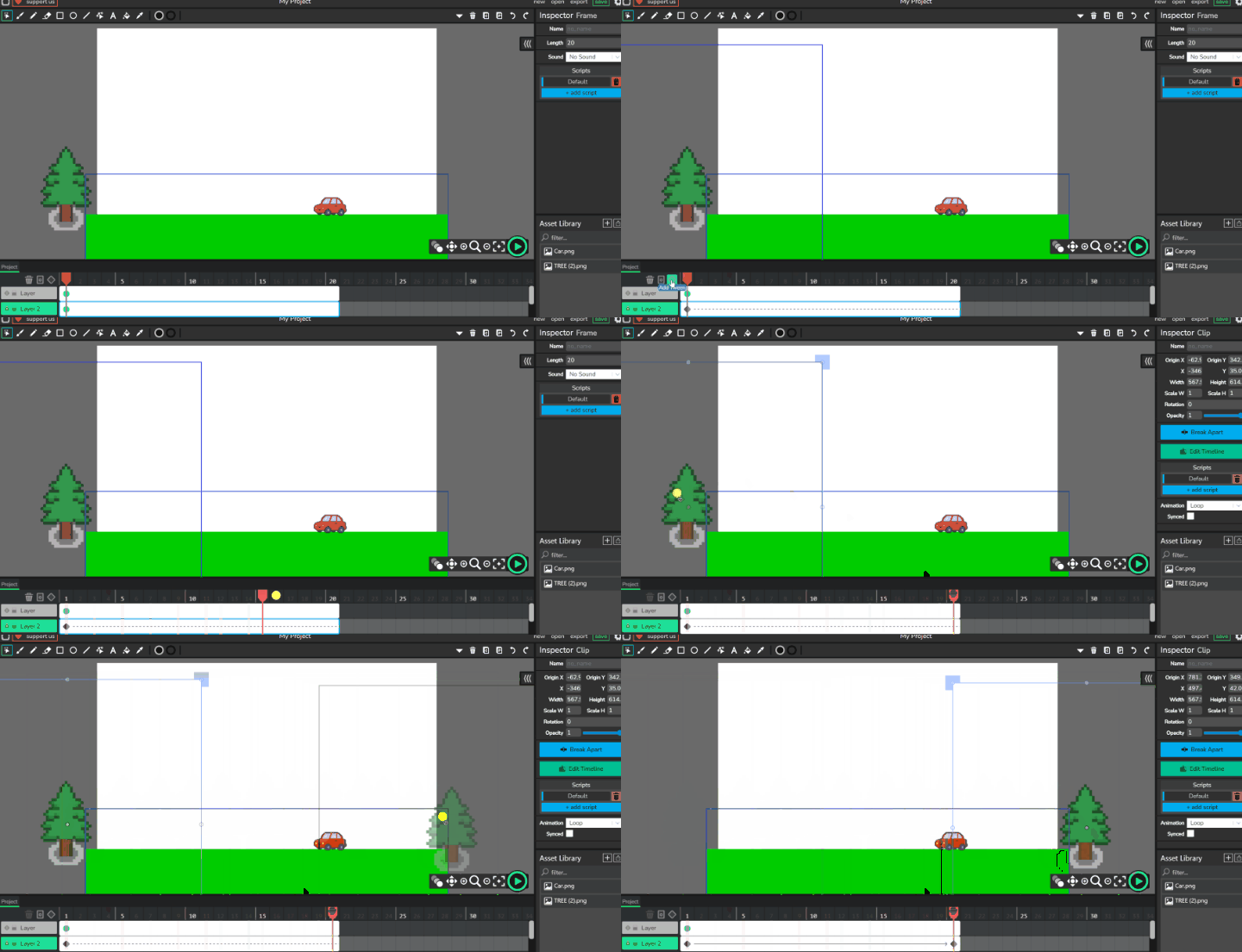
- Finished
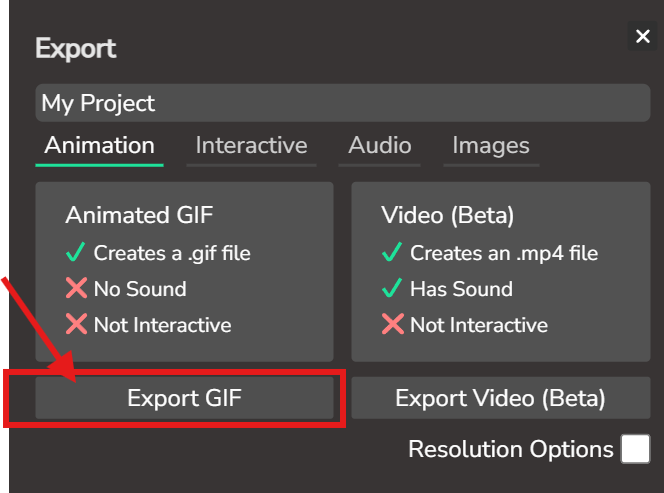
- Save a gif
- Refer to the image example for this step.
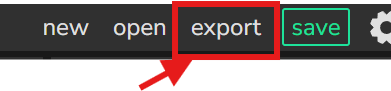
- Export GIF
- Go to students files and save. In GOOGLE DRIVE - students - students file
Check for understanding:
- Students complete the core workflow for the lesson.
- Students can explain at least one design choice or animation decision.
Extension: Create a second variation or extend the project with extra details if time allows.
Lesson 2 - Repeat With a New Design
Goal: Repeat this activity but with some other design.
Teacher prep:
- Prepare access to Pixilart, Wick Editor, Google Drive and any sample files needed for demonstration.
Steps:
- Repeat this activity but with some other design
Check for understanding:
- Students complete the core workflow for the lesson.
- Students can explain at least one design choice or animation decision.
Extension: Try the same workflow again with a new idea, subject, or visual style.