Unit 14 - Year 3 Lessons
Overview
Students will explore anticipation, impact, and circular motion through hammer and orbit animation projects.
Target skills:
- Animation Planning
- Frame Sequencing
- Creative Problem Solving
Tools:
- Pixilart
- Google Drive
Outputs:
- Anticipation hammer animation
- Orbit animation scene
Week 1 - Hammer Anticipation
Lesson 1 - Animate Hammer Anticipation
Goal: Canvas 100x100.
Teacher prep:
- Prepare access to Pixilart, Google Drive and any sample files needed for demonstration.
Steps:
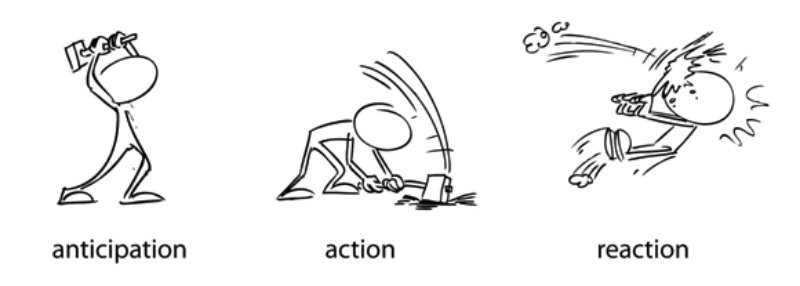
- Refer to the image example for this step.
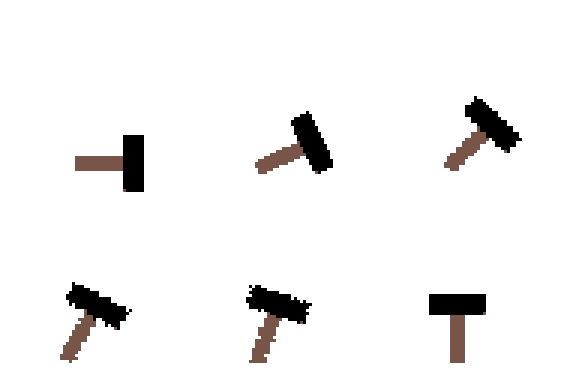
- Refer to the image example for this step.
- Canvas 100x100
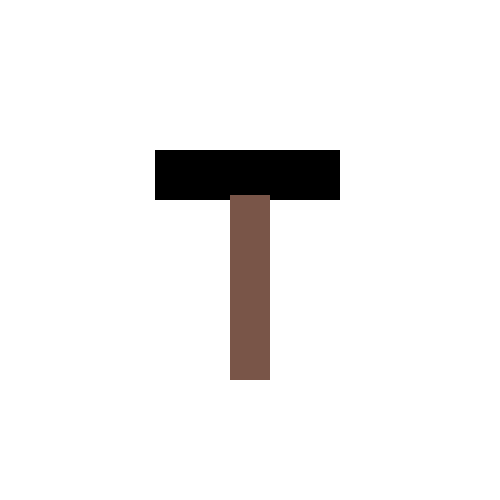
- Draw a hammer
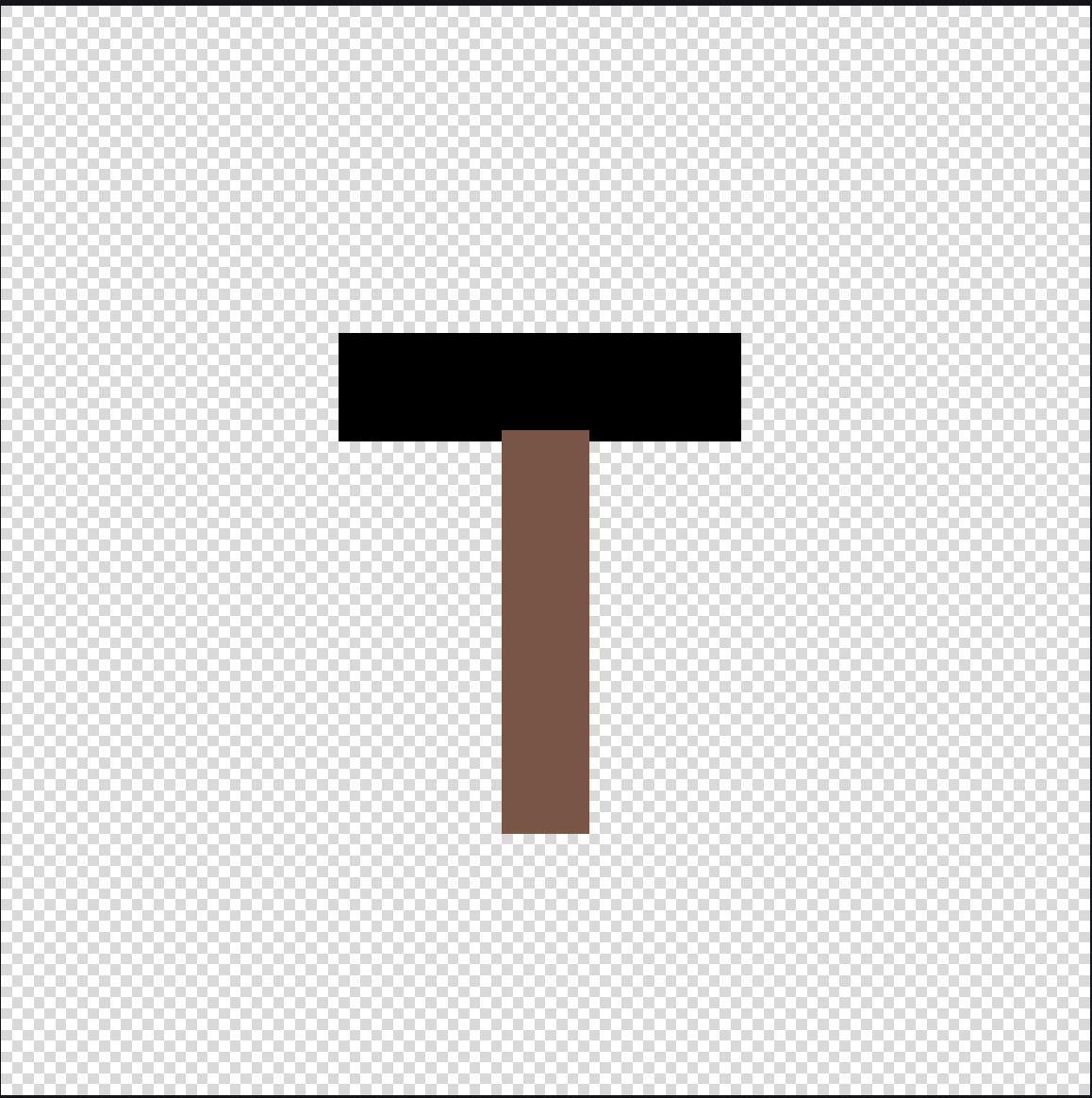
- Turn LOCK FRAMES PANEL on

- Use to select ALL the hammer. Use the top most circle to rotate (click and drag it around) then move it so the Handle is equal to the bottom of the previous handle.

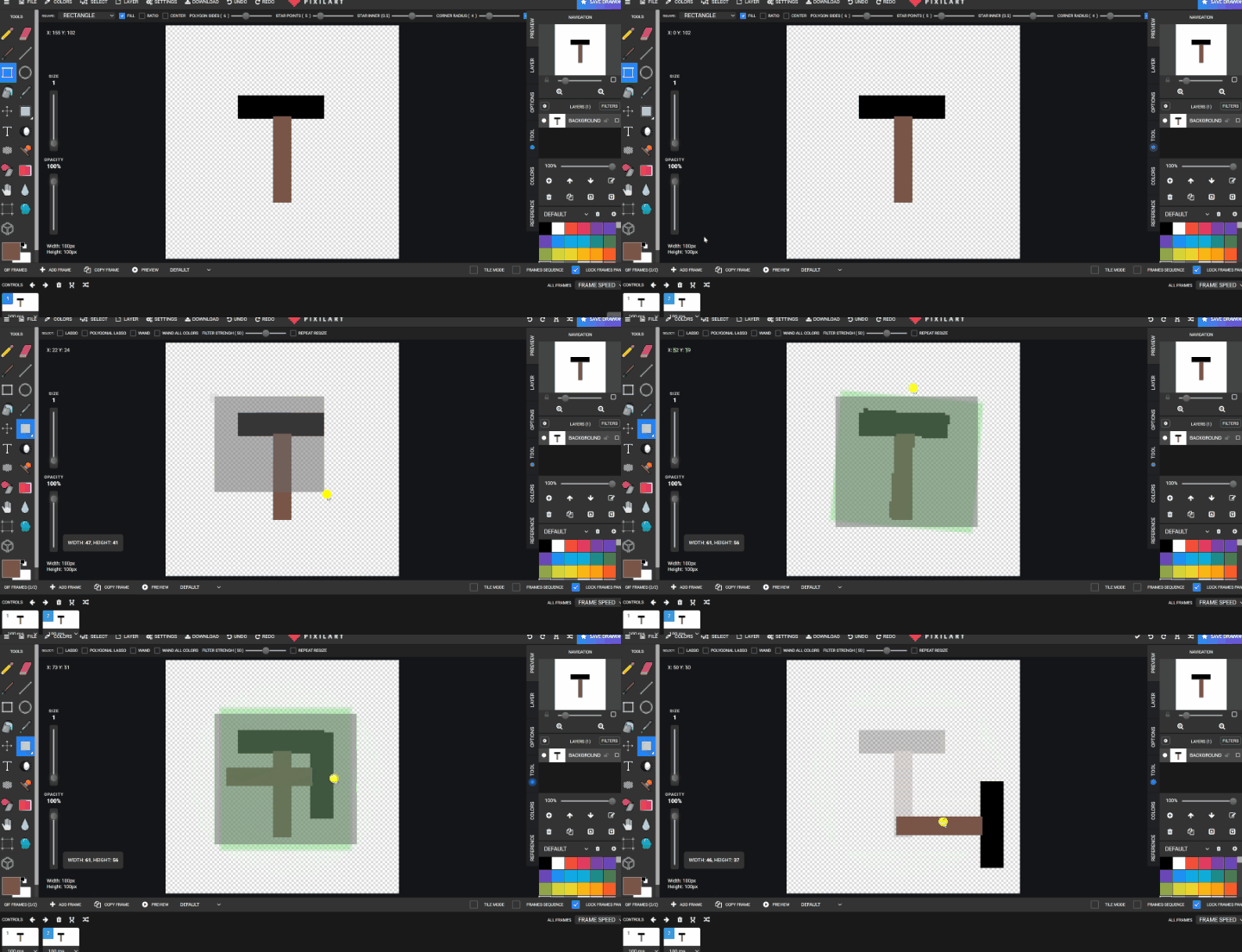

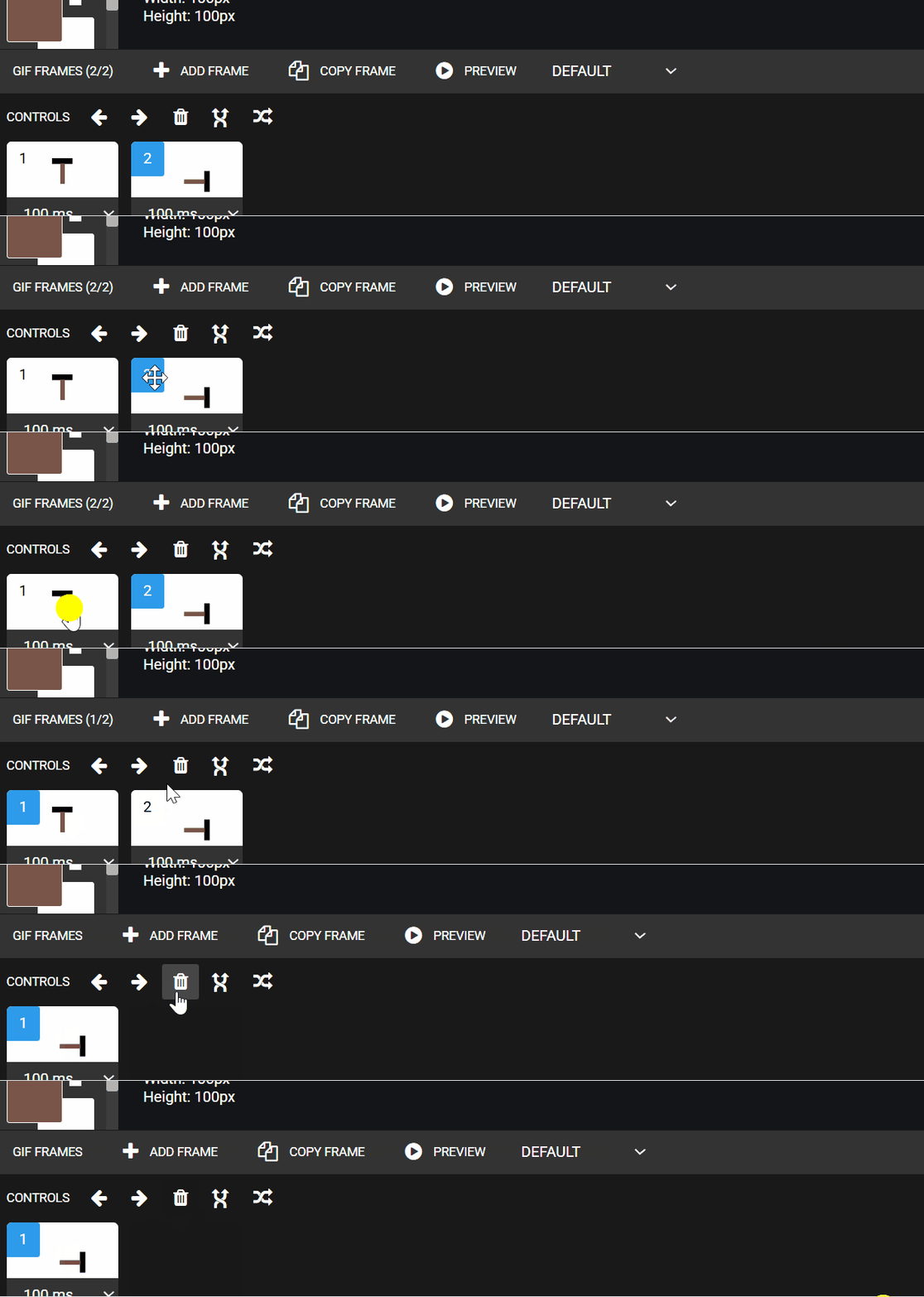
- As you can see there is no anticipation or feeling to the hammer.
- Anticipation Hammer
- Go to frame 1 and delete frame 1.
- Refer to the image example for this step.
- Using the selection tool to click and rotate and reposition the hammer. 4
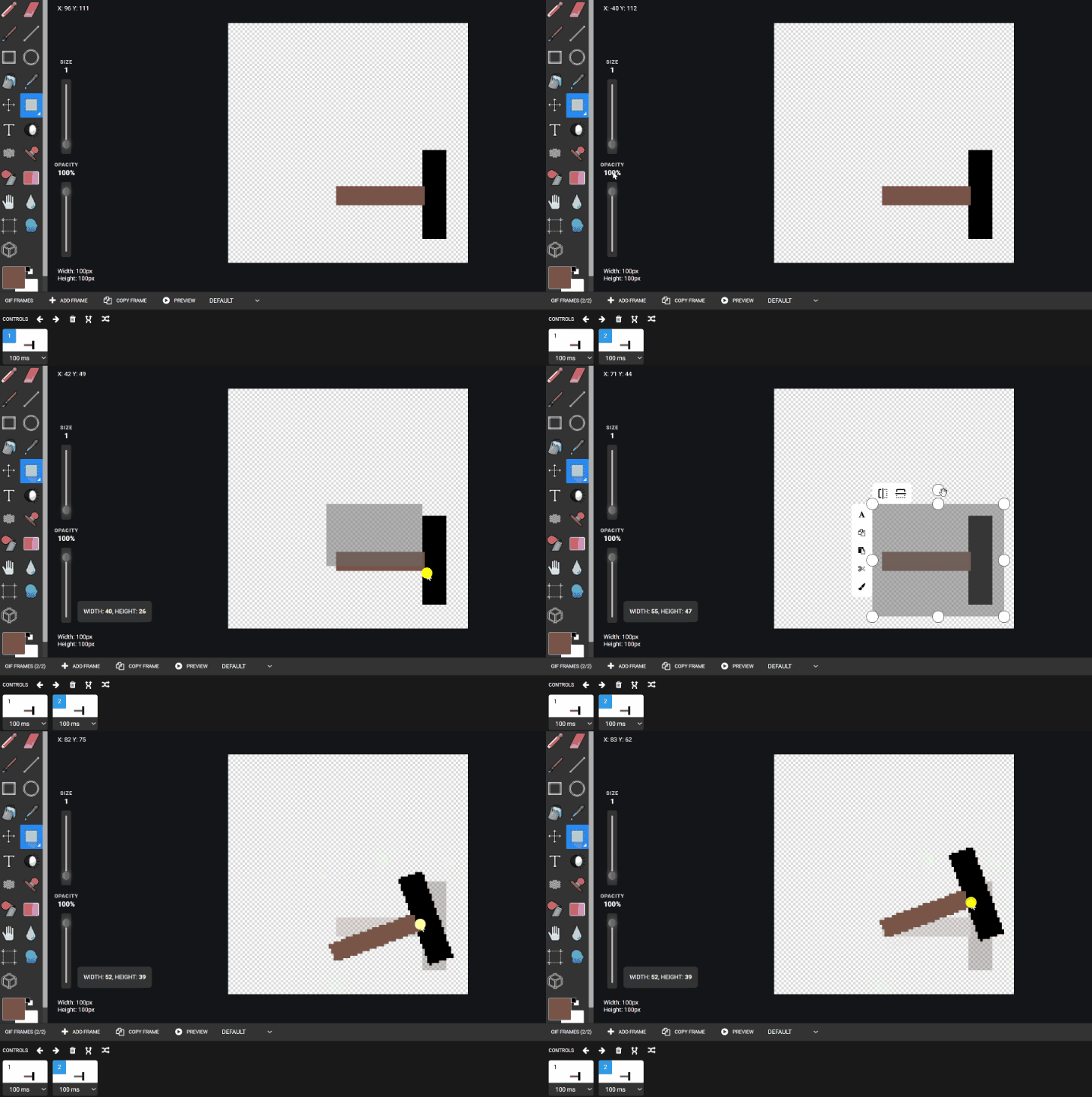
- Keep doing this but the last few frames of nearing the top are rotated very slightly to create a slight anticipation
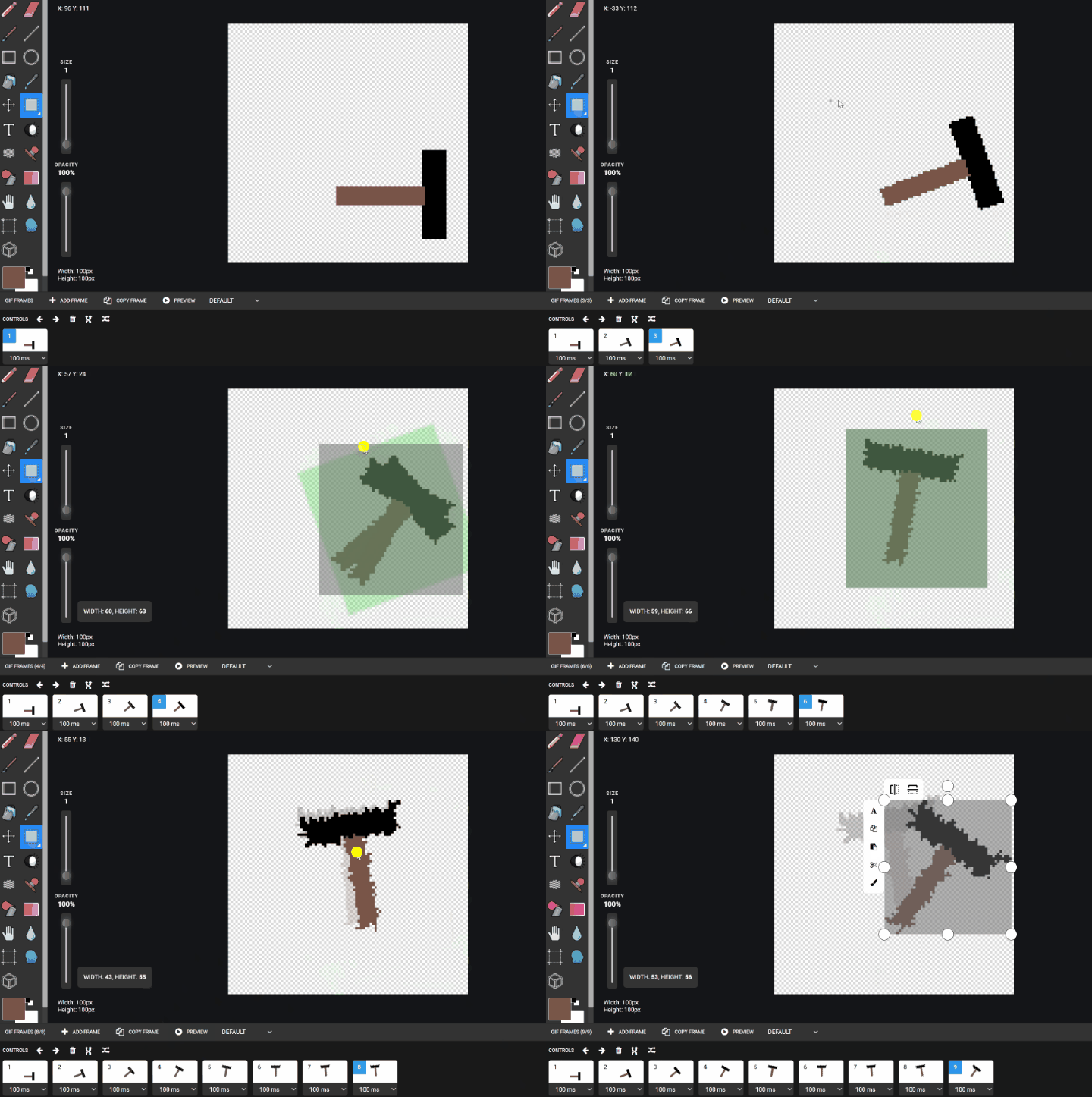
- As you may have noticed the hammer pixels will distort, just go back through the frames and using line tool and fixing them be just redrawing the hammer correctly.
- Finished.
- Save Download pixil
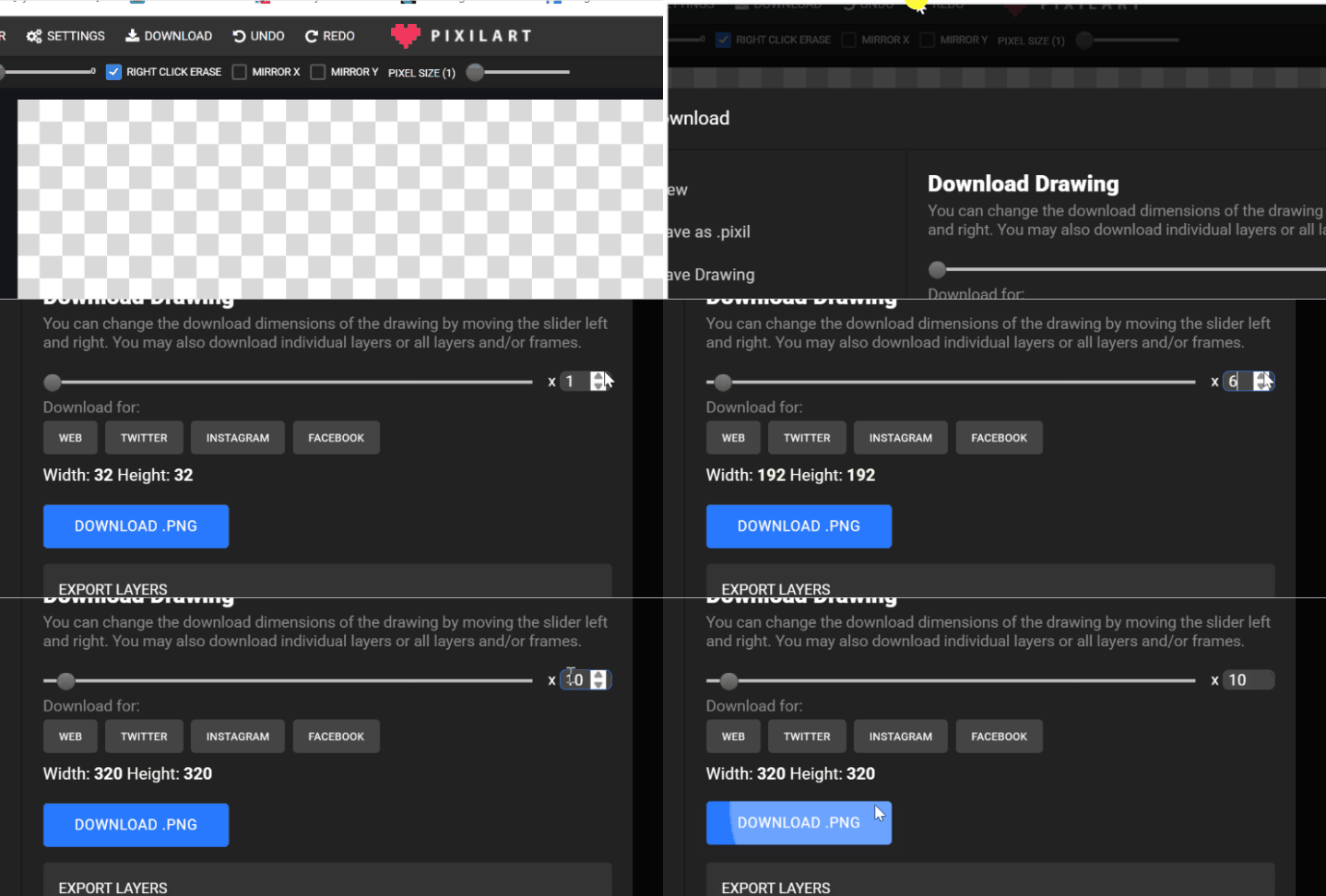
- Save to GOOGLE DRIVE > STUDENTS> STUDENTS FILE> hammer.gif
Check for understanding:
- Students complete the core workflow for the lesson.
- Students can explain at least one design choice or animation decision.
Extension: Create a second variation or extend the project with extra details if time allows.
Lesson 2 - Add Impact Effects
Goal: Repeat previous but adding extras.
Teacher prep:
- Prepare access to Pixilart, Google Drive and any sample files needed for demonstration.
Steps:
- Hammer
- Repeat previous but adding extras
- Refer to the image example for this step.
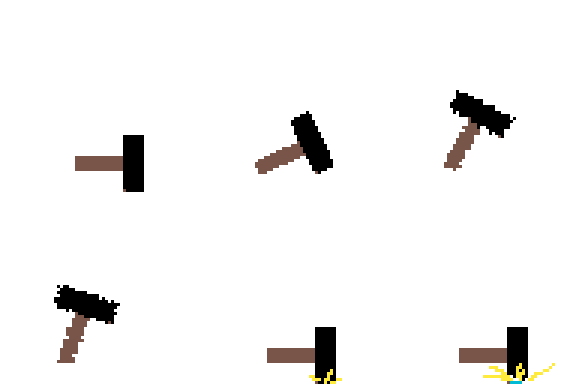
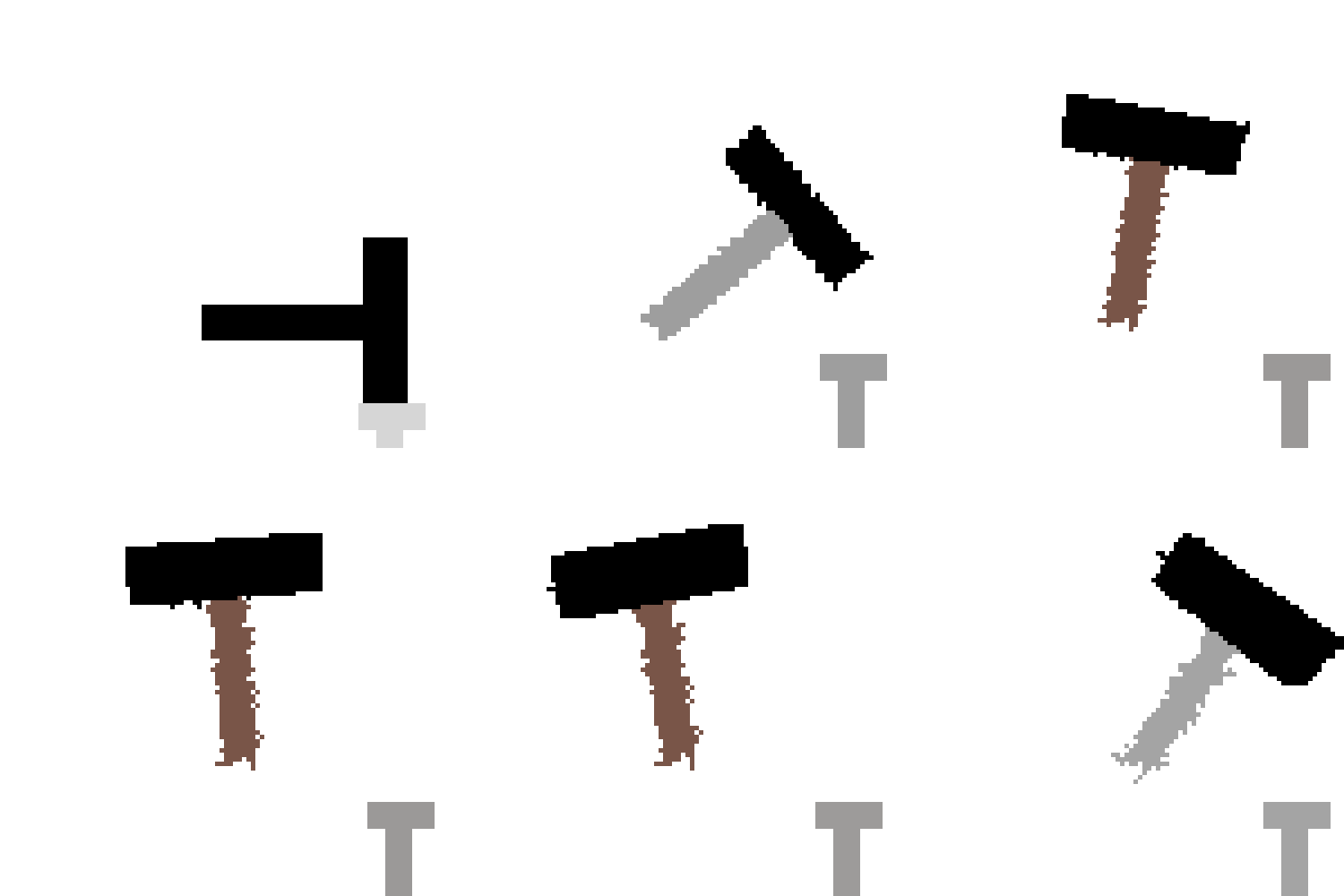
- Add sparks
- Or something under the hammer strikes like a nail
Check for understanding:
- Students complete the core workflow for the lesson.
- Students can explain at least one design choice or animation decision.
Extension: Try the same workflow again with a new idea, subject, or visual style.
Week 2 - Orbital Objects
Lesson 1 - Animate an Orbiting Object
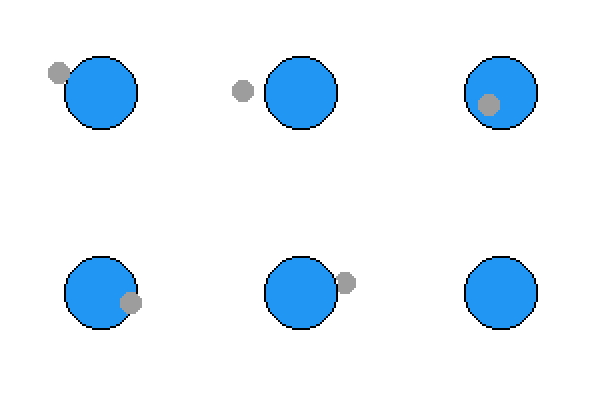
Goal: For example, the moon going around earth. Make animation by pixel art, use an eraser when the moon goes behind the earth.
Teacher prep:
- Prepare access to Pixilart, Google Drive and any sample files needed for demonstration.
Steps:
- For example, the moon going around earth. Make animation by pixel art, use an eraser when the moon goes behind the earth.
- First picture -- both moon and earth touching each other on the left hand side.
- 100xp×100xp
- Refer to the image example for this step.
- Make a circle with circle tool and FILL mode on
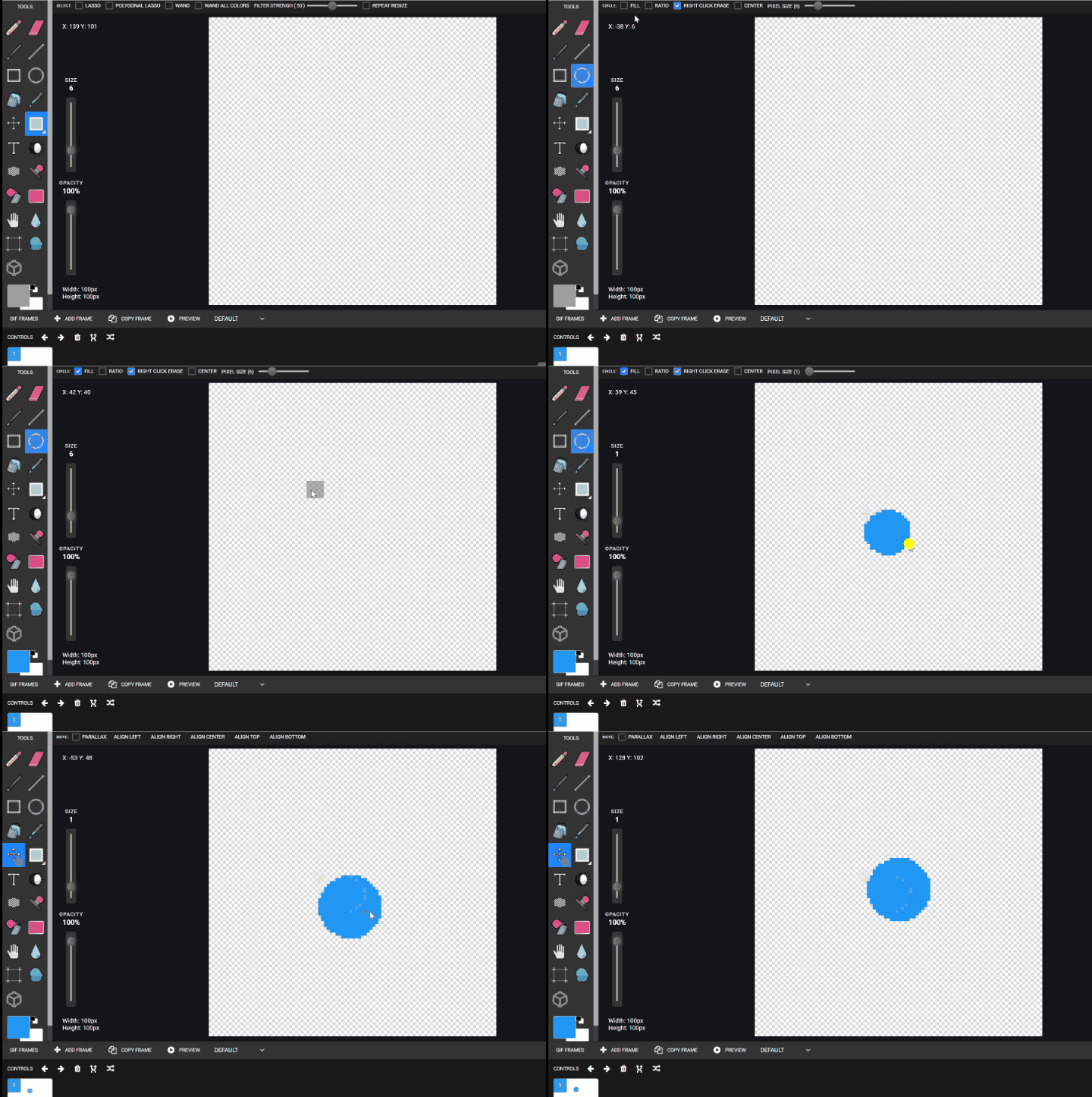
- Make new LAYER Draw a new smaller circle (moon)
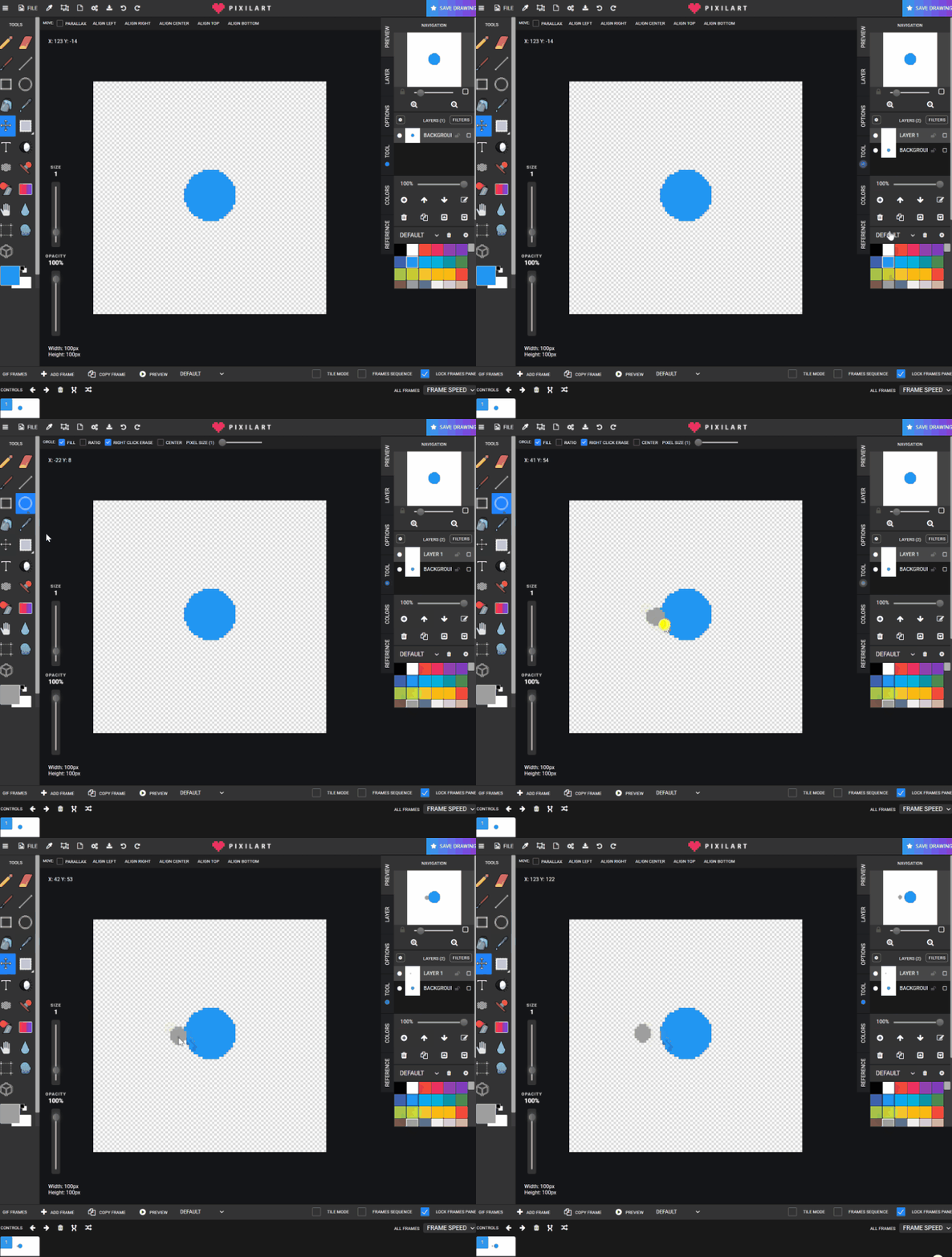
- Copy Frame And going to move the moon around the “earth” slightly each Copy frame STOP when touching the moon is touching the earth on the other side
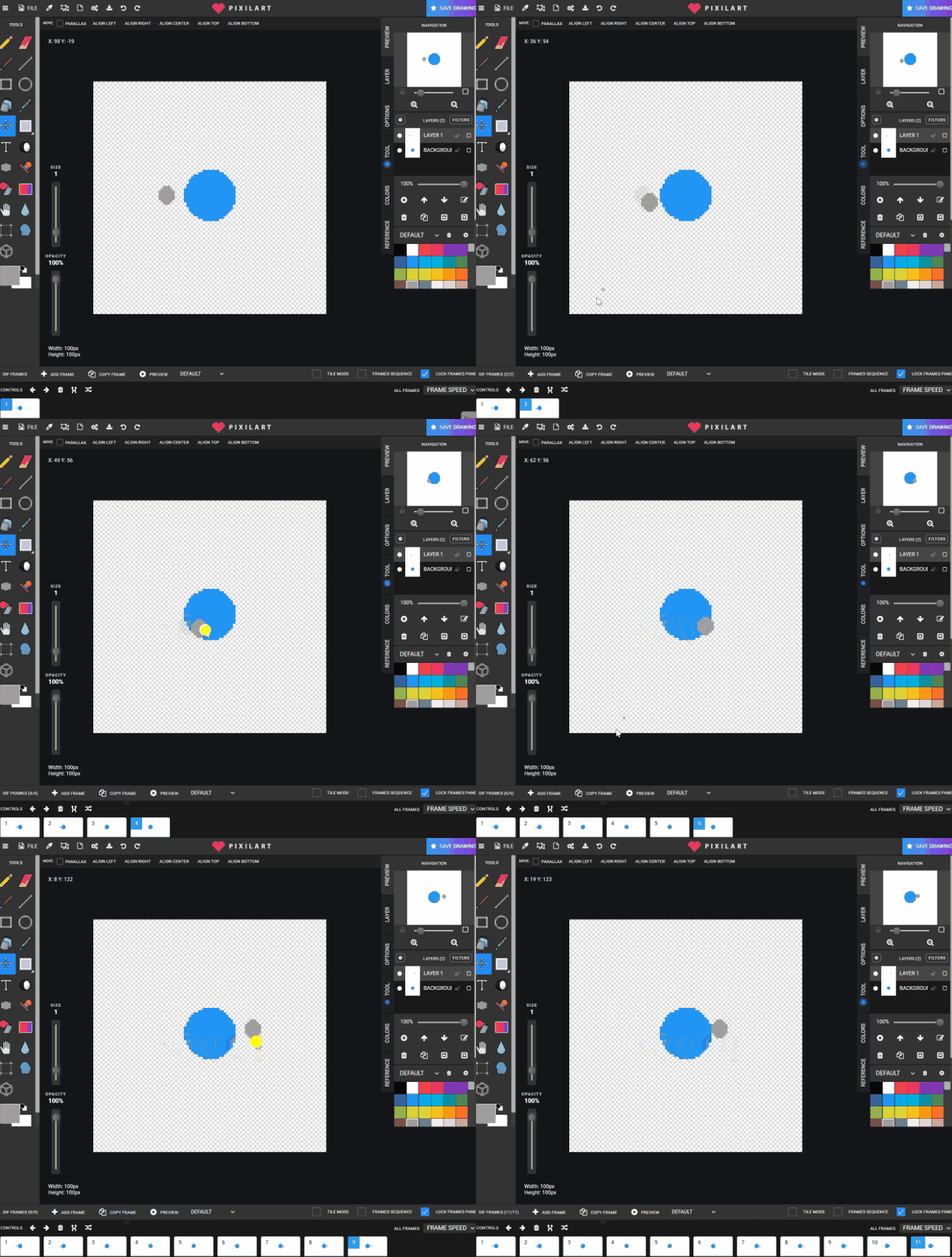
- Copy frames and erasing the moon that is overlapping the earth, continue this until no more moon.
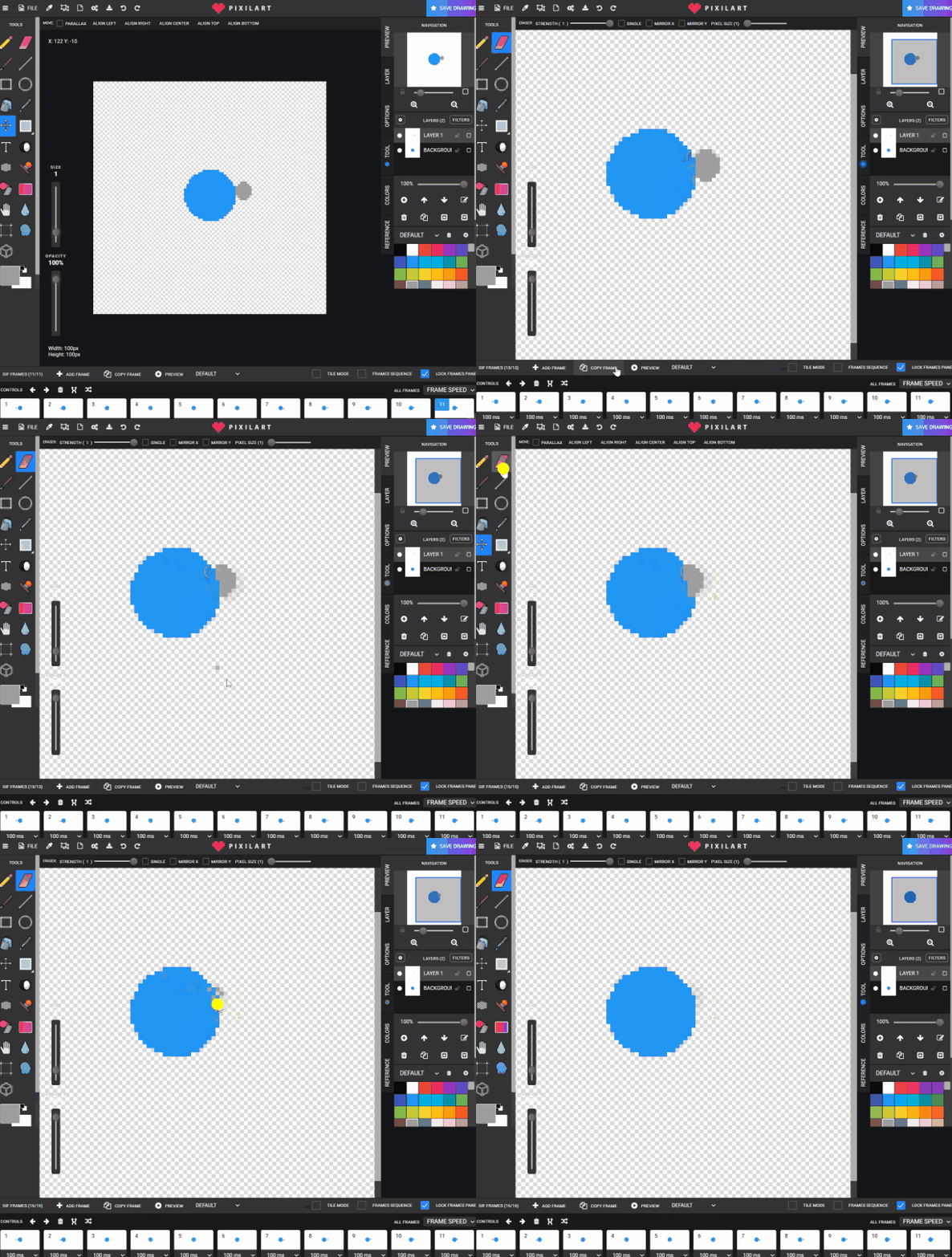
- Copy frame and now slowly drawing back in the moon on the other side May need to move the “moon” away from the earth the last few frames Finished ,
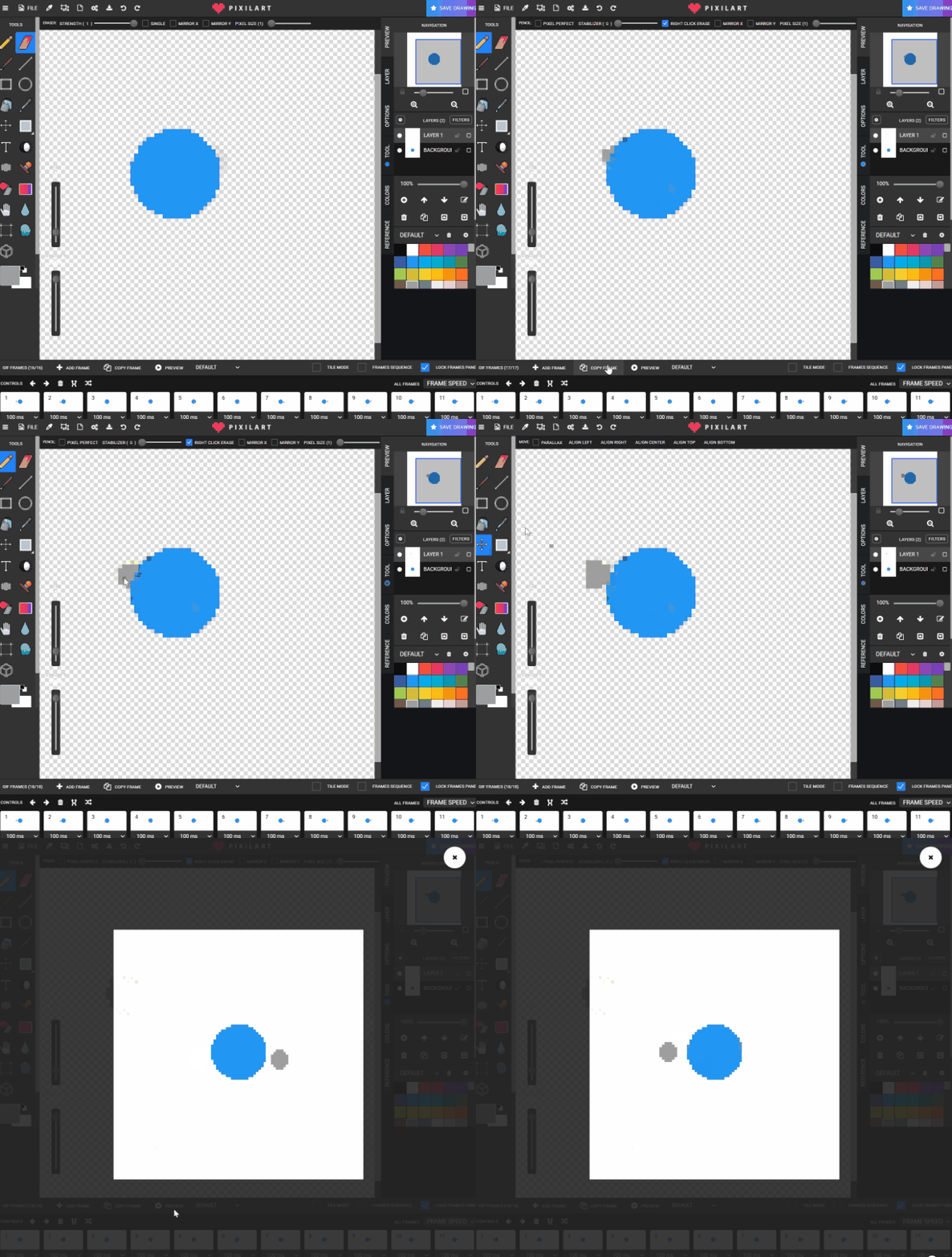
- Download X5 GOOGLE DRIVE - STUDENTS - STUDENTS NAME FILE - Orbit.gif
Check for understanding:
- Students complete the core workflow for the lesson.
- Students can explain at least one design choice or animation decision.
Extension: Try the same workflow again with a new idea, subject, or visual style.
Lesson 2 - Extend the Space Scene
Goal: Repeat this activity; ones who have done this may now also try adding more planets/ moons/ comet moving around.
Teacher prep:
- Prepare access to Pixilart, Google Drive and any sample files needed for demonstration.
Steps:
- Repeat this activity; ones who have done this may now also try adding more planets/ moons/ comet moving around.
- Also may draw the earth and the scene better by adding a background on a new layer.
Check for understanding:
- Students complete the core workflow for the lesson.
- Students can explain at least one design choice or animation decision.
Extension: Try the same workflow again with a new idea, subject, or visual style.