Unit 16 - Year 2 Lessons
Overview
Students will design a KEA symbol keyring in Tinkercad, export it for printing, and then paint or extend their 3D work.
Target skills:
- Creative Problem Solving
- Visual Communication
- Systems Thinking
Tools:
- Tinkercad
- 3D printer workflow
Outputs:
- KEA keyring STL file
- Printed and painted keyring or classroom remake extension
Week 1 - KEA Symbol Keyring
Lesson 1 - Build the Keyring
Goal: recreate the KEA symbol as a printable keyring.
Teacher prep:
- Set up the
KEA KEYRINGclass activity - Prepare the export workflow to Google Drive
Steps:
- Open Tinkercad and sign in.
- Join the class activity
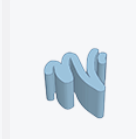
KEA KEYRINGand create a new design. - Use the drawing tool to shape the book form.
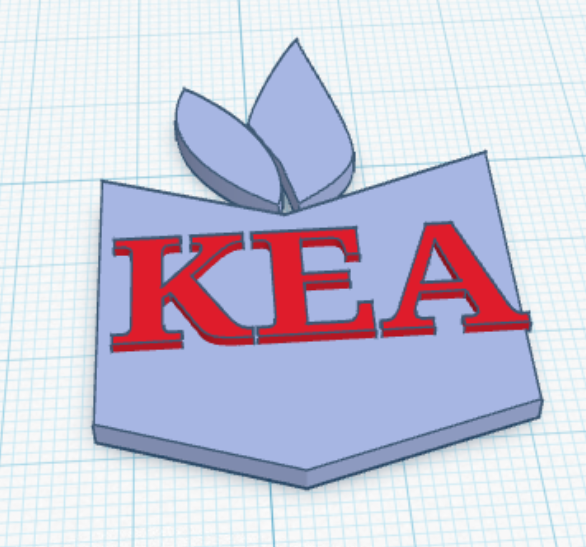
- Use the drawing tool again to create the first and second leaf forms.

- Add the text
KEAabove the symbol.
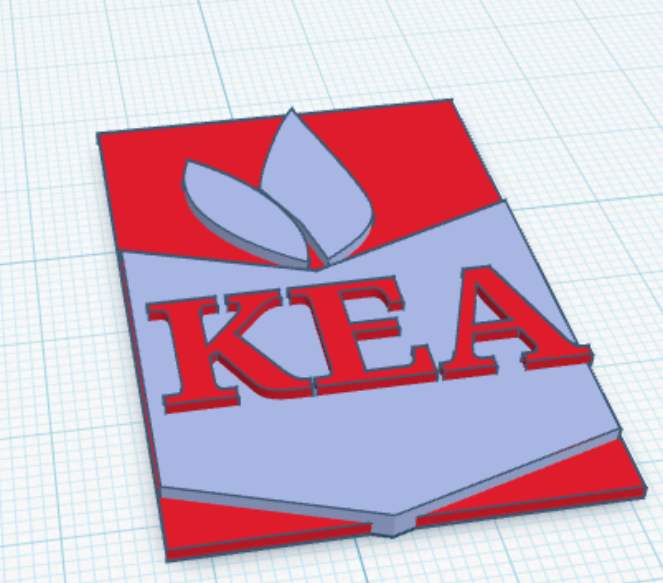
- Create a flat base shape underneath so all parts connect.
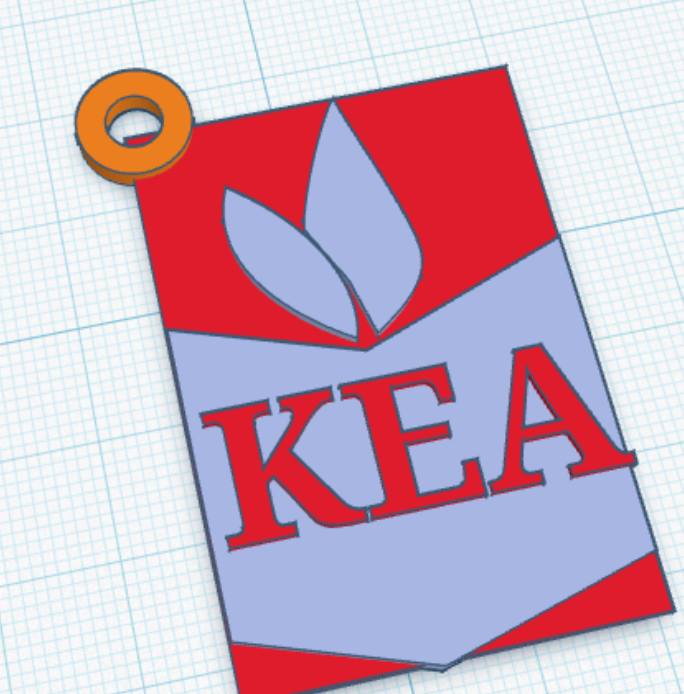
- Add a round ring shape, about
10 mmdiameter and2 mmwidth, with height3 mm.
- Export the model as STL when complete.
Check for understanding:
- Students create a joined printable design.
- Students can identify where the ring connects to the main symbol.
Extension:
- Adjust the shape style or lettering.
Lesson 2 - Continue or Recreate the Classroom
Goal: finish the keyring or begin a classroom remake extension.
Teacher prep:
- Prepare a simple classroom-remake prompt
Steps:
- Reopen the keyring project if unfinished.
- Export the final STL if needed.
- If complete, begin designing a classroom scene in Tinkercad.
Check for understanding:
- Students complete the main keyring task.
- Students can save or export their work correctly.
Extension:
- Add a second keyring variation.
Week 2 - Print and Paint
Lesson 1 - Finish and Decorate
Goal: complete printing work and paint the finished keyrings if available.
Teacher prep:
- Prepare printed pieces and coloring materials
Steps:
- Review any unfinished digital work.
- If prints are ready, hand out the printed keyrings.
- Use markers or acrylic paint to color the designs.
- If finished early, continue with classroom recreation in Tinkercad.
Check for understanding:
- Students complete a physical or digital artifact.
- Students can explain how their design moved from model to print.
Extension:
- Add extra details to a classroom remake design.
Lesson 2 - Classroom Recreation
Goal: continue using Tinkercad for a school/classroom recreation if the print task is complete.
Teacher prep:
- Encourage students to break the classroom into simple shapes
Steps:
- Open a new or saved Tinkercad file.
- Recreate furniture or simple classroom shapes.
- Combine basic forms into a larger classroom scene.
Check for understanding:
- Students can build using multiple shapes together.
- Students continue working independently after the keyring project.
Extension:
- Add doors, desks, or wall details.