Unit 20 - Year 1 Lessons
Overview
Students will use Google Sheets to record game scores, organize country facts, and present simple data visually.
Target skills:
- Information Organization
- Data Entry
- Digital Presentation
Tools:
- Google Sheets
- Google Drive
Outputs:
- Game score spreadsheet
- Country data spreadsheet
Week 1 - High Score Tracker
Lesson 1 - Build a Game Score Sheet
Goal: In google sheets make a column for a game.
Teacher prep:
- Teacher makes a new google sheet
- Teacher first places their name on B1 box, A1 is the game played After student place in there name on the top, ASSIGN STUDENTS THEIR COLUMN to place their name and score in.
- Once students have all done that students open a google new tab and the teacher can show where to find the dinosaur game in the bookmarks. Show how to switch between tabs. Option, the teacher makes a new bookmark folder for the games to be played. Students play once and add their score to their Column going down each time, doing this 10 times.
- TEACHER makes NEW SHEET on the bottom for the NEW game
Steps:
- In google sheets make a column for a game.
- Play game collect points find games from KEA digi--all file--computer graphic--- games
- Games example : Dinosaur T-Rex Game https://trex-runner.com/
- Play drop https://www.coolmathgames.com/0-drop
- Curve ball: Use the linked reference if provided
- Tower rush: here
- Sushi roll: here
- Snake : here
- Frogger: here Games with no ADs
- Games with a highscore
- Refer to the image example for this step.
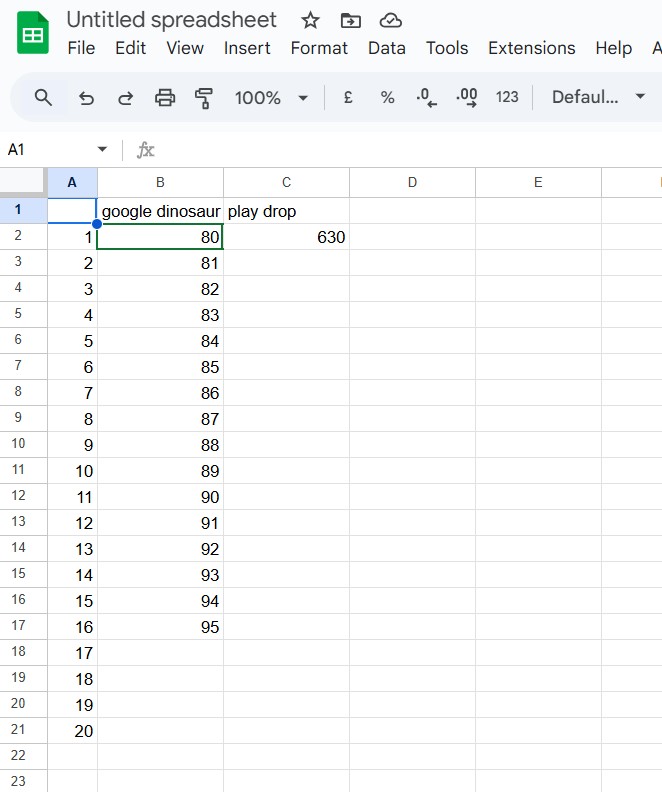
- Teacher makes a new google sheet
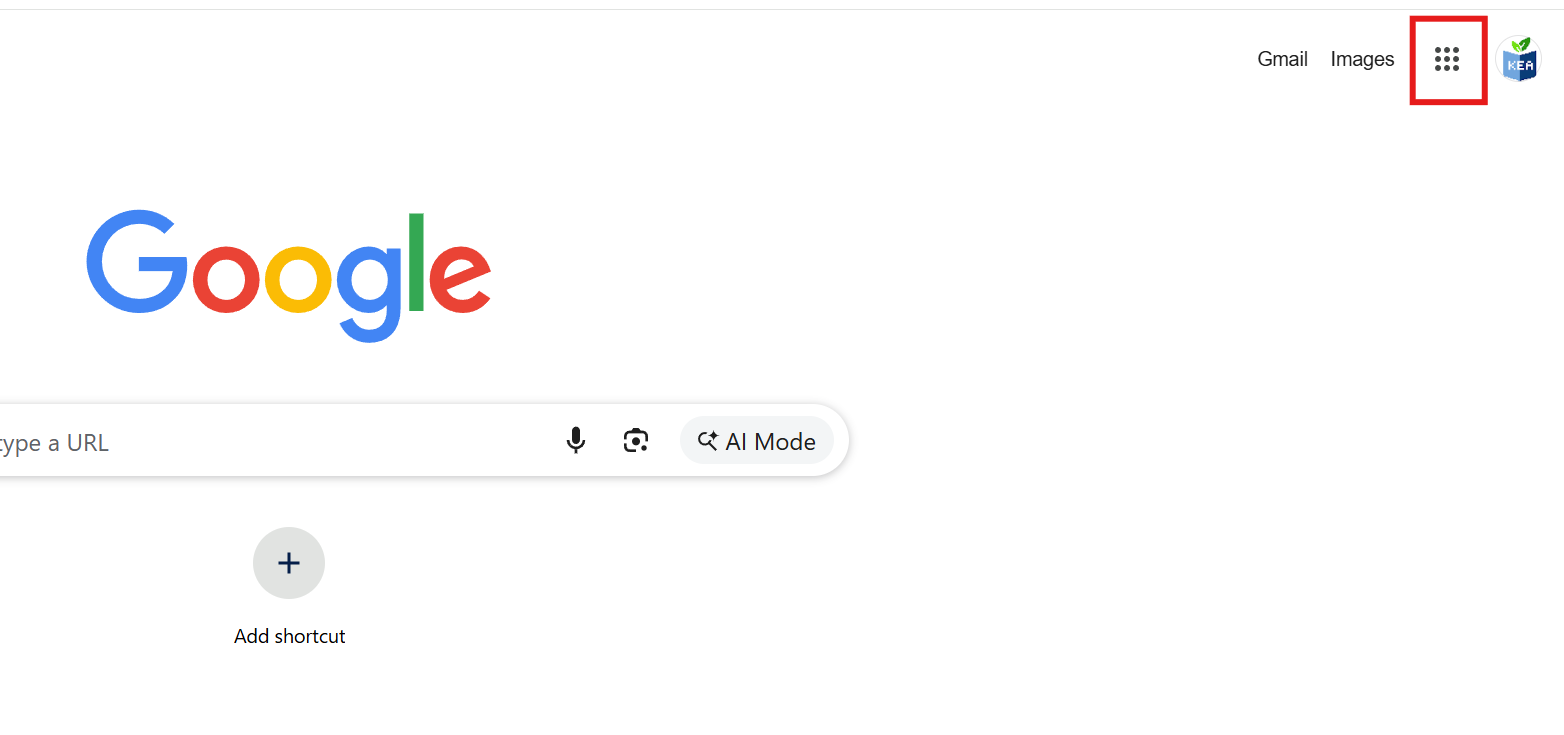
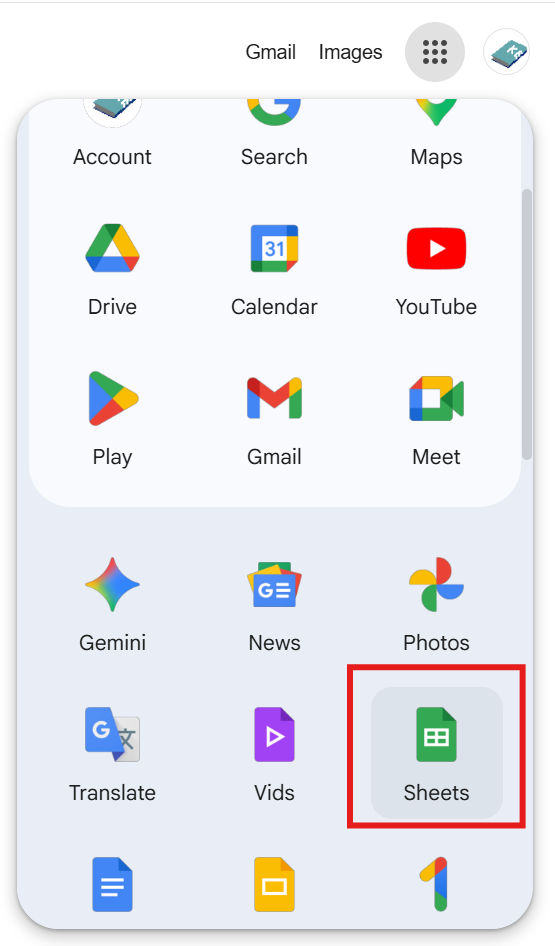
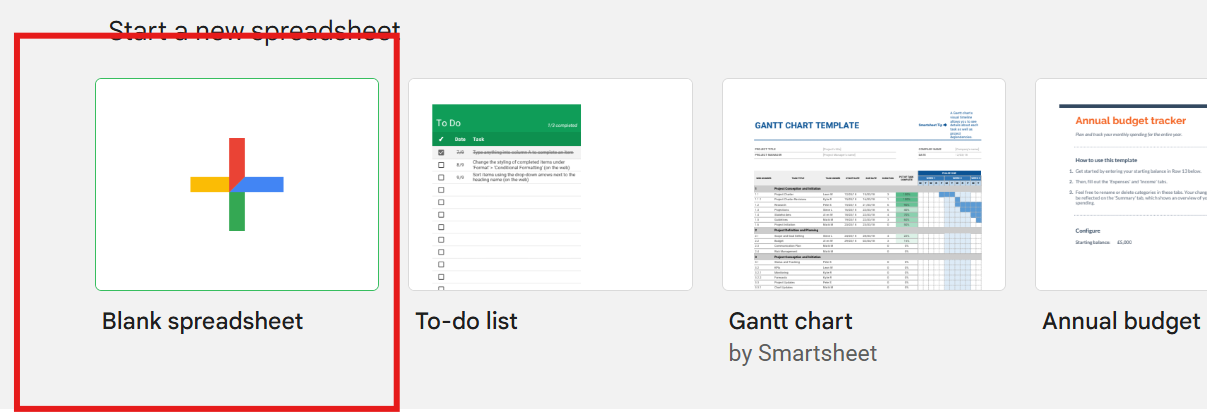
- Name it highscore
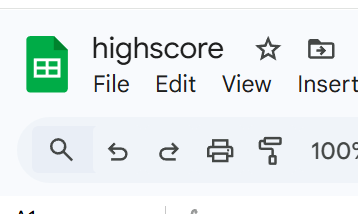
- STUDENTS do the following Go to sheets same method. Find the new HIGHSCORE file in the Recent file list.
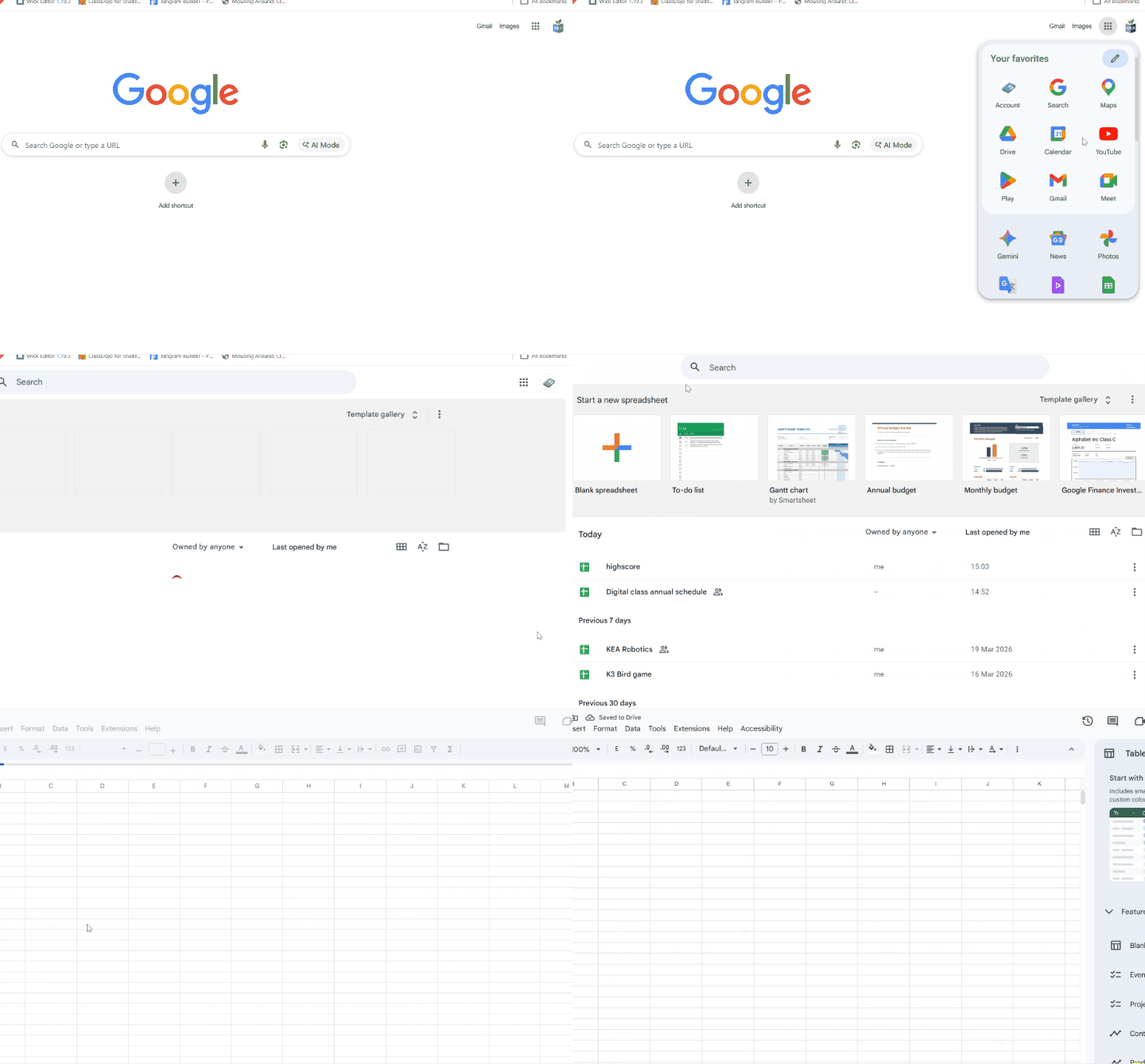
- Teacher first places their name on B1 box, A1 is the game played After student place in there name on the top, ASSIGN STUDENTS THEIR COLUMN to place their name and score in.
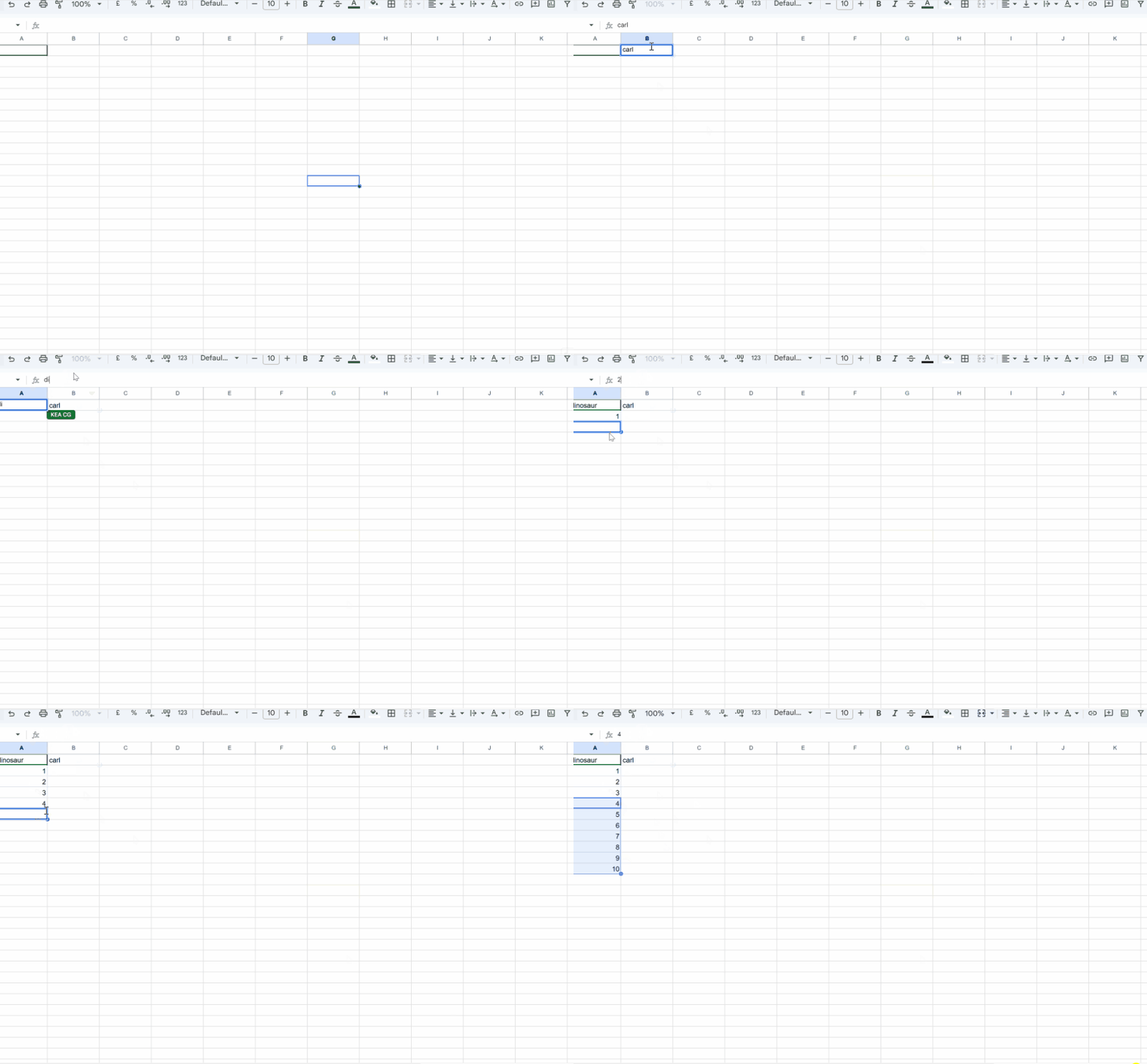
- Once students have all done that students open a google new tab and the teacher can show where to find the dinosaur game in the bookmarks. Show how to switch between tabs. Option, the teacher makes a new bookmark folder for the games to be played. Students play once and add their score to their Column going down each time, doing this 10 times.
- TEACHER makes NEW SHEET on the bottom for the NEW game
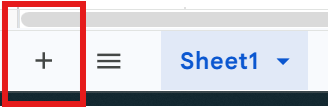
- Repeat the same step as before - pick a game to play, title it in A1 box- students name after that and students play and add in their highscore in their COLUMN, keep to the same column for students as the previous sheet.
Check for understanding:
- Students organize information clearly in the document or sheet.
- Students save or share the file in the correct place.
Extension: Try the same workflow again with a new idea, subject, or visual style.
Lesson 2 - Add a Chart
Goal: Also students may try to make a chart for their column. Might get messy but the charts can be moved around in the sheets space.
Teacher prep:
- Prepare access to Google Sheets, Google Drive and any sample files needed for demonstration.
Steps:
- Keep going.
- Also students may try to make a chart for their column. Might get messy but the charts can be moved around in the sheets space.
Check for understanding:
- Students organize information clearly in the document or sheet.
- Students save or share the file in the correct place.
Extension: Add more data and compare the results visually.
Week 2 - Country Population Sheet
Lesson 1 - Research and Record Country Data
Goal: Go to google drive - students - Name students Once in their folder.
Teacher prep:
- Prepare access to Google Sheets, Google Drive and any sample files needed for demonstration.
Steps:
- Go to google drive - students - Name students Once in their folder
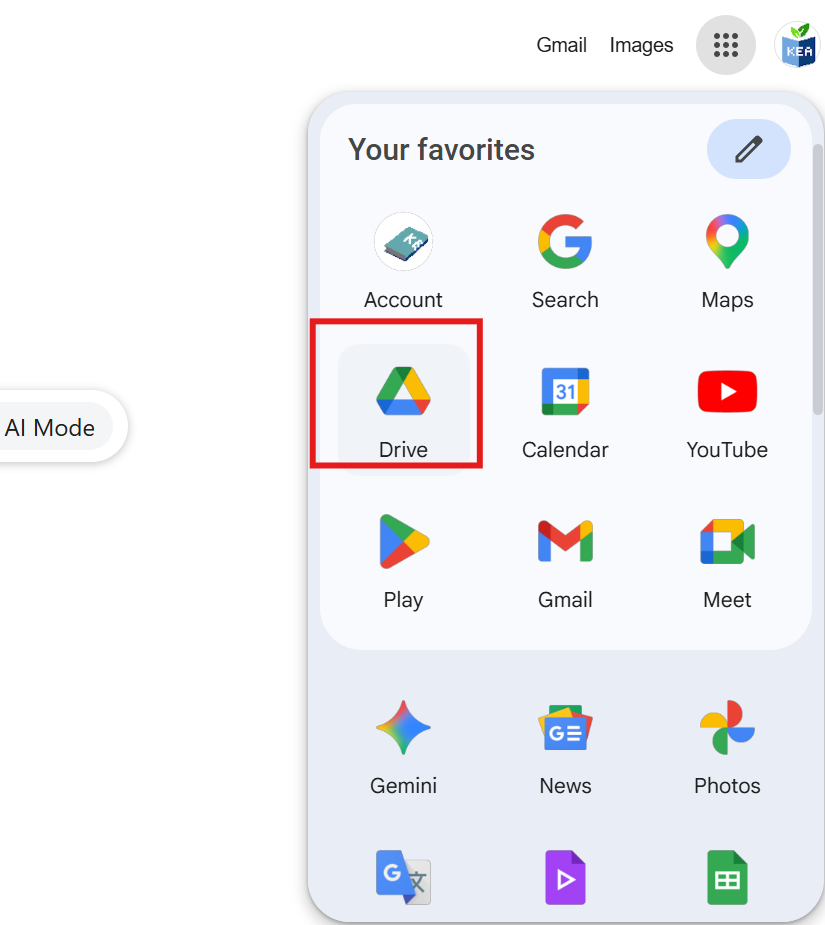

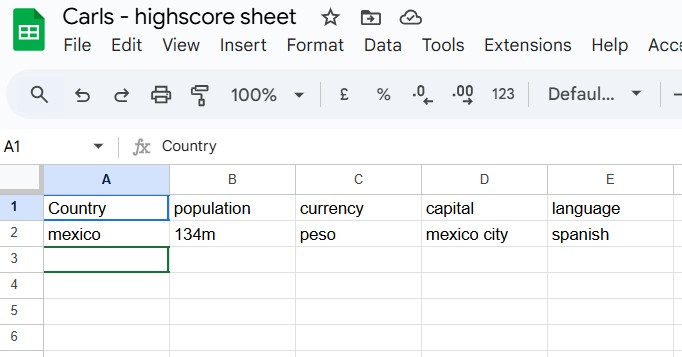
- Refer to the image example for this step.
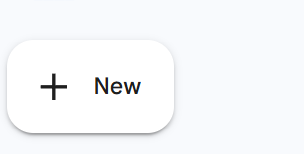
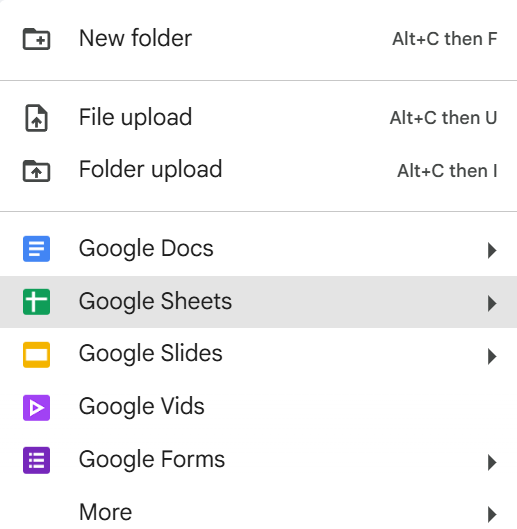
- Name the file on top
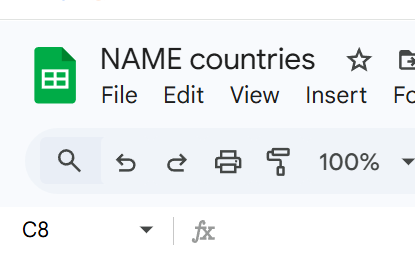
- Country, population, currency, capital, language…. ----find data from wikipedia, typing country, collect population data
- At the start of the lesson write on the board country names,
- List of 10
- Do 1 together
- Making the sheet and column names etc.
- Select one together
- Find data from wikipedia search
- Afterwards students can choose one of the countries on the board by themselves.
- Refer to the image example for this step.
Check for understanding:
- Students organize information clearly in the document or sheet.
- Students save or share the file in the correct place.
Extension: Create a second variation or extend the project with extra details if time allows.
Lesson 2 - Continue the Research Sheet
Goal: Complete the continue the research sheet activity.
Teacher prep:
- Prepare access to Google Sheets, Google Drive and any sample files needed for demonstration.
Steps:
- Continue
Check for understanding:
- Students organize information clearly in the document or sheet.
- Students save or share the file in the correct place.
Extension: Try the same workflow again with a new idea, subject, or visual style.