Unit 18 - Year 1 Lessons
Overview
Students will observe how bodies move, build a simple walk cycle, and place that animation into a moving Wick Editor scene.
Target skills:
- Animation Observation
- Frame Sequencing
- Motion Design
Tools:
- Pixilart
- Wick Editor
- Google Drive
Outputs:
- Walk cycle GIF
- Wick Editor walk scene
Week 1 - Walk Cycle on Paper and Pixilart
Lesson 1 - Draw the Legs Walk Cycle
Goal: Focus on just the legs first.
Teacher prep:
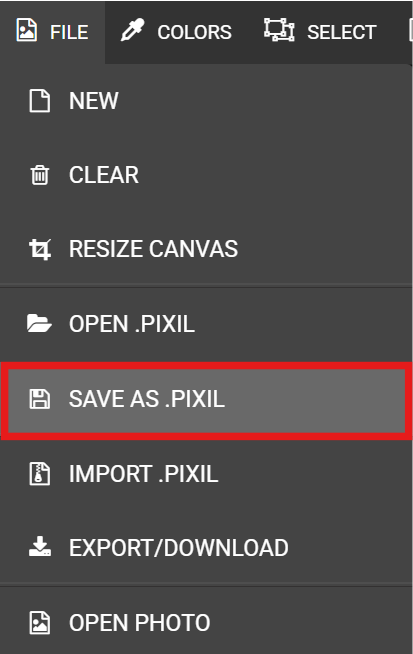
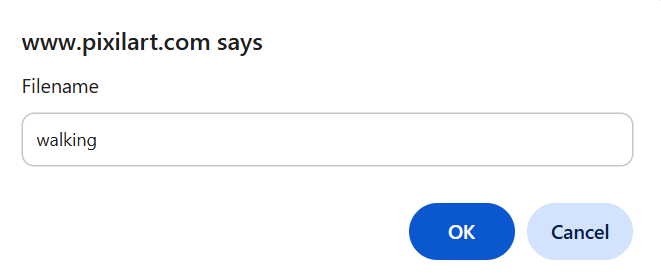
- Unless time allows go to next lesson Teacher also saves this to google drive for students who have not started Download and save as pixil —- unless time allows go to next lesson walking.pixil Save it to google drive to the students file
Steps:
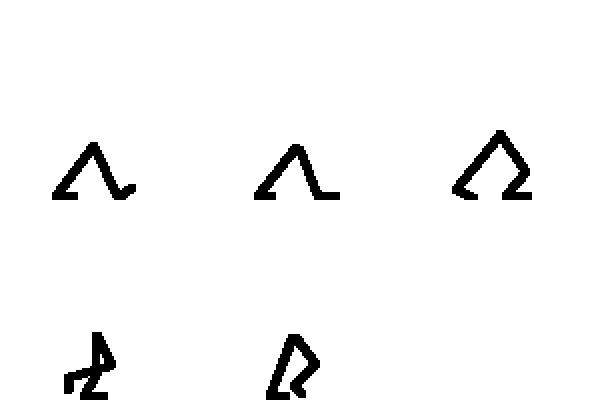
- Refer to the image example for this step.
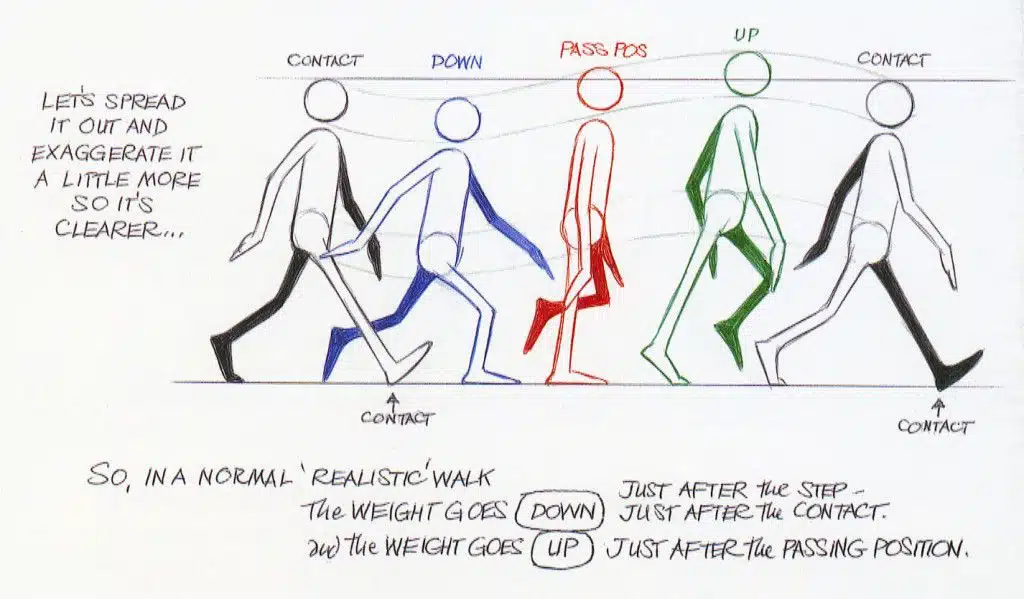

- Focus on just the legs first.
- Talking about walking and how we walk. As a class. Pointing out things of importance: like the Ankle, Toe placement, knee bending. Most walking in animation is much more than 5 frames but 5 frames is fine.
- Using the pixil art grid : Use the linked reference if provided
- Draw in the grid the legs
- Focus on keeping the “hips” centered but up and down as the reference picture
- Like this using a pencil KEEP THIS PAPER FOR FUTURE LESSONS
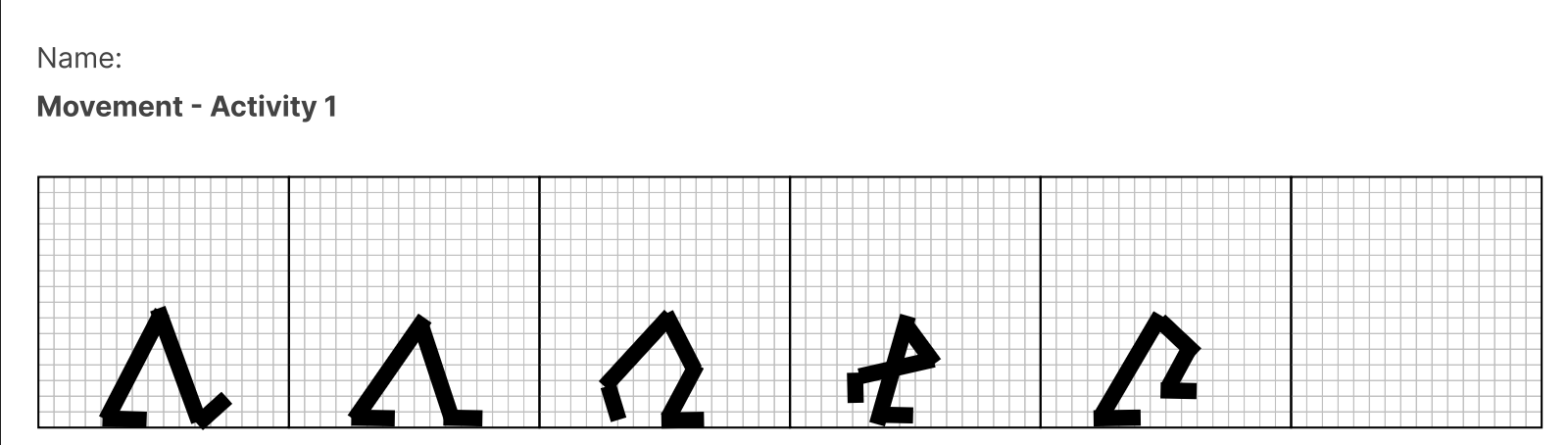
- Open up pixil art
- 100x100 canvas size
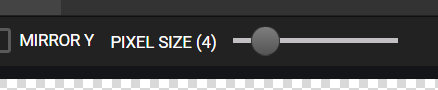
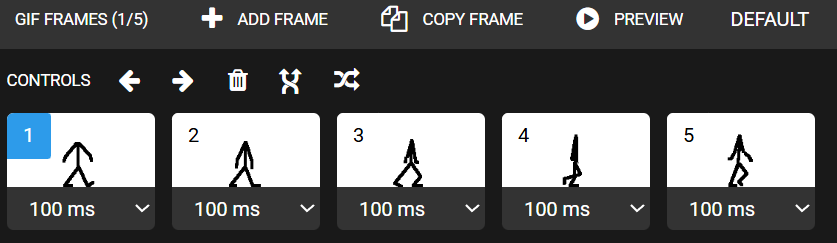
- Drawing the frames like our legs we drew before on paper - using the line tool will help keep lines straight - Change pixel size to 4. - finding a middle point and make that the center point for the reset of the drawings - And trying to draw the first frame on the paper.

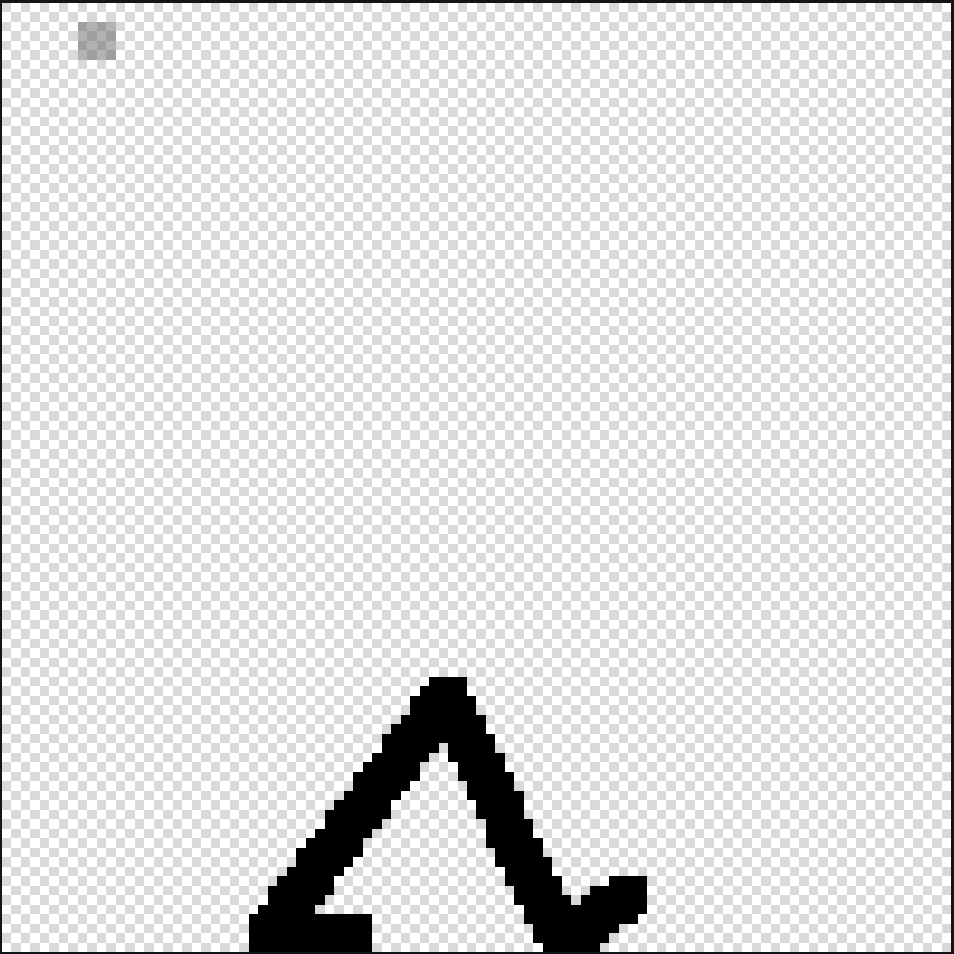
- Refer to the image example for this step.
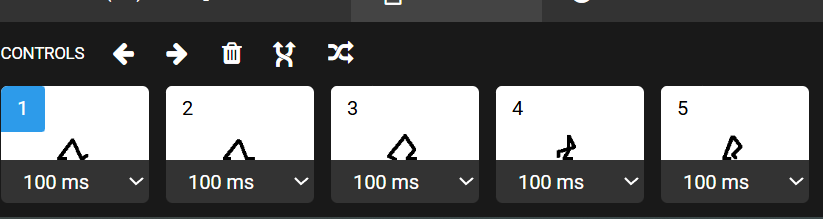

- It should look like this If not and it looks jumpy or it stutters Go back through the frames and adjust where needed.
- Unless time allows go to next lesson Teacher also saves this to google drive for students who have not started Download and save as pixil —- unless time allows go to next lesson walking.pixil Save it to google drive to the students file
Check for understanding:
- Students complete the core workflow for the lesson.
- Students can explain at least one design choice or animation decision.
Extension: Create a second variation or extend the project with extra details if time allows.
Lesson 2 - Add Arms and Finish the Walk
Goal: Talk about what we did previously (legs).
Teacher prep:
- Working on the arms next if students don't have the paper from previous they may try and copy teachers legs placements. Or copy from one of the students /teachers papers. Don't worry about the head but can draw that last.
- Open Pixil - Let students use the teachers copy of waking.pixil if they have not started. Locate google drive - students - student name. Click on walking.pixil and open.
Steps:
- Talk about what we did previously (legs)
- Talk about how our arms are moving
- Working on the arms next if students don't have the paper from previous they may try and copy teachers legs placements. Or copy from one of the students /teachers papers. Don't worry about the head but can draw that last.

- Open Pixil - Let students use the teachers copy of waking.pixil if they have not started. Locate google drive - students - student name. Click on walking.pixil and open.
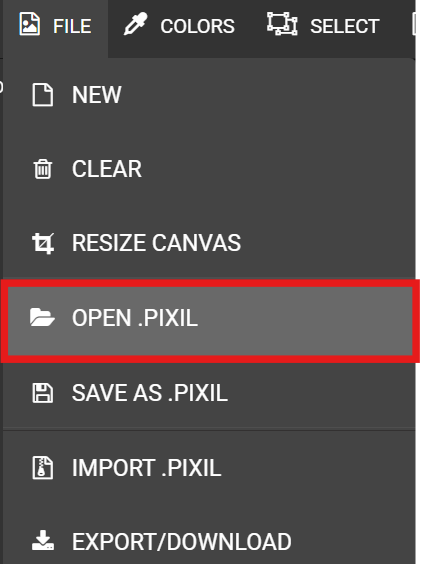
- Going to frame 1 and starting to draw in the arms on the legs
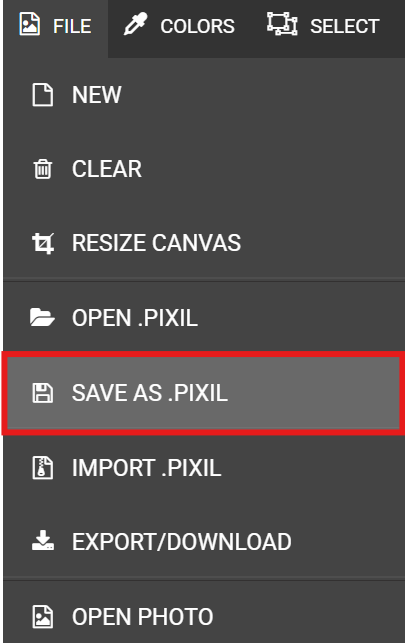
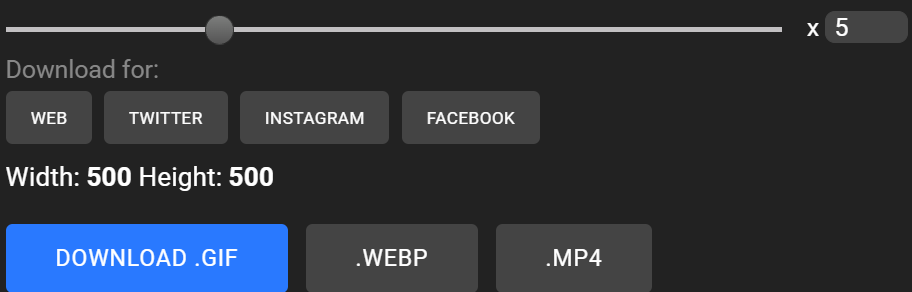
- Once finished save both as pixil and gif And X 5

- May try and add colors to represent the left and right side arms/legs May also try drawing cloths or a hat to the body
Check for understanding:
- Students complete the core workflow for the lesson.
- Students can explain at least one design choice or animation decision.
Extension: Create a second variation or extend the project with extra details if time allows.
Week 2 - Walk Cycle in Wick Editor
Lesson 1 - Move the Walk Cycle Across a Scene
Goal: Using the walk cycle and placing it into the wickeditor.
Teacher prep:
- Prepare access to Pixilart, Wick Editor, Google Drive and any sample files needed for demonstration.
Steps:
- Using the walk cycle and placing it into the wickeditor.
- Making the animation walk across the scene or parallax method. Several ways to do
- Open wickeditor
- Upload the walking.gif to asset library Using the upload button Go to google drive > students > Students folder and locate the walking.gif
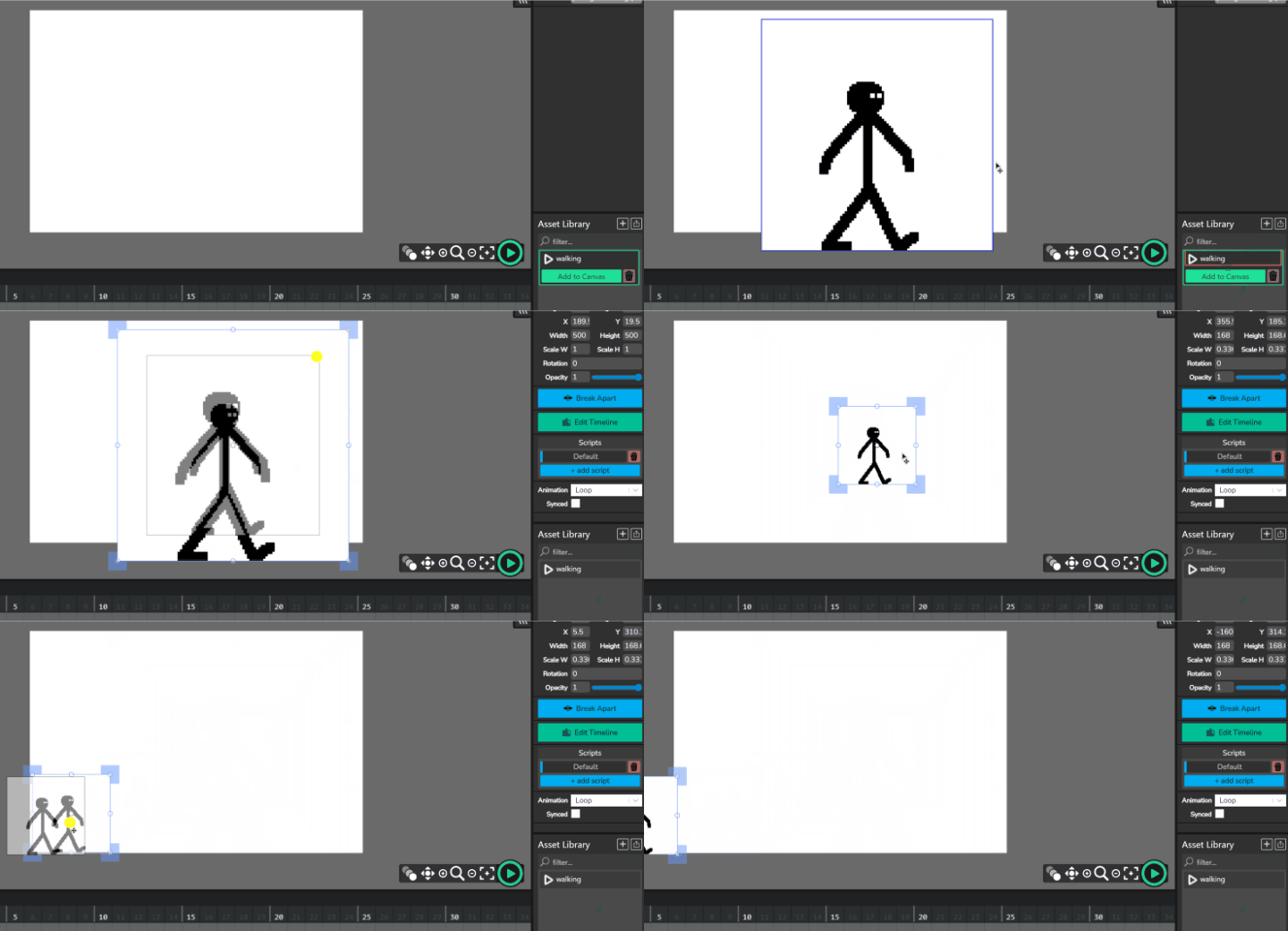
- Click and drag or click ADD TO CANVAS Resize the drawing if it is too big. Move the gif to the left side.
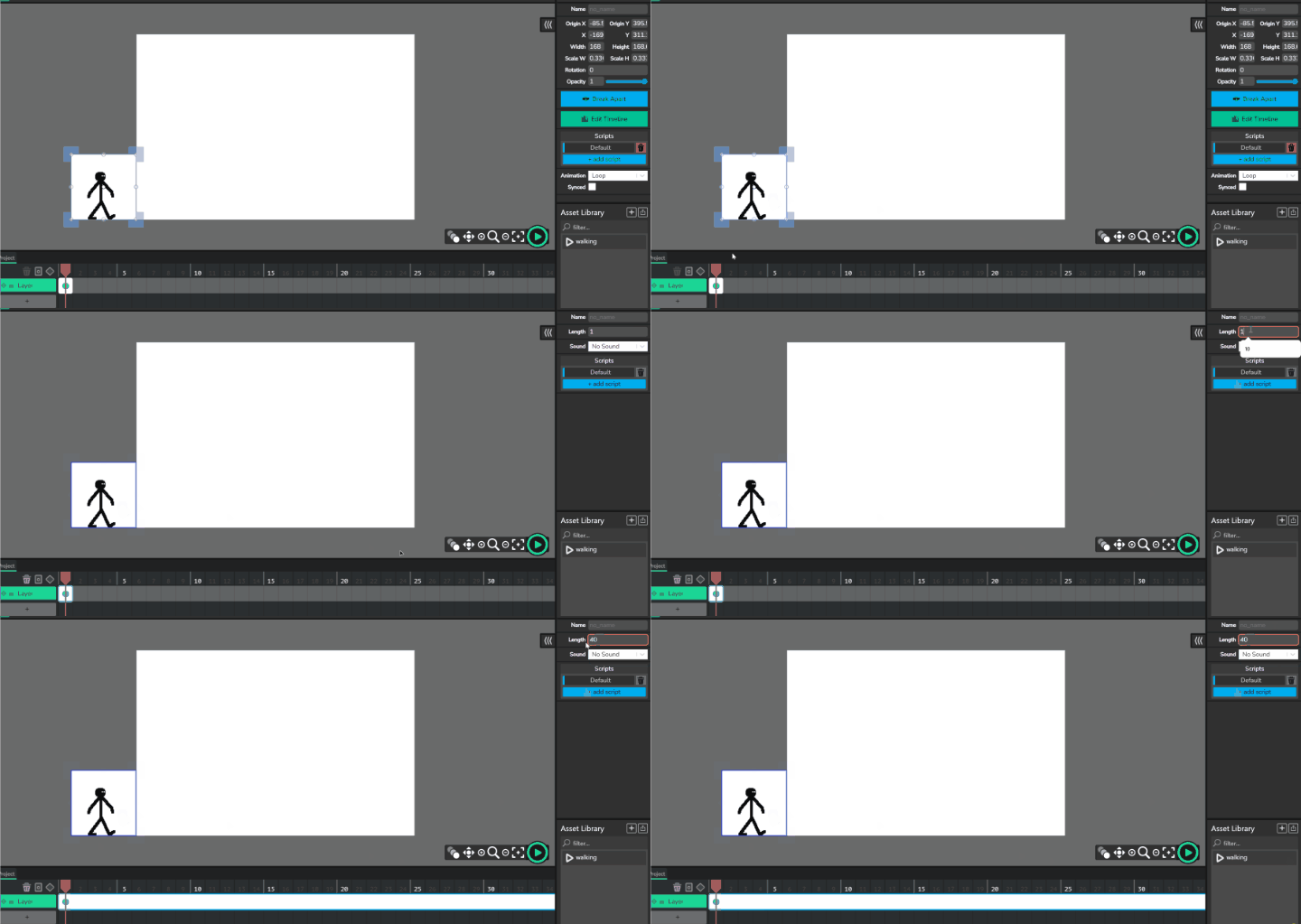
- Click the green dot and change the length on the right side to 40
- Click the tween button Move the red indicator slowly across to 40 Click the walking drawing and move it to the other side of the canvas.

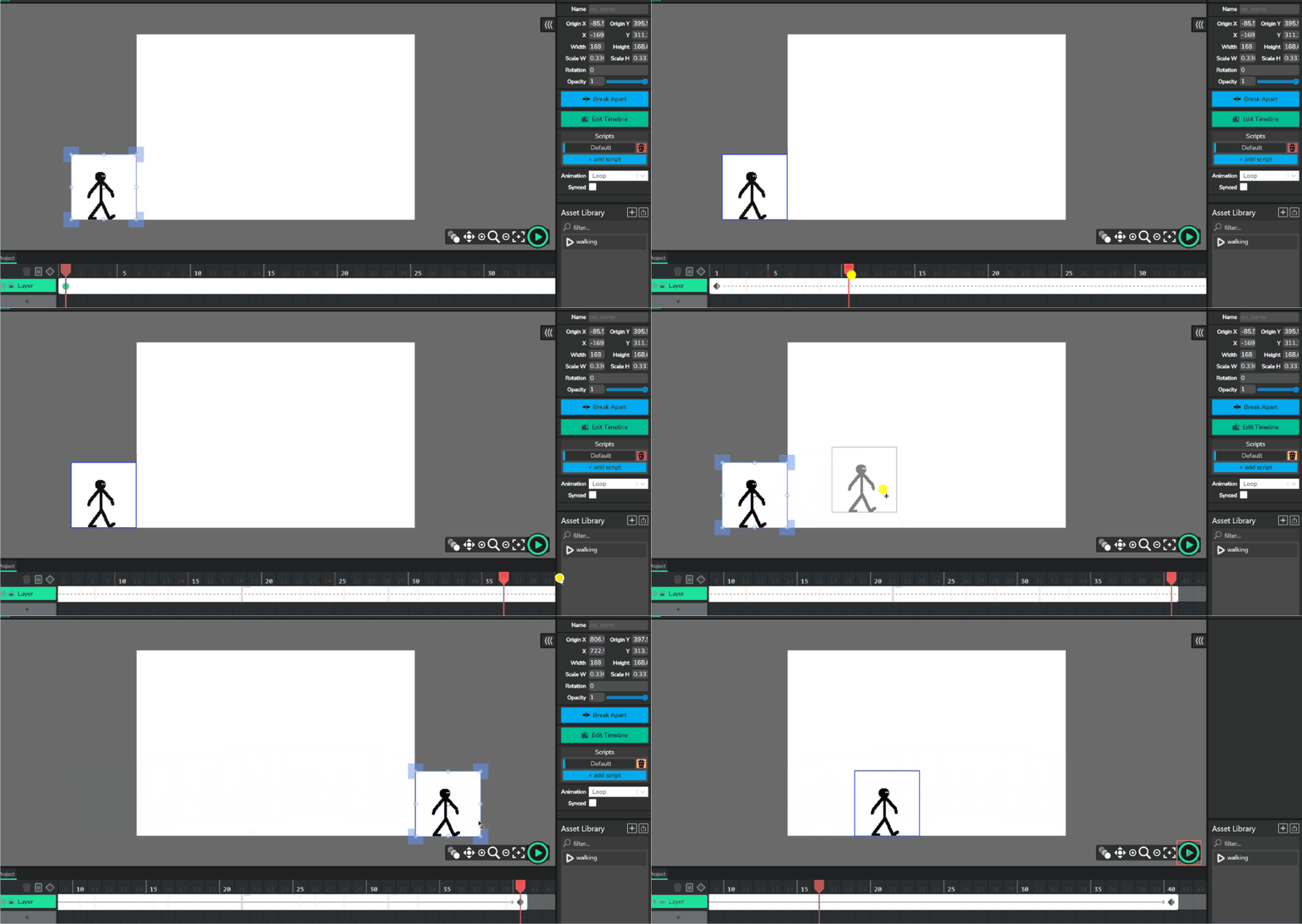
- Finished the first part.
- The second part is to make a little path like hill for the character to walk across. - make a layer 2 - use line tool to make a little hill - click the frame on layer 2 and make it length of 40 (same as layer1) - can extend the frame by click the edge OR on the right side type in (length)

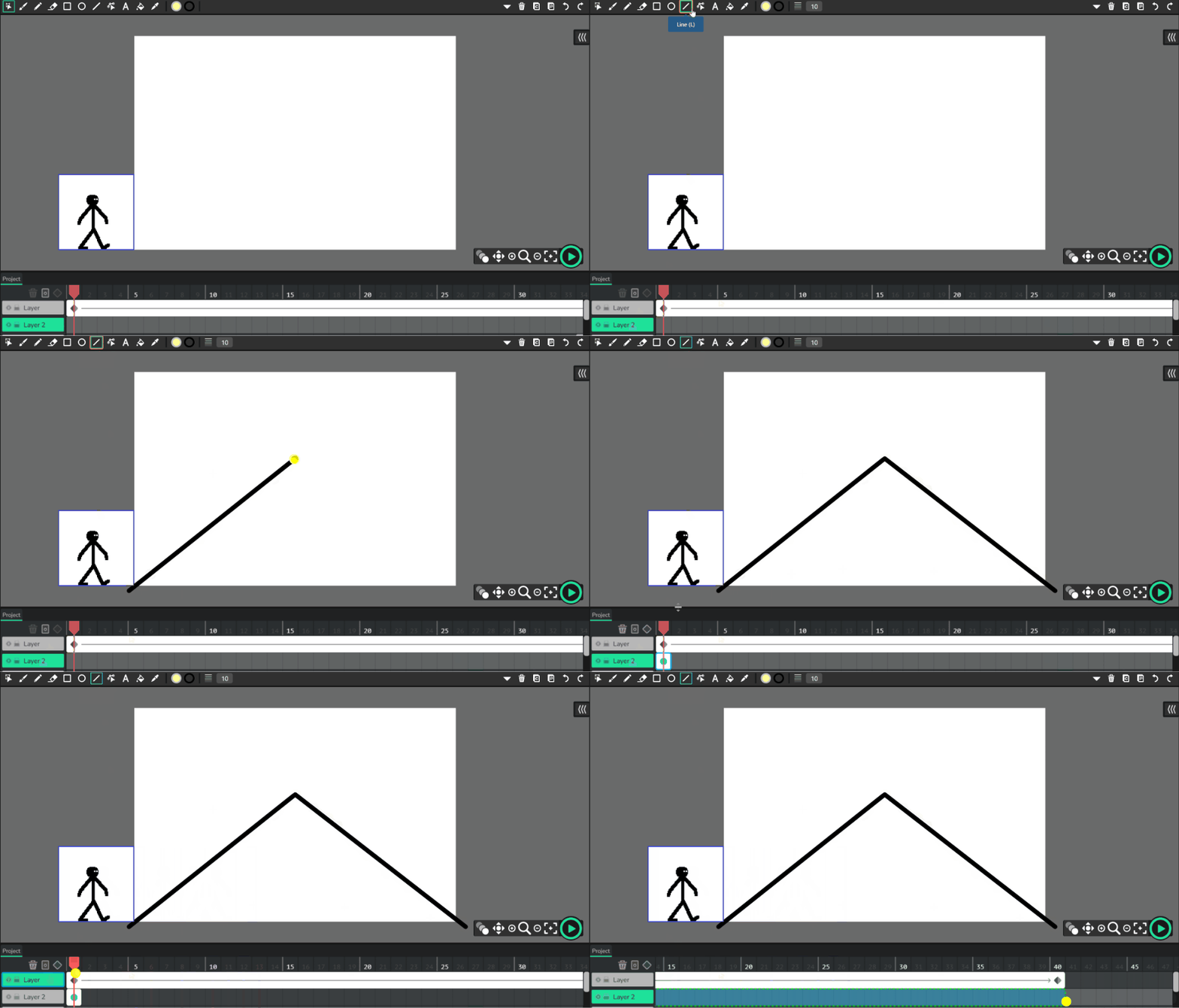
- Click the red indicator and change it to 20 - click your walking gif and move it into place.
- This activity can be extended by trying to make a unique walking scene. - go back to layer 2 and using the selection tool to delete the hill - redraw a new, harder design. Try two hill move the red indicator +10 per section of hill - moving the red indicator and the character.
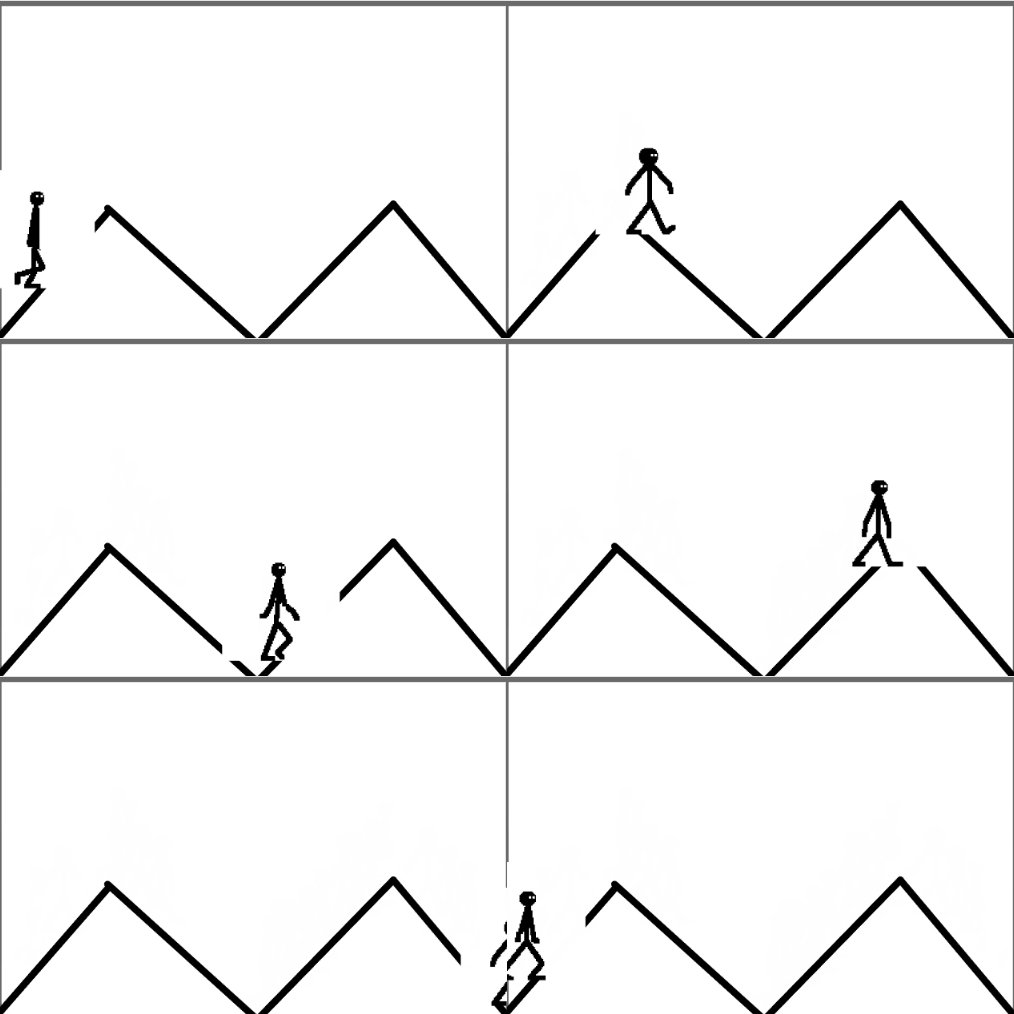
Check for understanding:
- Students complete the core workflow for the lesson.
- Students can explain at least one design choice or animation decision.
Extension: Create a second variation or extend the project with extra details if time allows.
Lesson 2 - Create a New Walking Path
Goal: Repeat the same activity and try new lines for the character to “walk” along.
Teacher prep:
- Prepare access to Pixilart, Wick Editor, Google Drive and any sample files needed for demonstration.
Steps:
- Repeat the same activity and try new lines for the character to “walk” along.
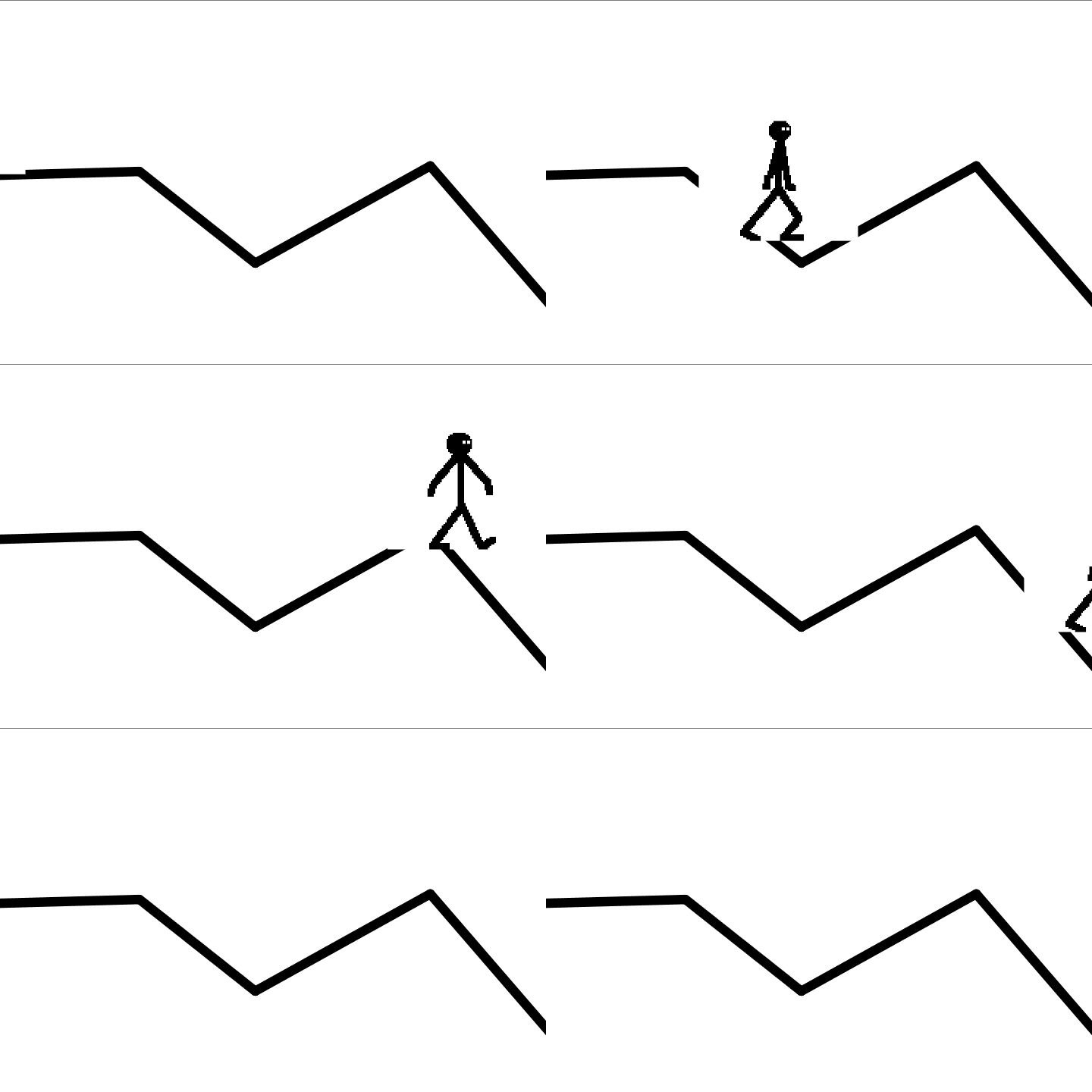
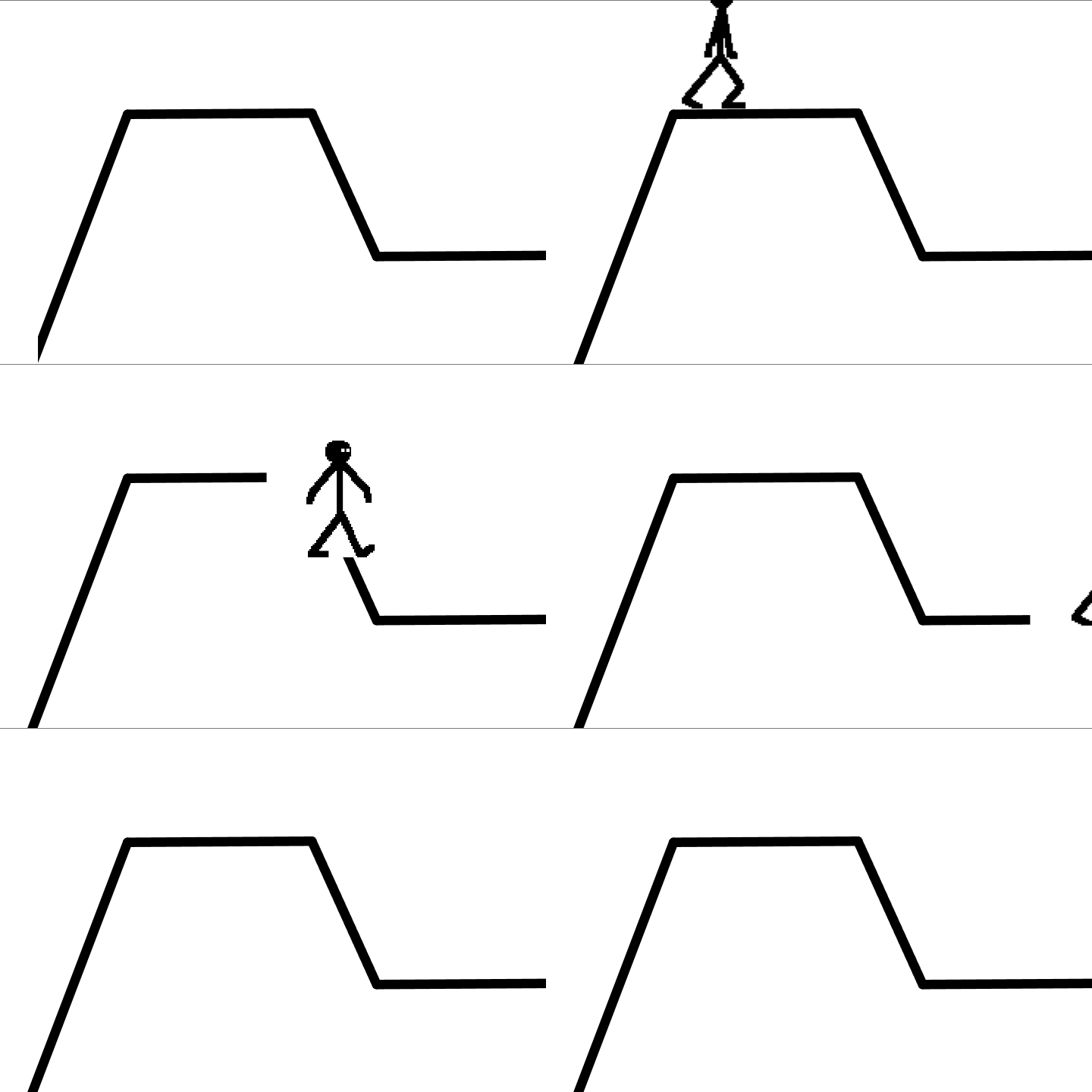
Check for understanding:
- Students complete the core workflow for the lesson.
- Students can explain at least one design choice or animation decision.
Extension: Try the same workflow again with a new idea, subject, or visual style.