Unit 14 - Year 1 Lessons
Overview
Students will animate bouncing movement first in Pixilart and then in Wick Editor, focusing on timing, squash and stretch, and repeated motion.
Target skills:
- Animation Planning
- Frame Sequencing
- Creative Problem Solving
Tools:
- Pixilart
- Wick Editor
- Google Drive
Outputs:
- Pixilart bounce animation
- Wick Editor bounce animation
Week 1 - Ball Bouncing Across
Lesson 1 - Animate a Ball Crossing
Goal: Open pixil art.
Teacher prep:
- Prepare access to Pixilart, Wick Editor, Google Drive and any sample files needed for demonstration.
Steps:
- 32x3 canvas
- Pixil art
- Open pixil art
- NEW 100x32 canvas
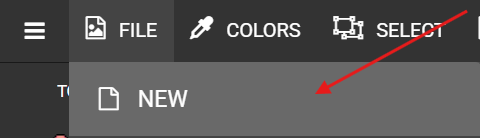
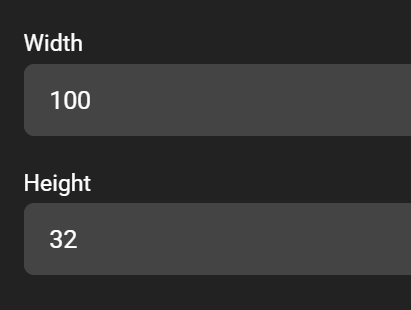
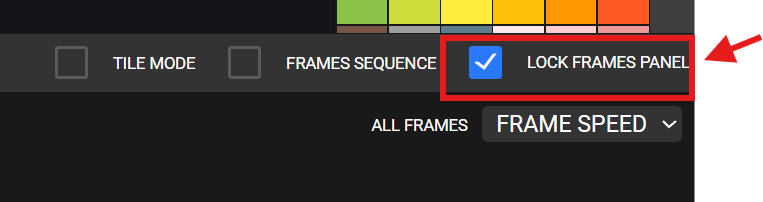
- Turn LOCK FRAMES PANEL on
- Use the circle tool with FILL on


- Draw a ball to the left side can move the ball if its out of place with


- Copy Frame

- Move the ball half away down
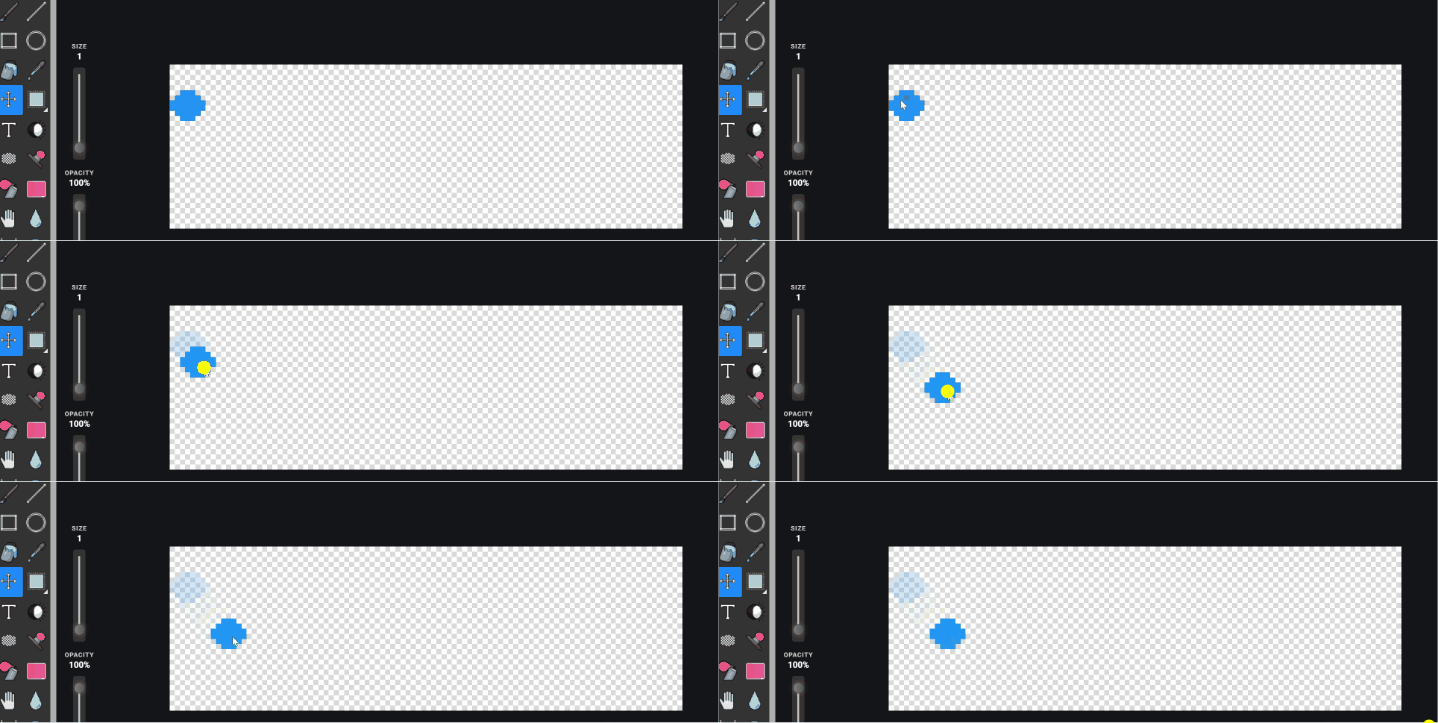
- Copy frame and move the ball down to the ground
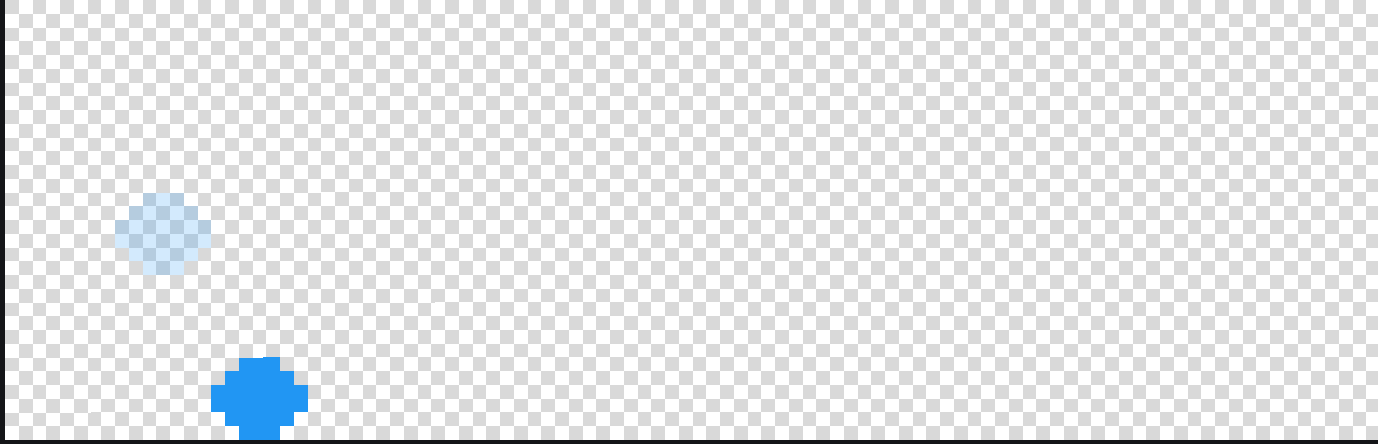
- Copy frame and move the ball up slightly,

- Copy frame and move the ball up again but no more higher than when we start from.

- Repeat this step until maybe the 3rd or so bounce afterwards the ball is going to bounce a tiny amount.
- Refer to the image example for this step.

Check for understanding:
- Students complete the core workflow for the lesson.
- Students can explain at least one design choice or animation decision.
Extension: Try the same workflow again with a new idea, subject, or visual style.
Lesson 2 - Repeat With a New Bounce
Goal: New students should start from the above activity.
Teacher prep:
- Prepare access to Pixilart, Wick Editor, Google Drive and any sample files needed for demonstration.
Steps:
- New students should start from the above activity.
- Or
- Make a new pixil art with a ball just bouncing and a box going past.
- Using use the circle tool with FILL on
- Draw a ball Move the ball down


- Add frame

- Draw the ball again but this time slightly squished.

- Repeat one more time, Add Frame, Draw ball more squished

- Add frame, draw the ball squashed going up

- This time And move the ball up

- Add Frame and draw the ball above the previous a little squashed.

- Add Fame and draw a ball bit higher and round.

- Copy Frame this time and move the ball up slightly

- Copy frame and move the ball down slightly

- Add a frame and draw the ball squashed going down.

- Copy frame and move the ball down a bit and finishe ! IF the ball is wobbling when previewed, click on the FRAMES individually and use to move the ball around to make it centered.

- Go back to frame 1

- Go to stamps and search BOX and enter.

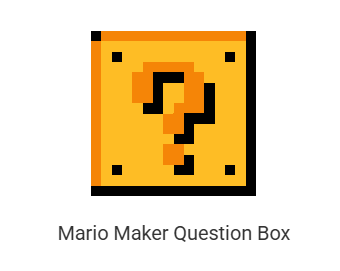
- And move the box to the right side
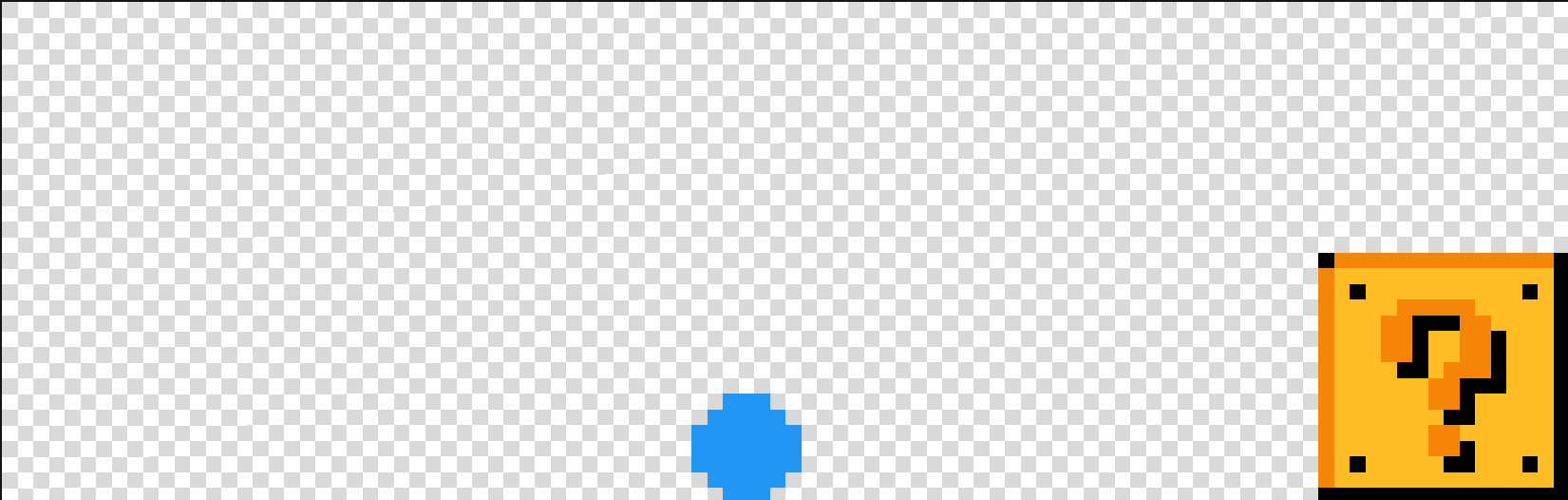
- Next frame, number 2
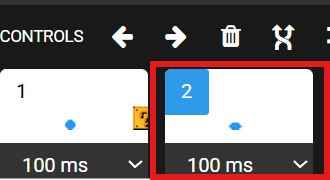
- Repeat, go back to stamps and click on the box one more time. (stamps should already be on the Box search) And move the box about halfway more then the previous box
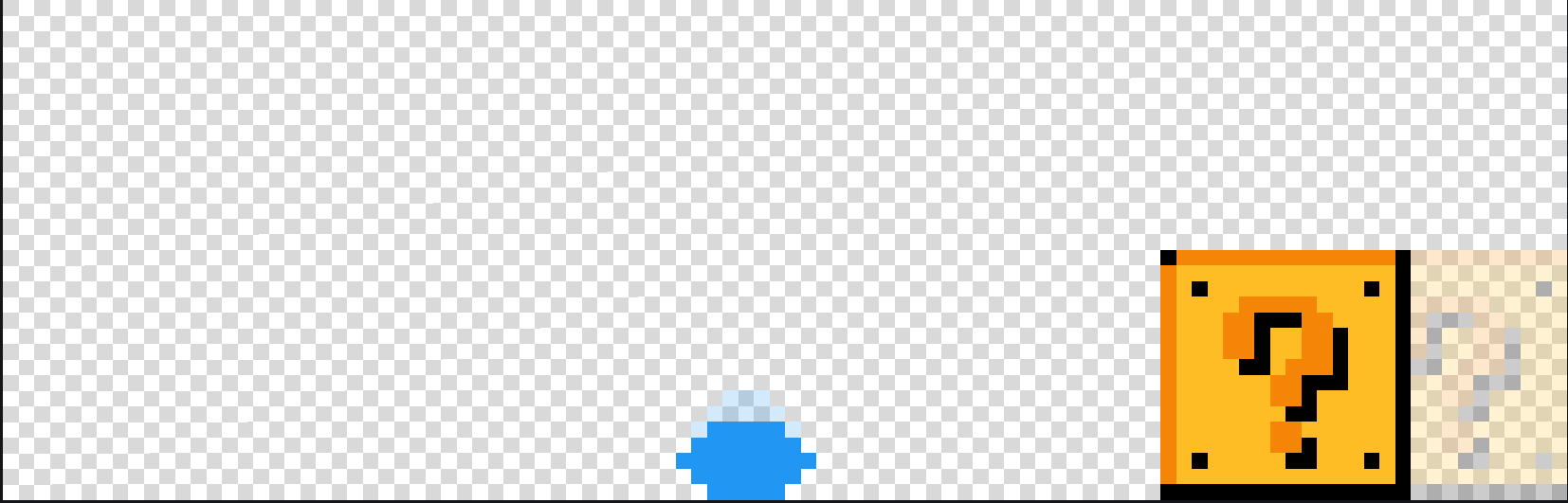
- Repeat these steps for ALL frames, go to the next frame , stamp , move the box into place halfway more than previous. == If the box is too close before reaching the ball just undo a few times and repeat steps but make the box move less than halfway of the previous box.

- Save to google drive. X5 should be fine
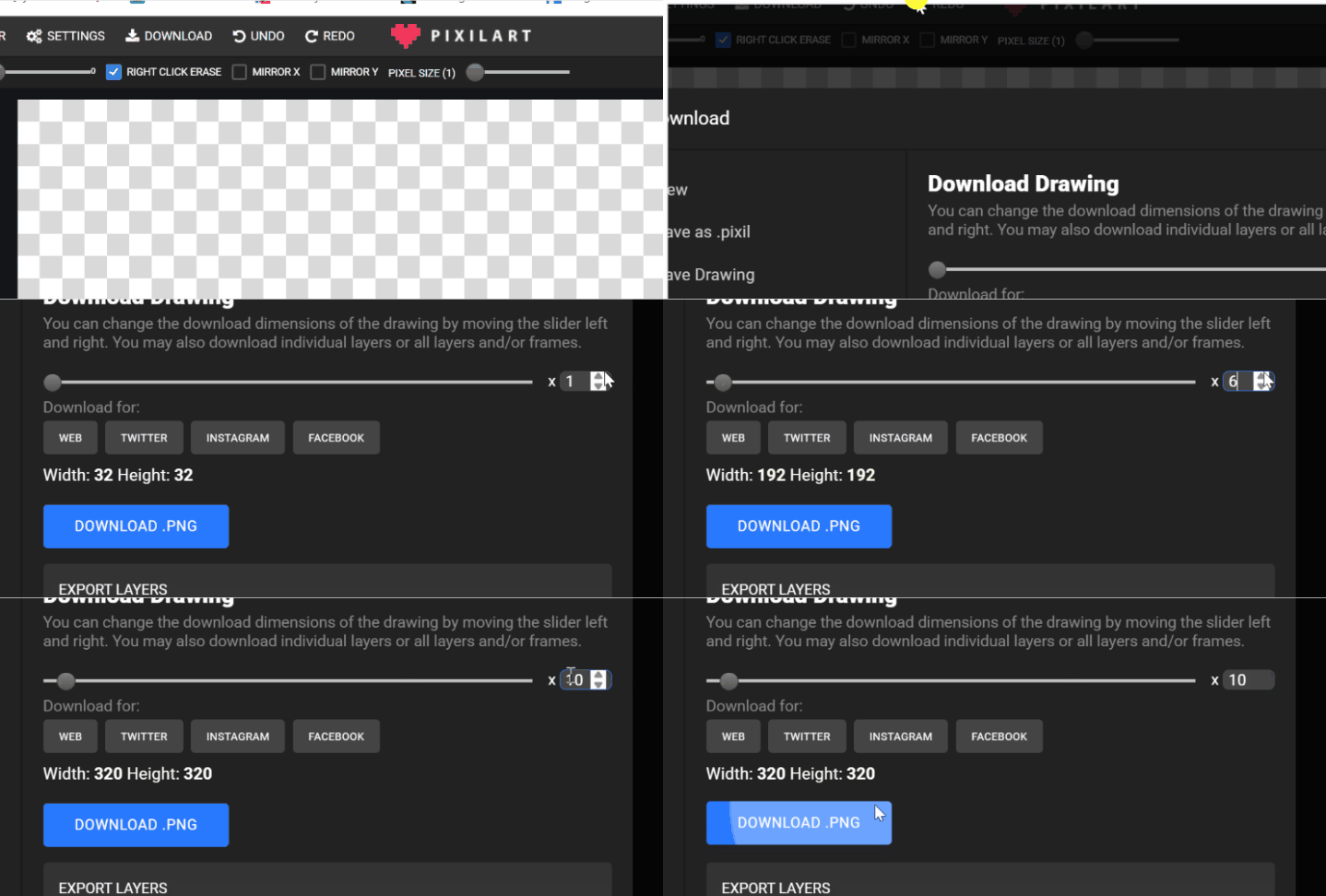
- Save to GOOGLE DRIVE > STUDENTS> STUDENTS FILE> bounce.gif
Check for understanding:
- Students complete the core workflow for the lesson.
- Students can explain at least one design choice or animation decision.
Extension: Try the same workflow again with a new idea, subject, or visual style.
Week 2 - Ball Bounce in Wick Editor
Lesson 1 - Bounce a Ball in Wick Editor
Goal: Using wickeditor.
Teacher prep:
- Teacher save also for students that may need to next lesson
Steps:
- Https://www.wickeditor.com/editor/
- Using wickeditor
- Open wickeditor
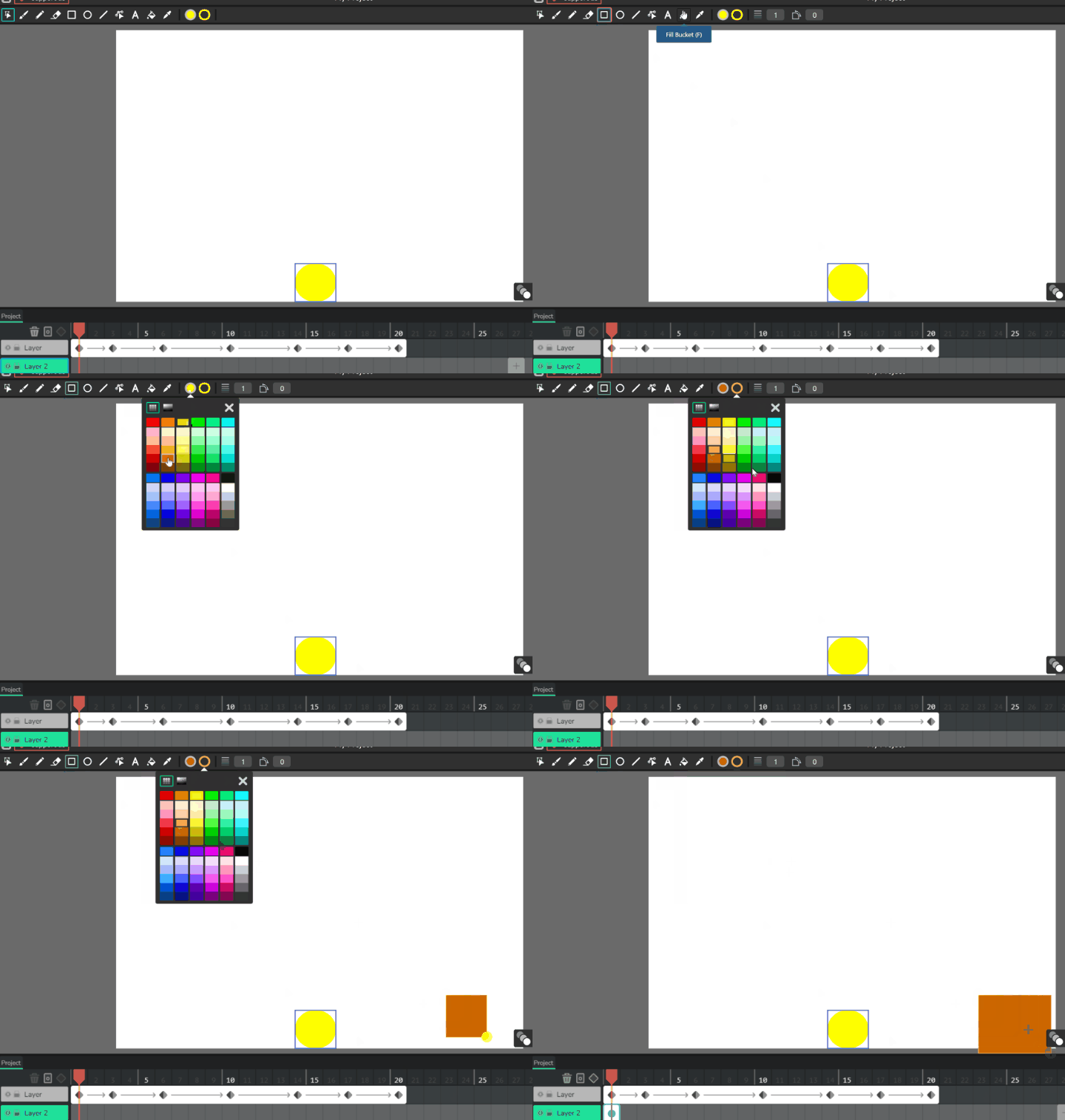
- Use circle tool, changing colors also and draw
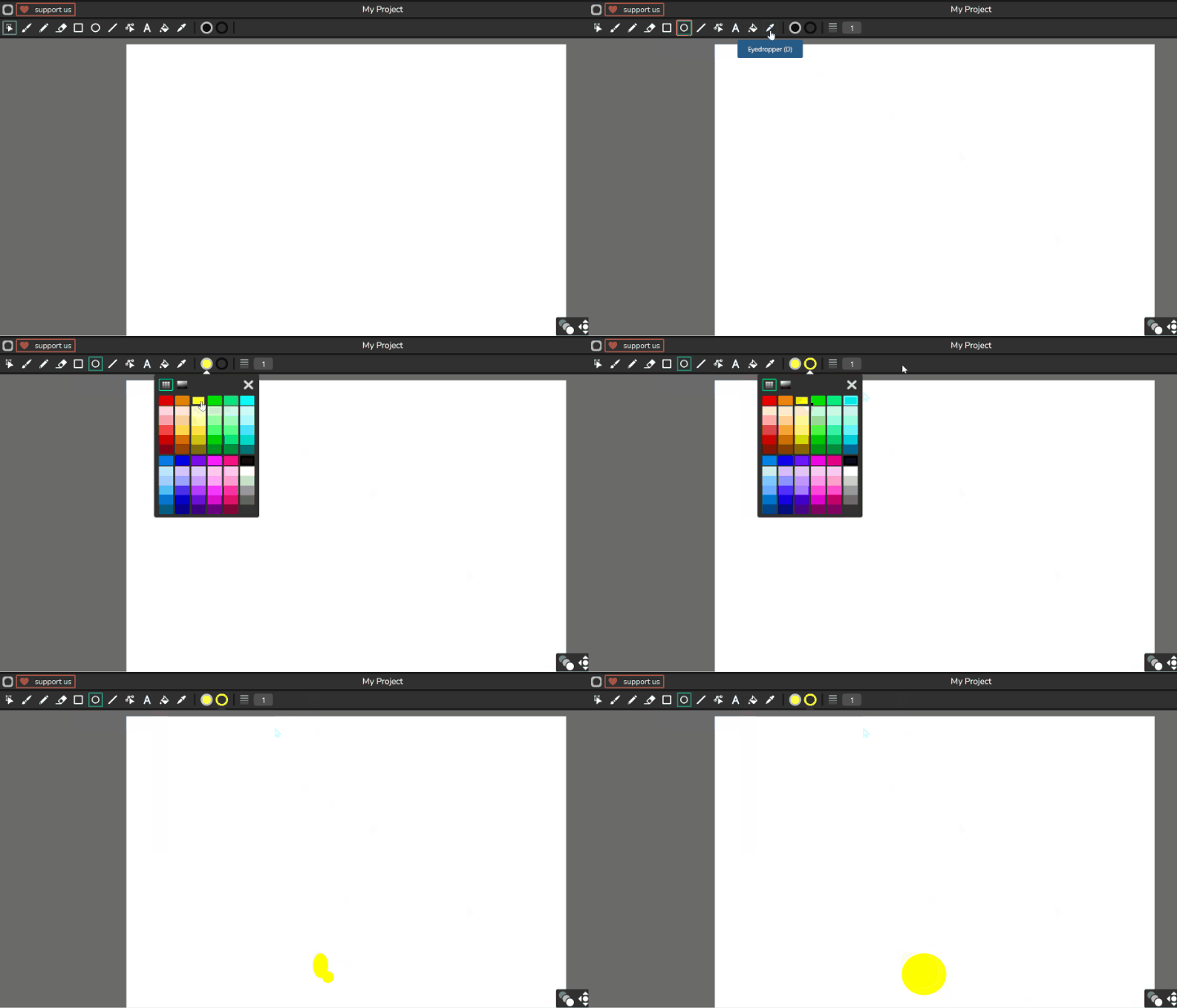
- Use this move tool to move the ball down to the “ground”.

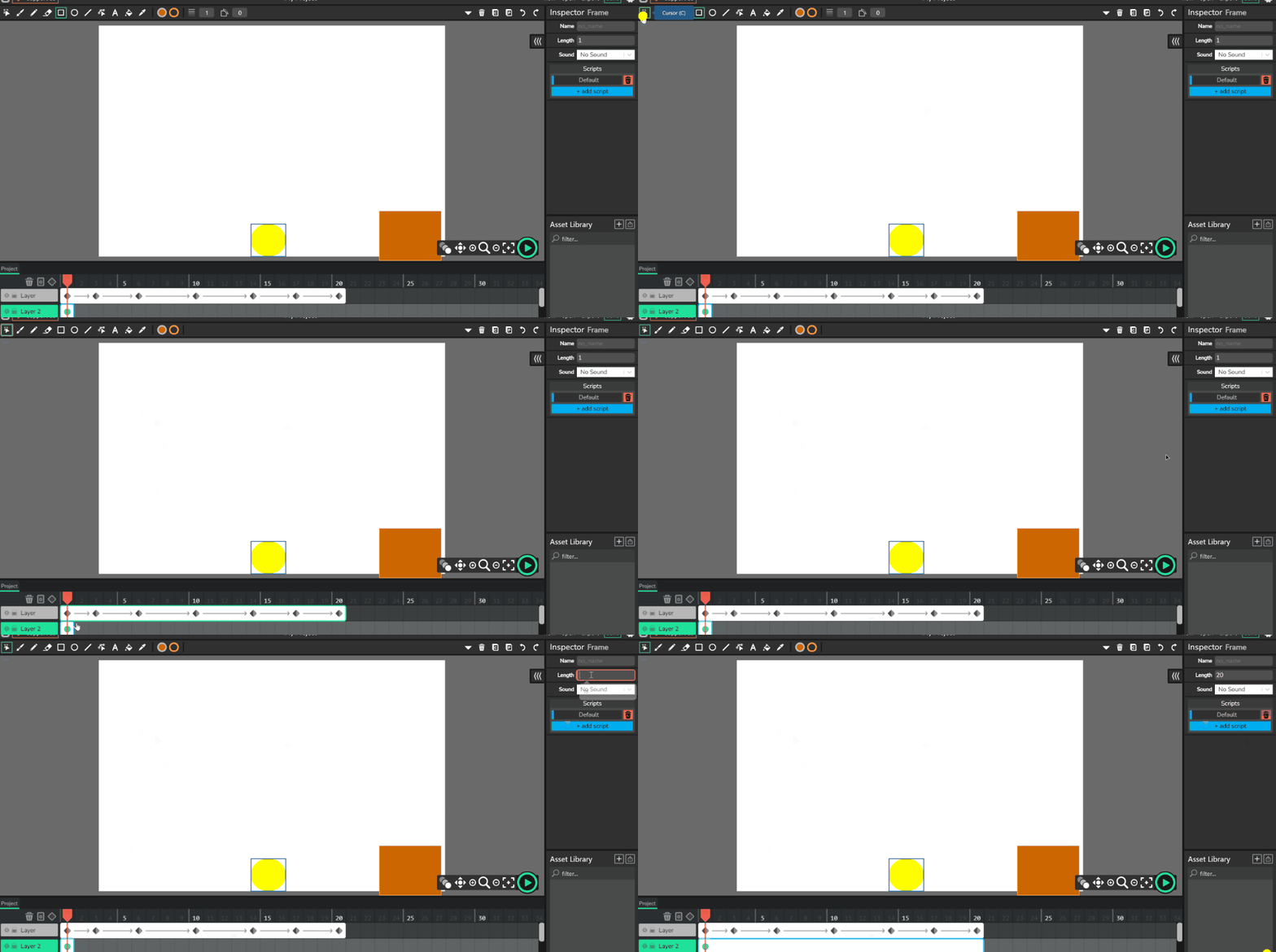
- Click the green box and change the length top-right, too 20
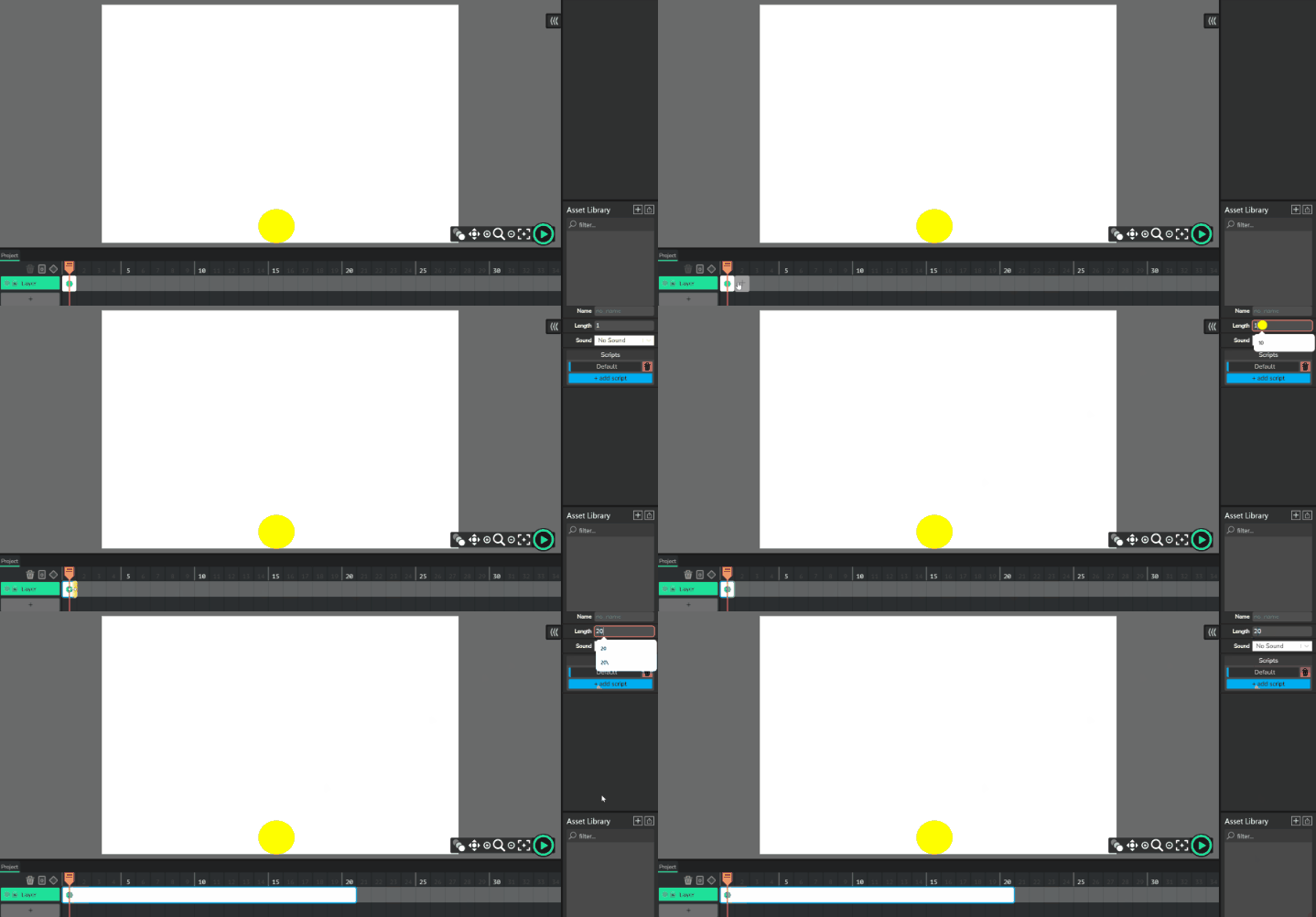
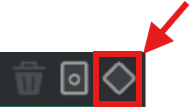
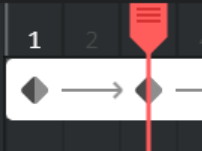
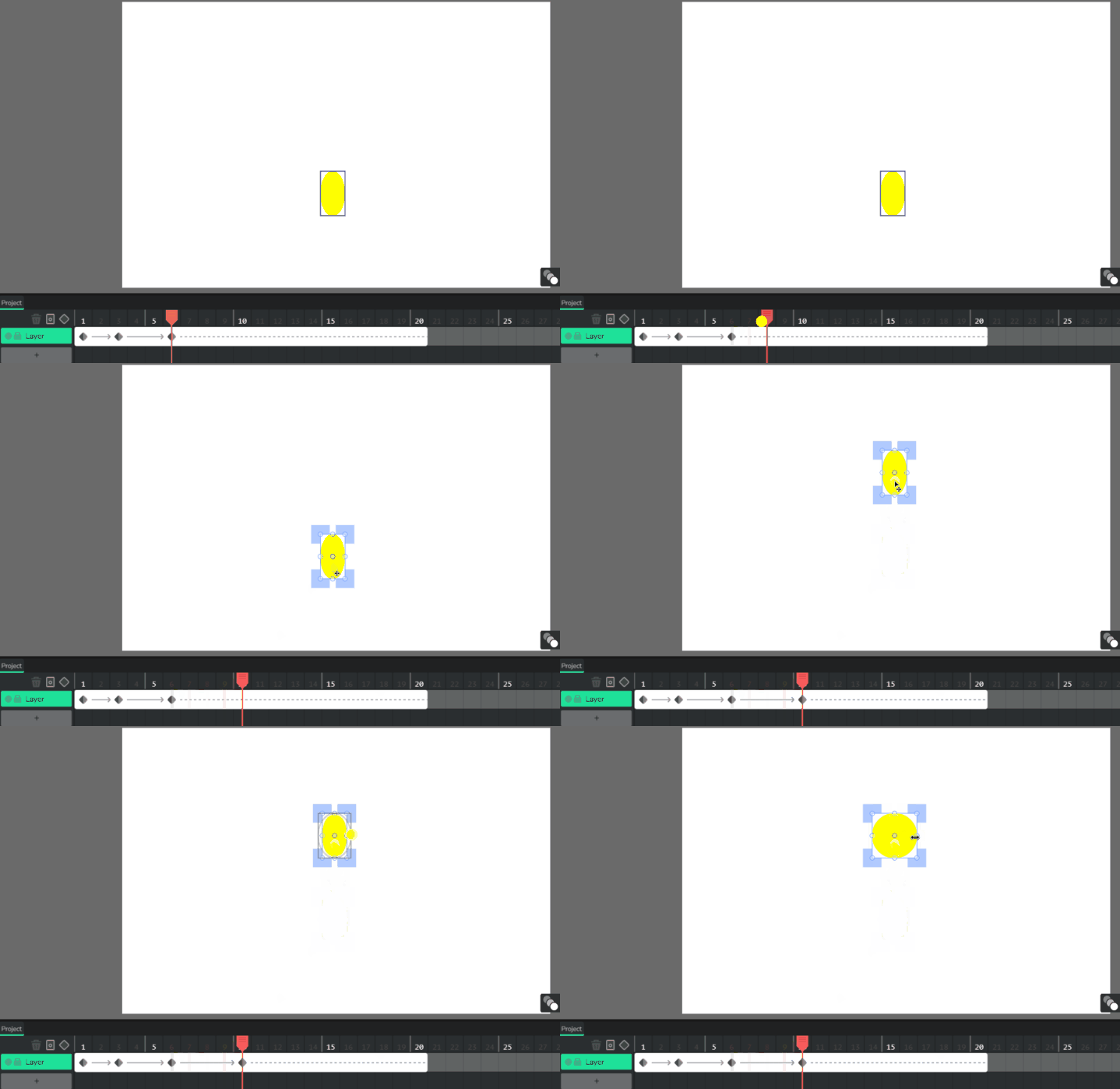
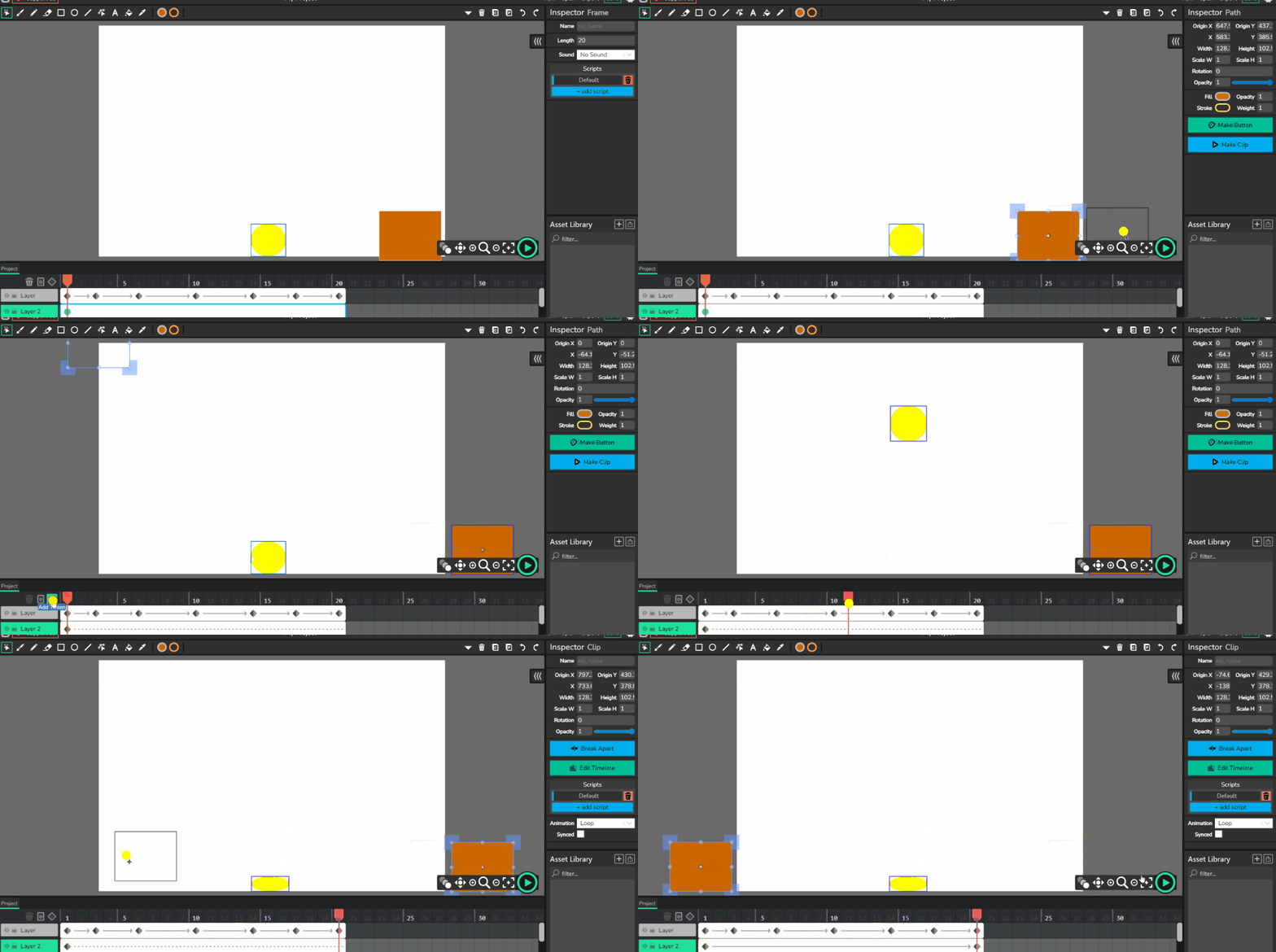
- Click on the tween button Move the red indicator to number 3 Click the ball and squish the ball using the blue circle indicators around the ball from the top pull down to squish the ball and move it back down to the ground.
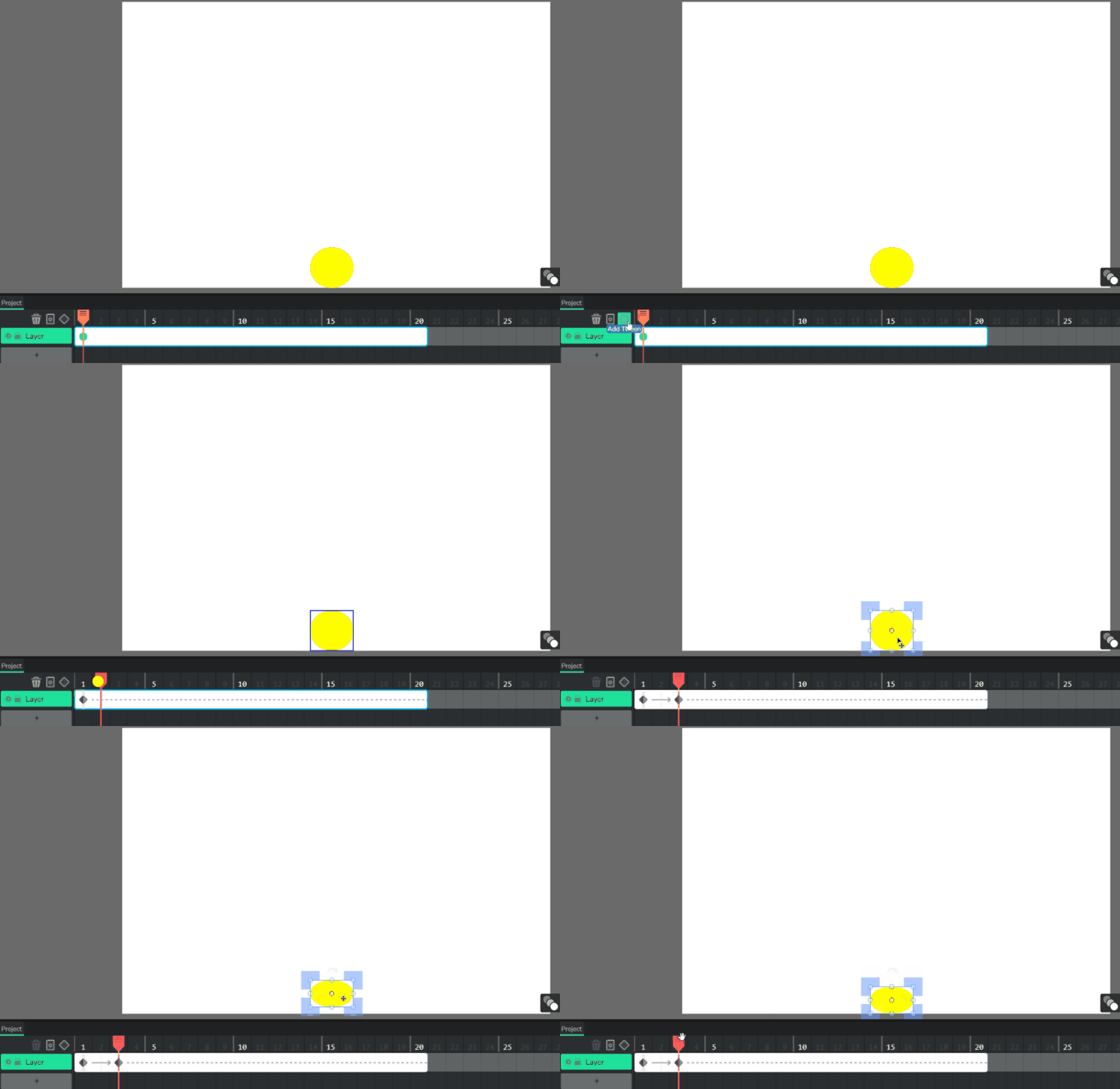
- Move the RED indicator to 6 Move the ball up Adjust the balls size back to round and then squish the ball from the left or right side.
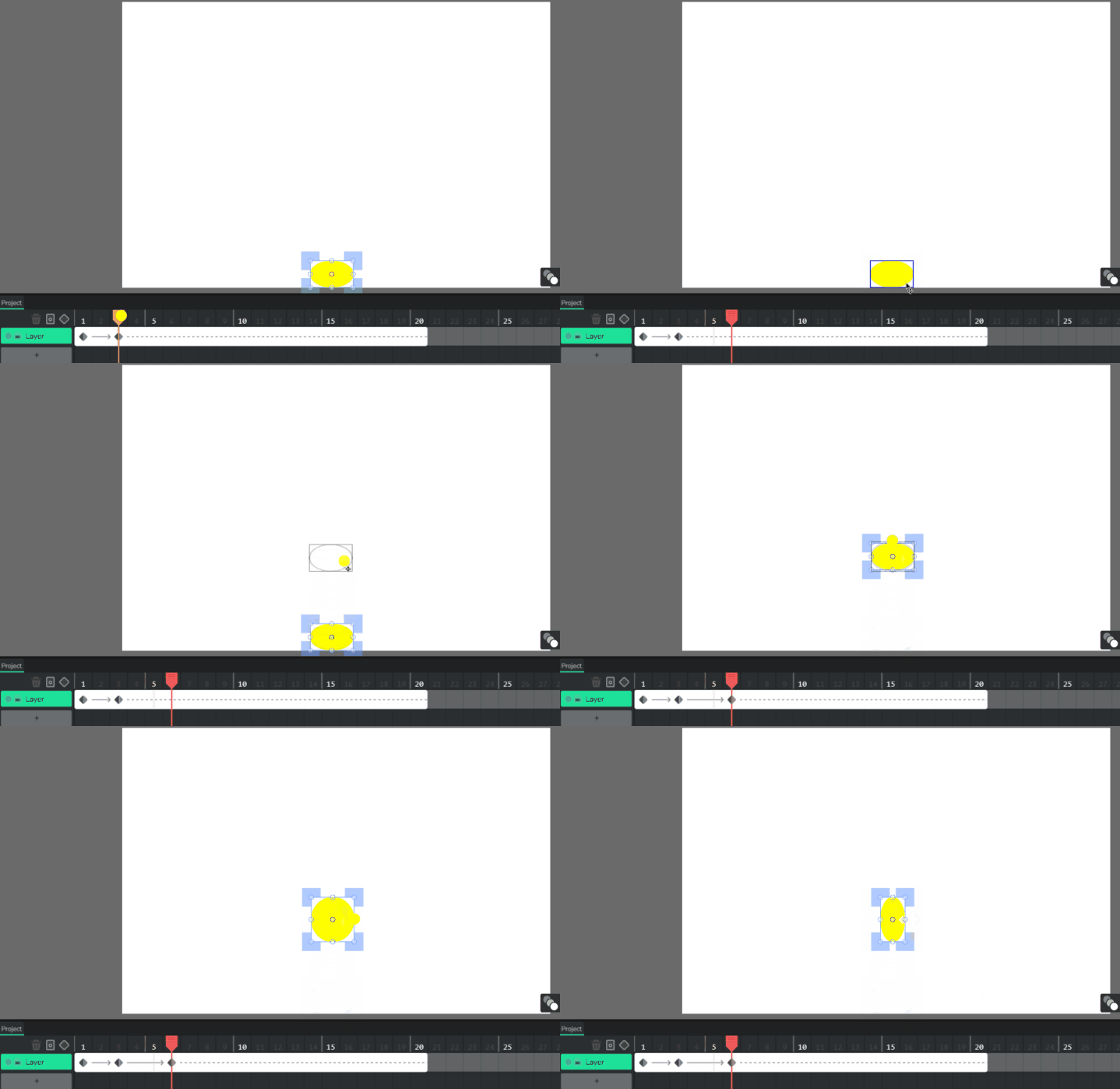
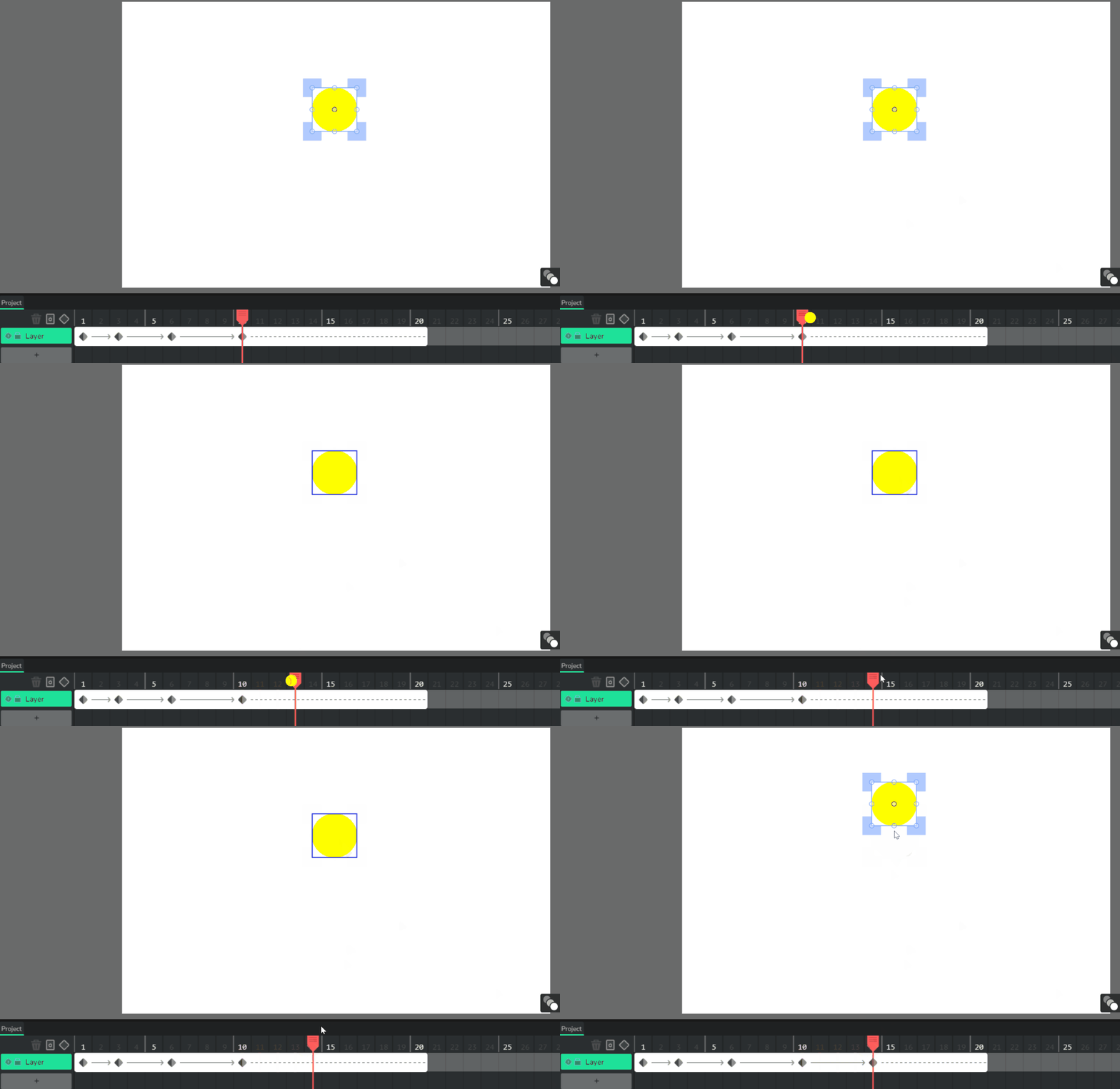
- Move the RED indicator to 10 Move the ball up Readjust the ball back to round
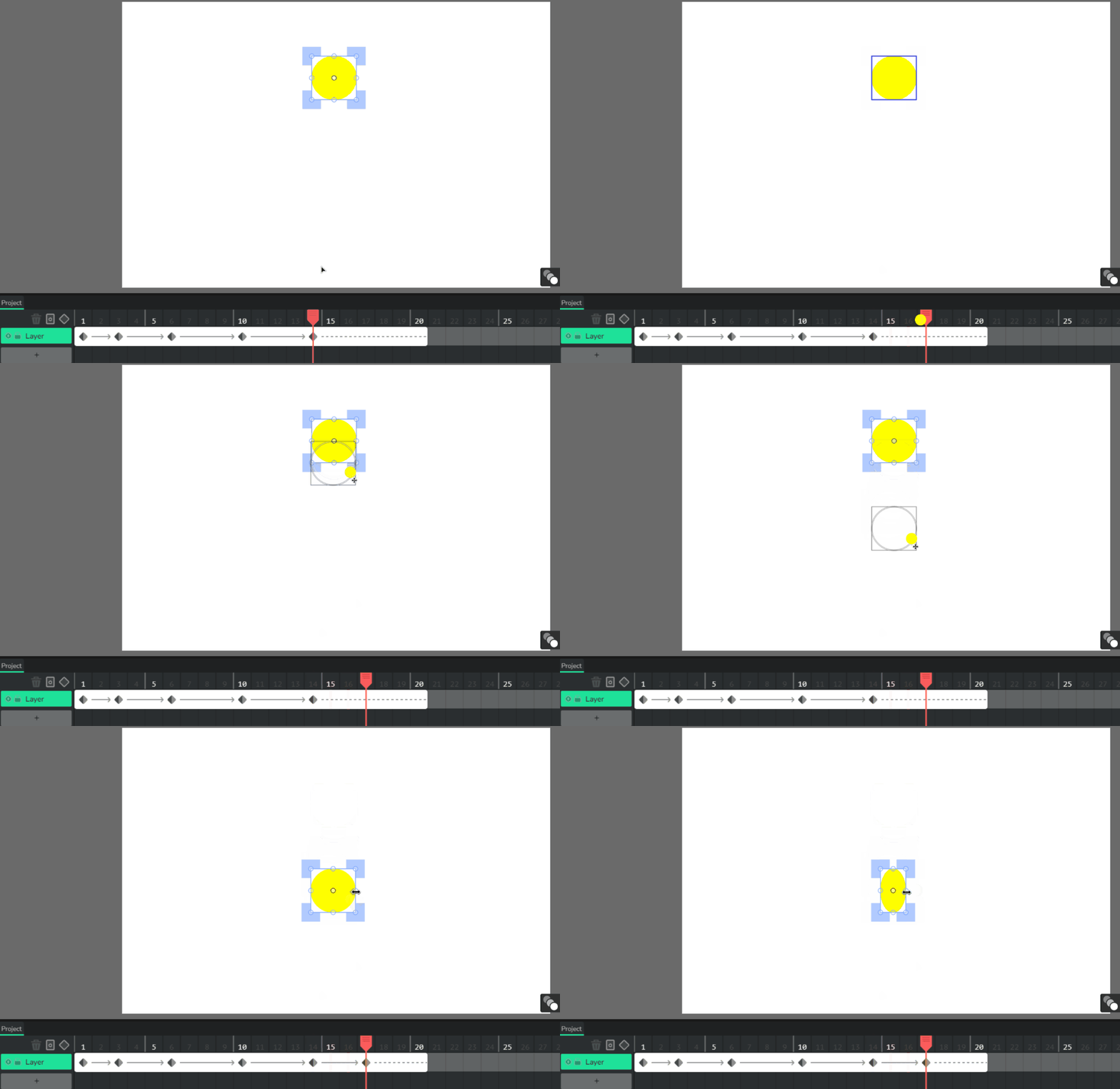
- Move the RED indicator to 14 Move the ball up
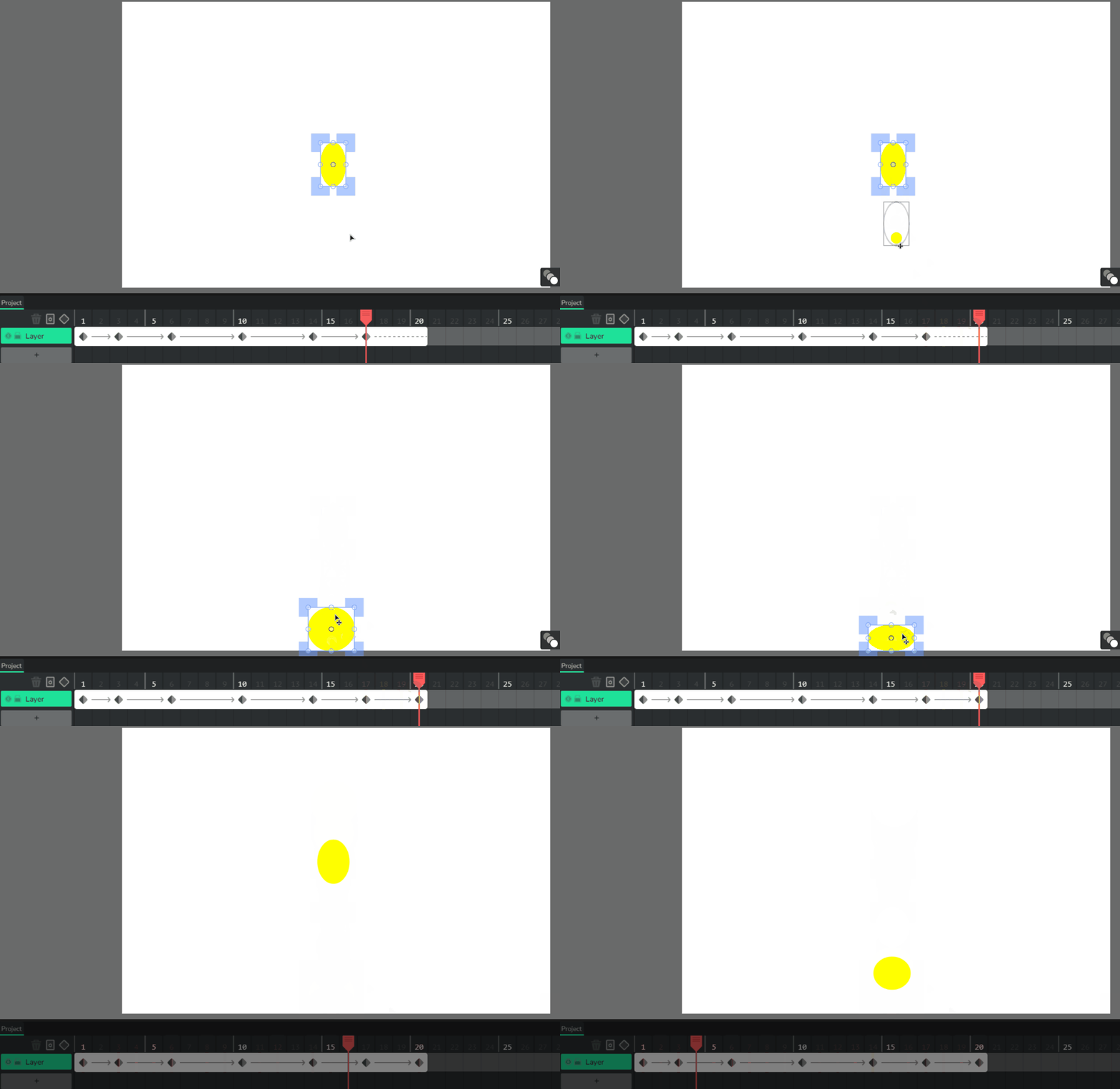
- Move RED indicator to 17 Move ball down Squish the ball
- Move RED indicator to 20 Move ball down and adjust ball back to normal Than squish the ball flat Finished first part Save if no time
- On the right side
- Save into student files. Naming is not important but can name it ball.wick
- Teacher save also for students that may need to next lesson
- If time allows
- Go to Layer 2

- Click the square tool > change colors > draw a box on the right side
- Select move tool > Click the green box in layer 2 > change length to 20
- Add tween move red indicator to 20 Click box and move to other side
- Finished
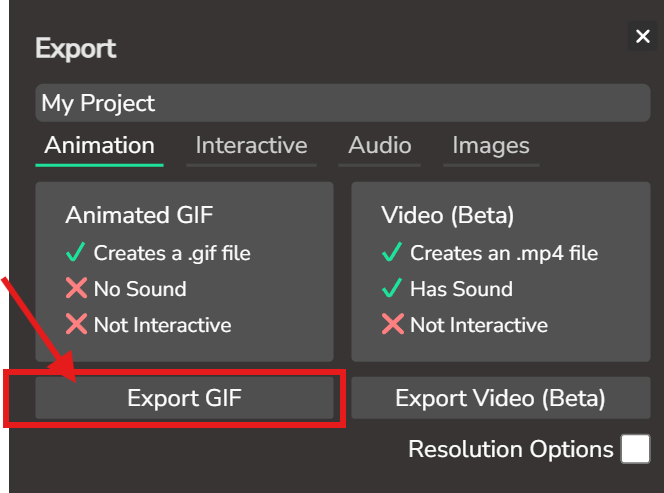
- Save a gif
- Refer to the image example for this step.

- Export GIF
- Go to students files and save. In GOOGLE DRIVE
Check for understanding:
- Students complete the core workflow for the lesson.
- Students can explain at least one design choice or animation decision.
Extension: Create a second variation or extend the project with extra details if time allows.
Lesson 2 - Continue and Repeat
Goal: Continue or repeat the previous lesson.
Teacher prep:
- Prepare access to Pixilart, Wick Editor, Google Drive and any sample files needed for demonstration.
Steps:
- Continue or repeat the previous lesson.
Check for understanding:
- Students complete the core workflow for the lesson.
- Students can explain at least one design choice or animation decision.
Extension: Try the same workflow again with a new idea, subject, or visual style.