Unit 18 - Year 2 Lessons
Overview
Students will animate flying and rolling motion using Wick Editor timing, movement paths, and sound.
Target skills:
- Animation Observation
- Frame Sequencing
- Motion Design
Tools:
- Wick Editor
Outputs:
- Flying character animation
- Ball-over-hills animation
Week 1 - Bird Animation With Sound
Lesson 1 - Animate a Bird With Sound
Goal: Refer to Animation - Unit 6.
Teacher prep:
- Prepare access to Wick Editor and any sample files needed for demonstration.
Steps:
- Refer to Animation - Unit 6
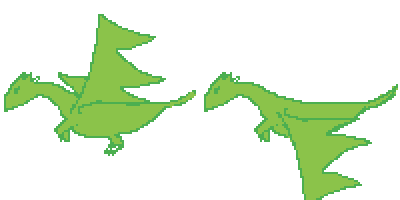
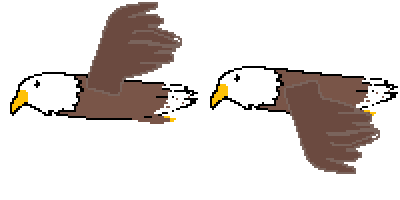
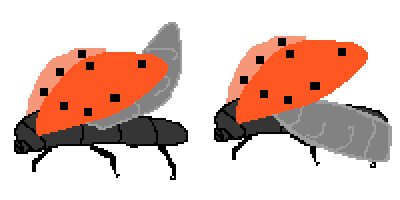
- Basically the same idea as year 2 lesson in unit 6 But students can now draw something else that has wings, such as eagle, dragon etc
- Also adding a layer into wickeditor to add a background.
- Refer to the image example for this step.
Check for understanding:
- Students complete the core workflow for the lesson.
- Students can explain at least one design choice or animation decision.
Extension: Create a second variation or extend the project with extra details if time allows.
Lesson 2 - Continue the Character Animation
Goal: Complete the continue the character animation activity.
Teacher prep:
- Prepare access to Wick Editor and any sample files needed for demonstration.
Steps:
- Continue
Check for understanding:
- Students complete the core workflow for the lesson.
- Students can explain at least one design choice or animation decision.
Extension: Try the same workflow again with a new idea, subject, or visual style.
Week 2 - Ball Up and Down Hills
Lesson 1 - Animate a Ball Over Hills
Goal: Student open wickeditor.
Teacher prep:
- Prepare access to Wick Editor and any sample files needed for demonstration.
Steps:
- Student open wickeditor
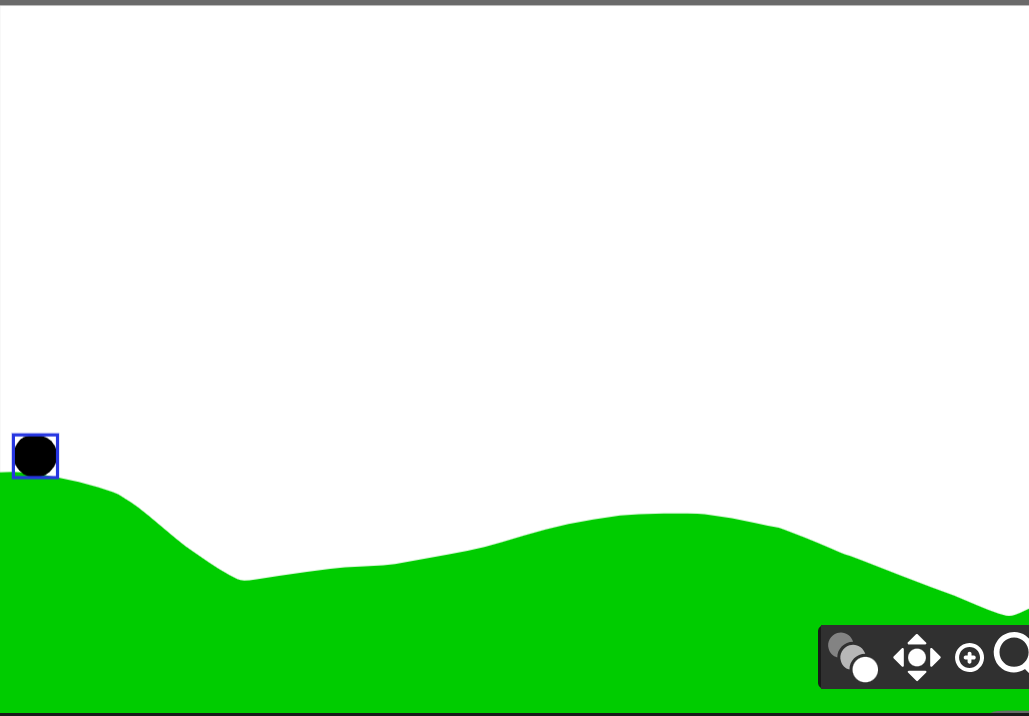
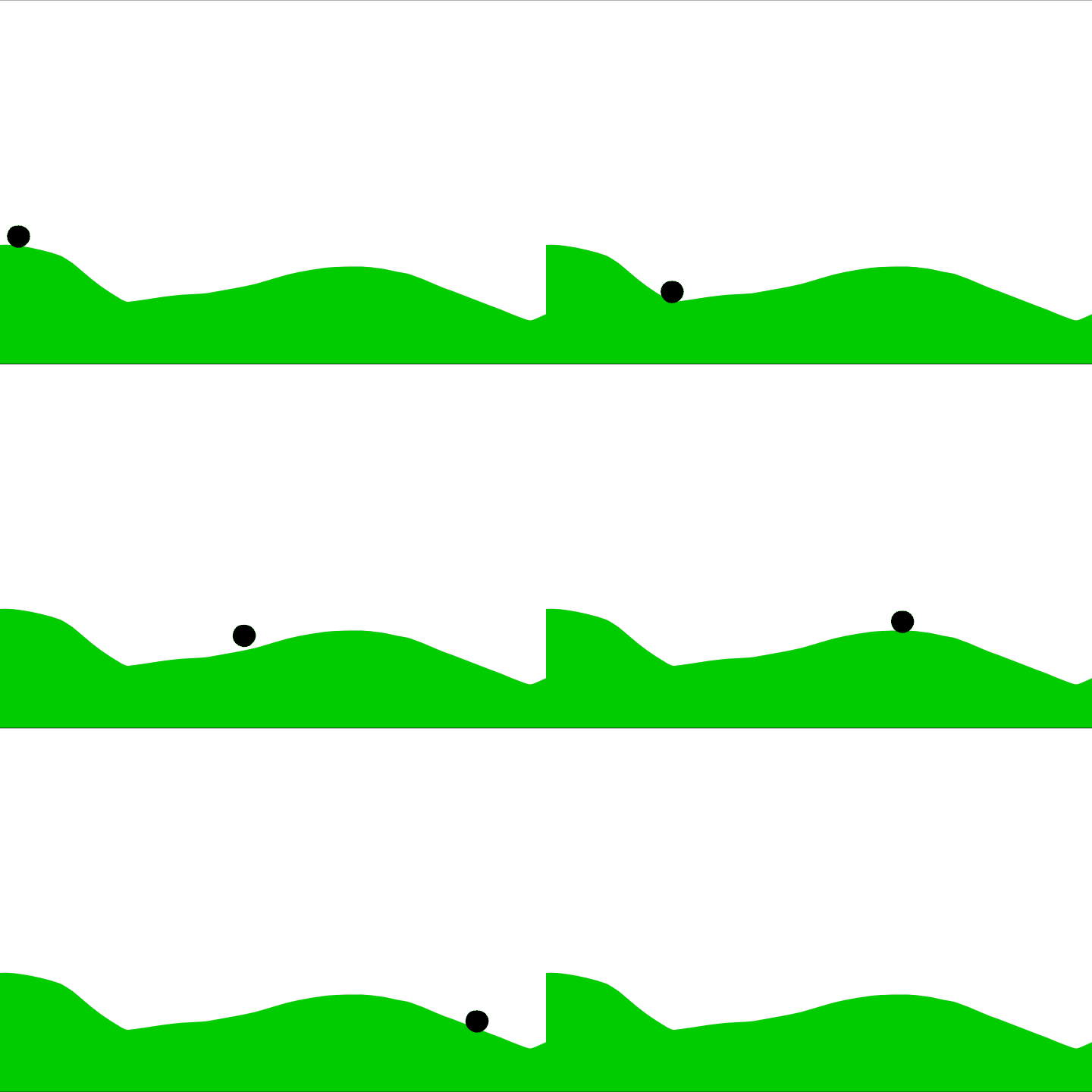
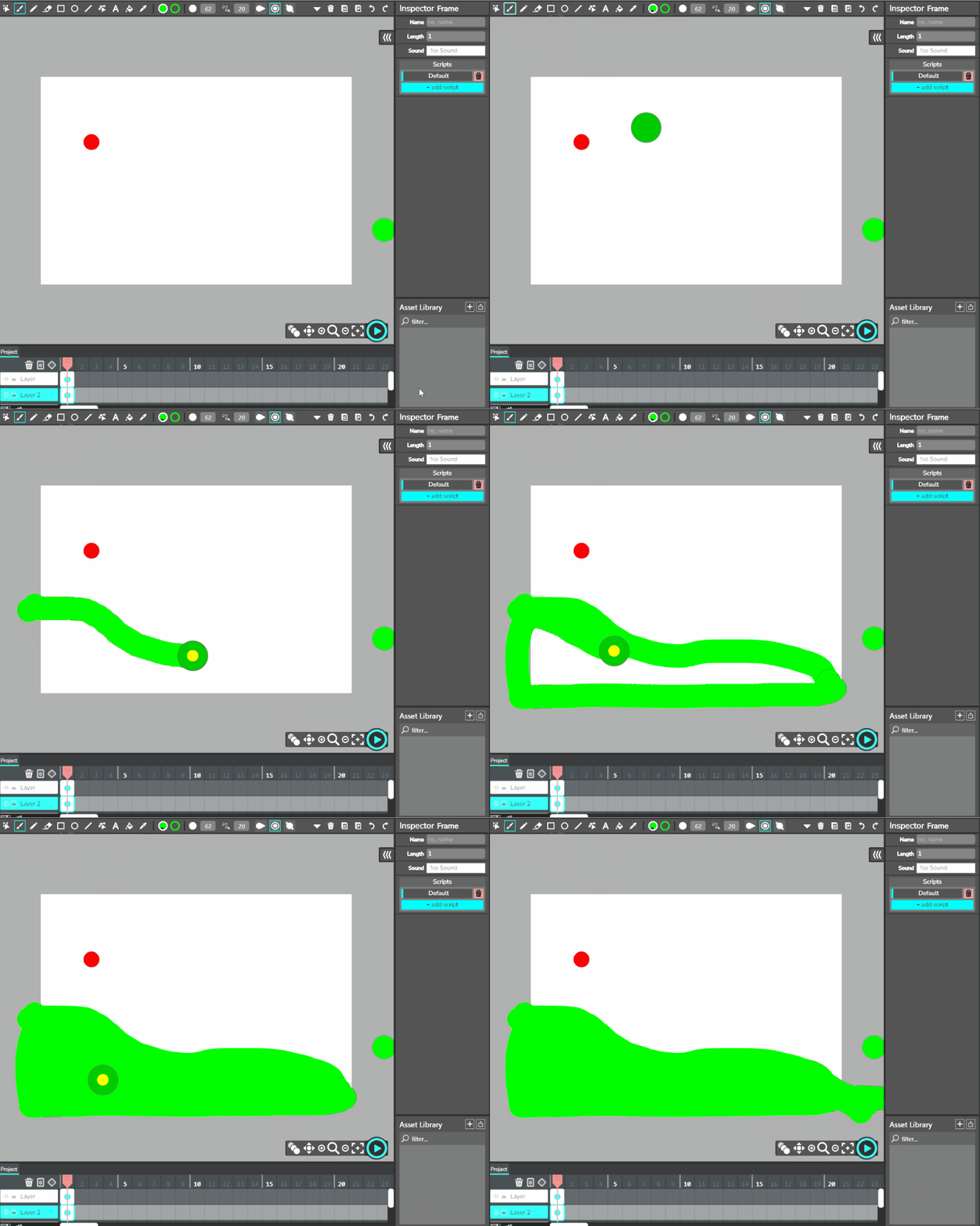
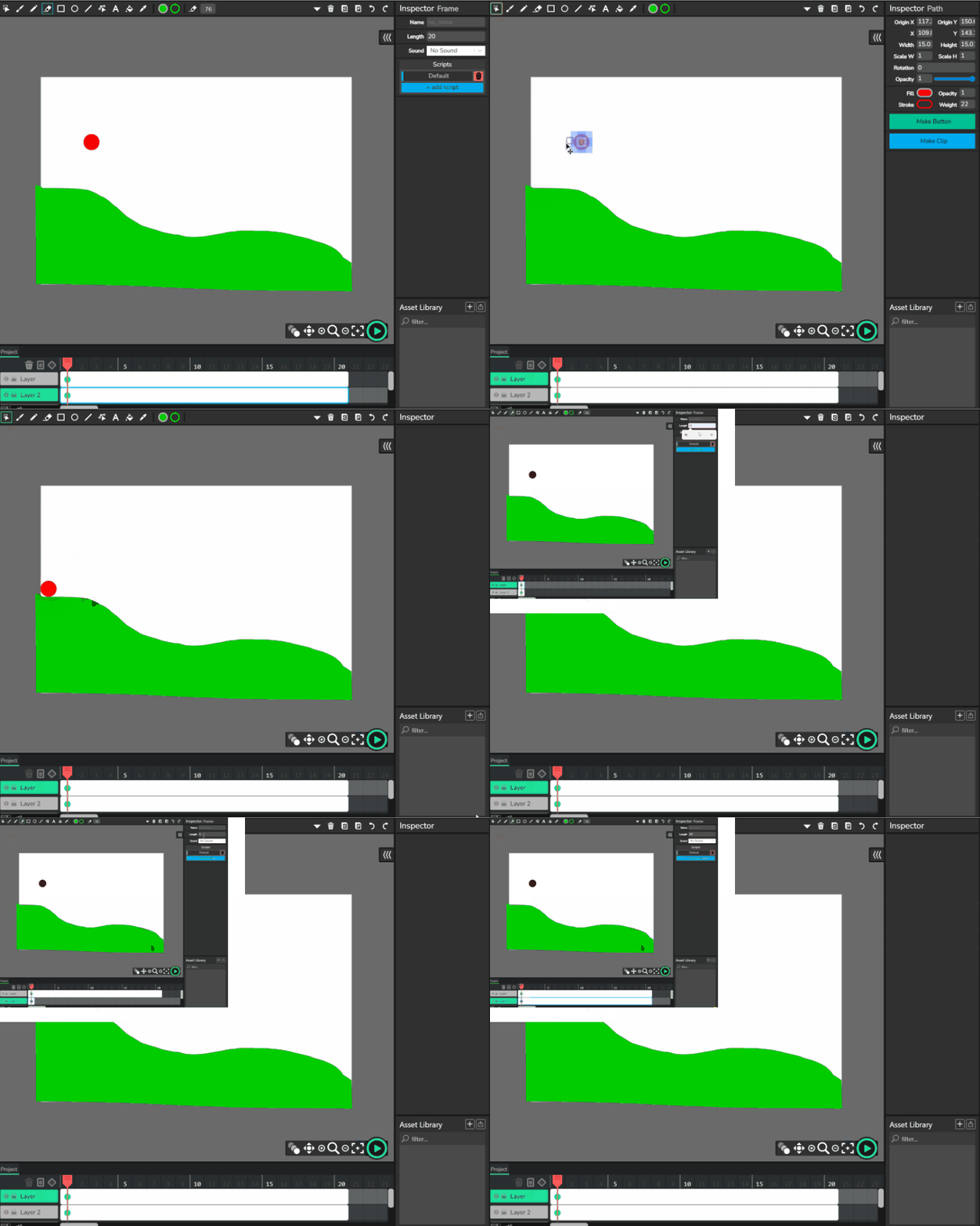
- Layer 1 - Draw a background rolling hill for a ball to go up and down.
- Refer to the image example for this step.
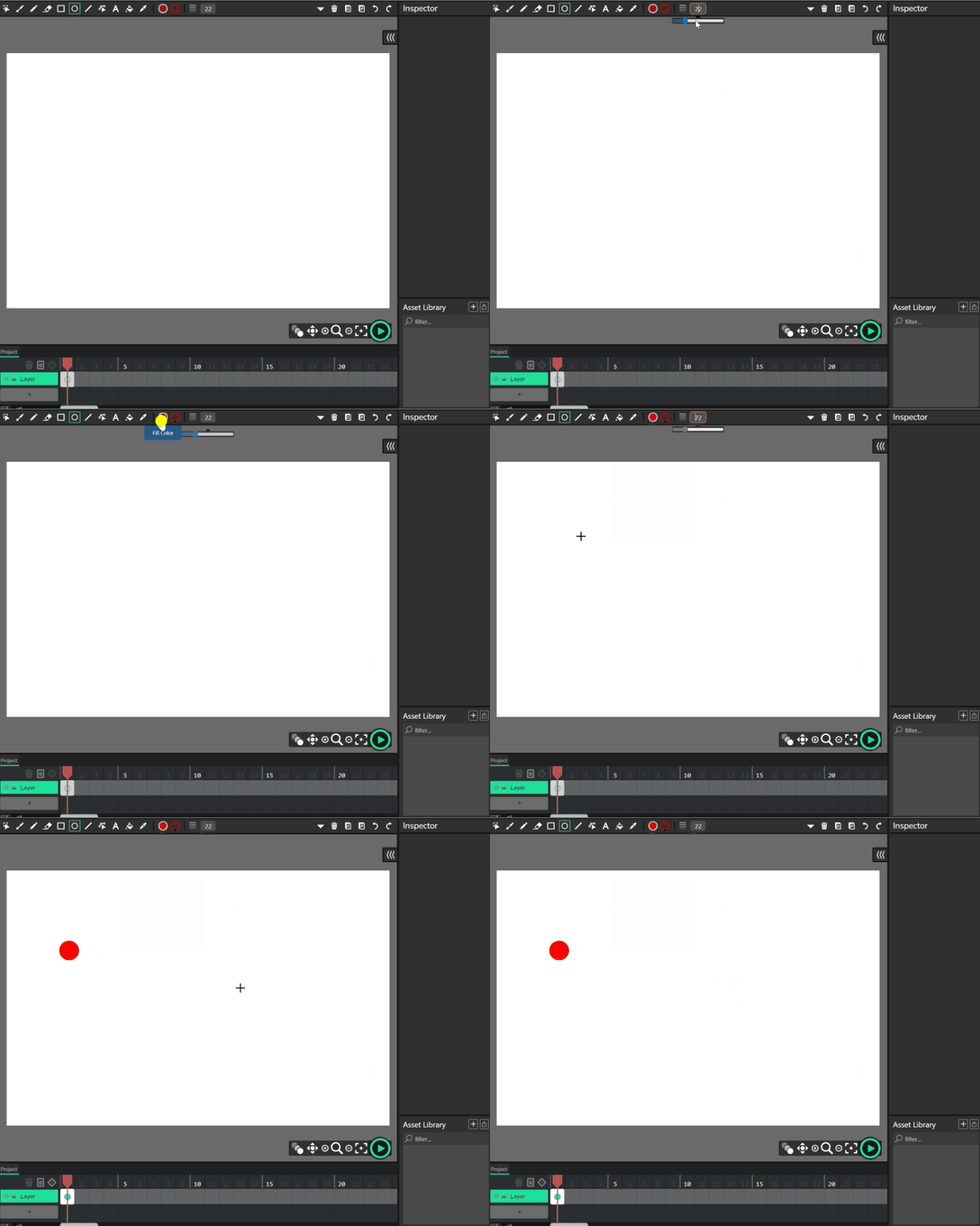
- Layer 2 - ball using paint brush enlarged and make a ball
- Use Circle tool, select colors - draw a ball but not big.
- Go to Layer 2 - using paint brush to draw in a hill landscape
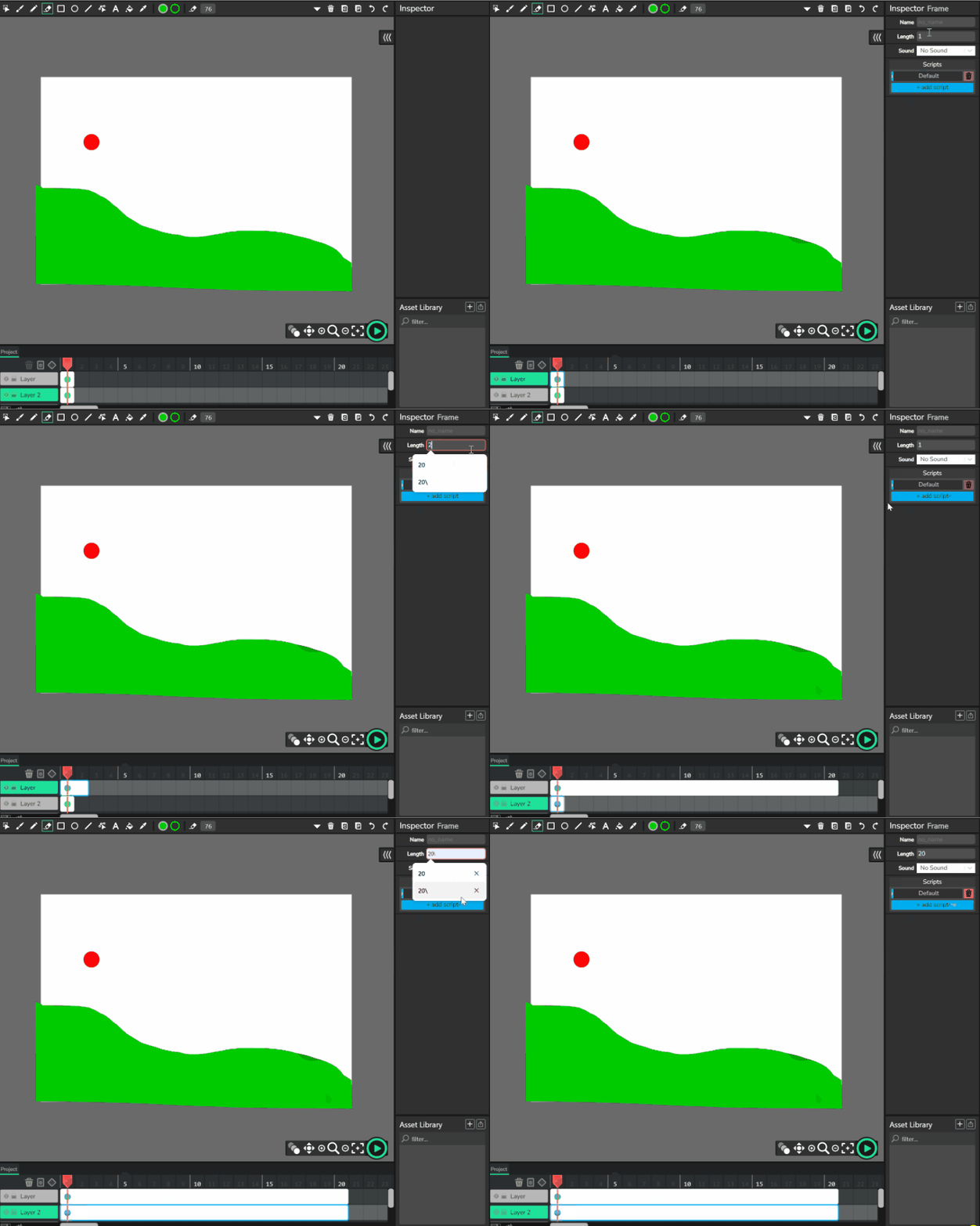
- Extend both frames to length of 20
- Go to layer 1 (ball) - move it to the top of the hill - using selection tool

- Add tween to the ball layer and move the red indicator to 5, (depending on how long you want the ball to take to get to the new spot.
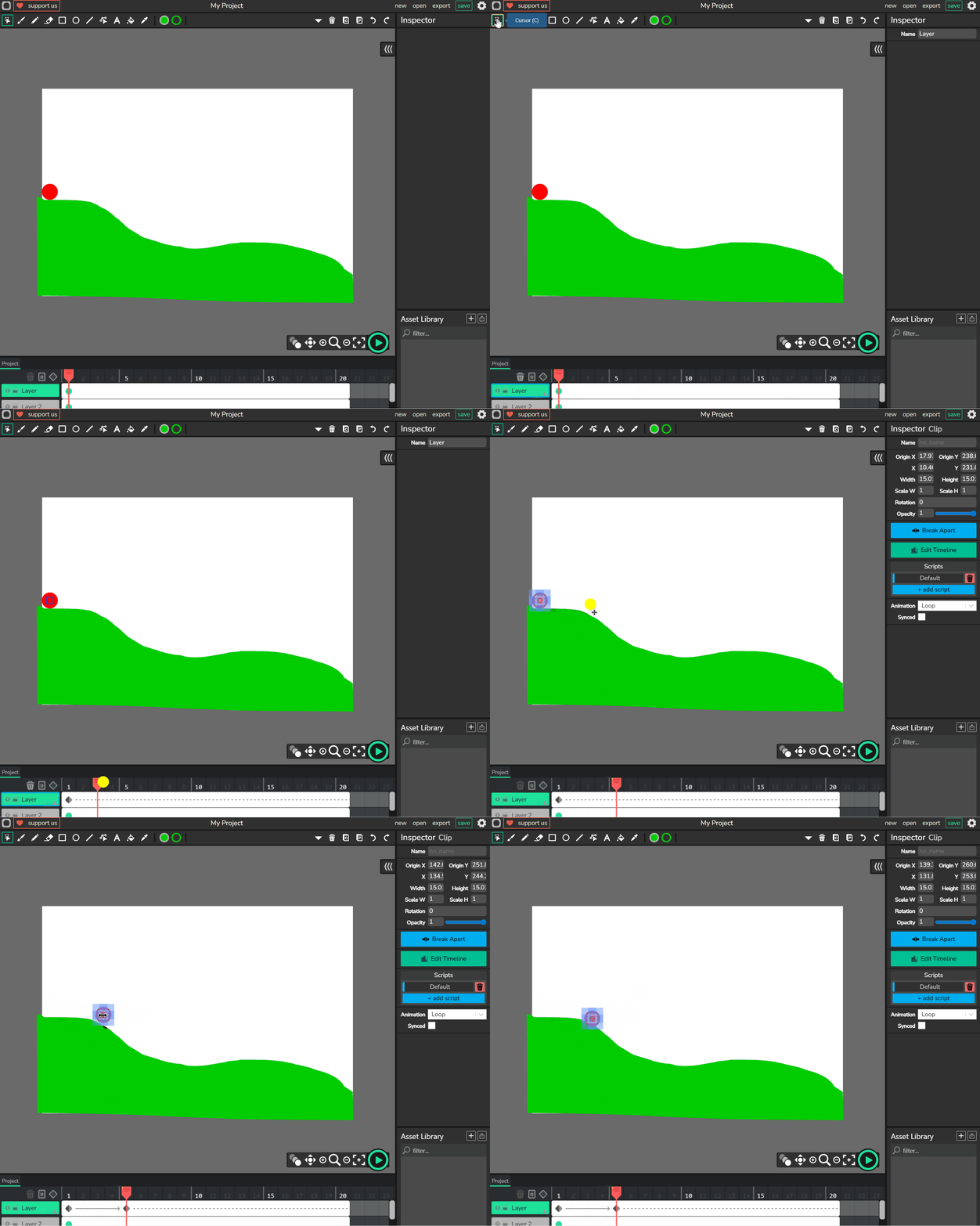
- Keep repeat this Move red indicator Move ball
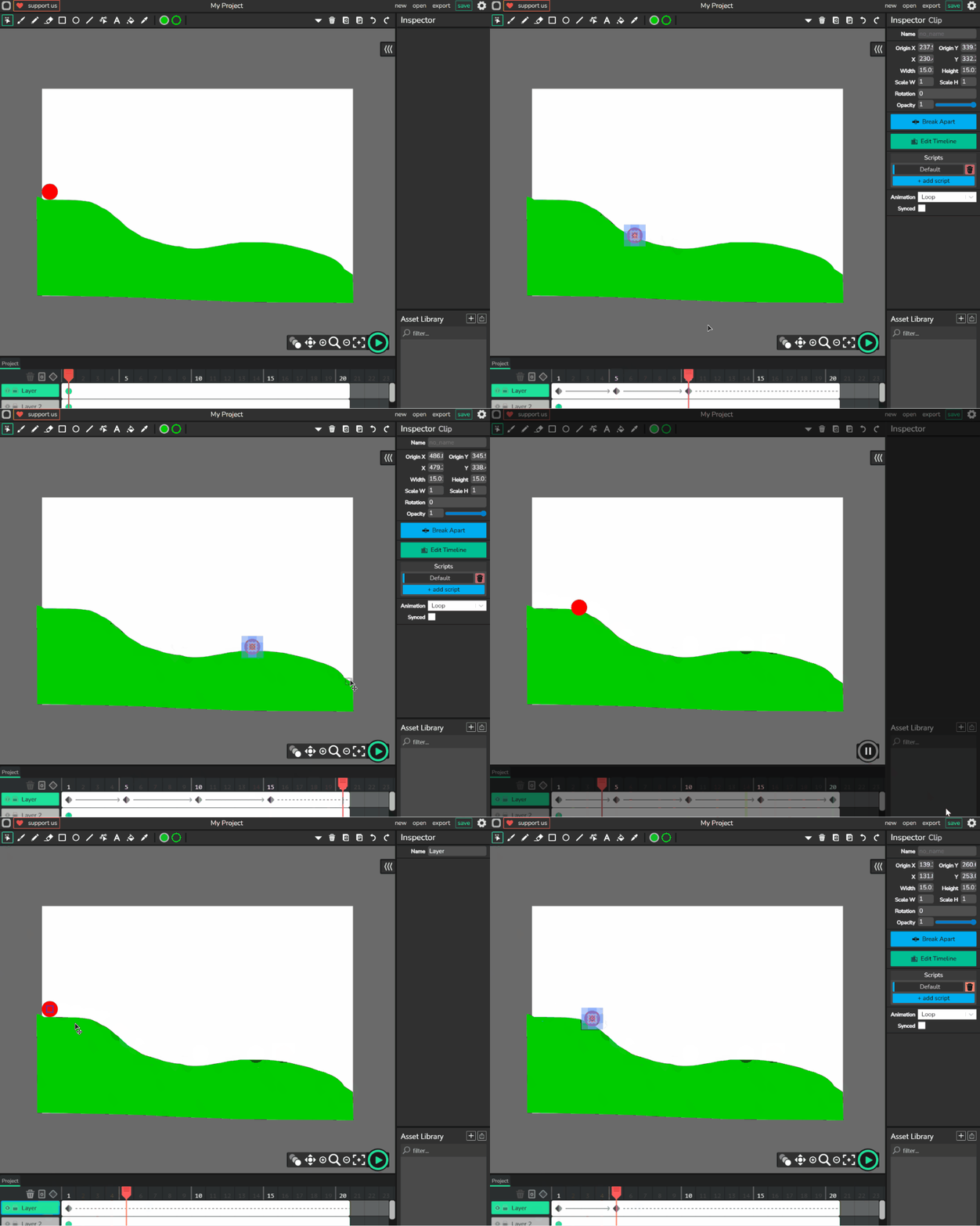
- The ball should be looking like it is rolling down the hill If the ball is float then move the red indicator and the ball to try and fix those parts.
Check for understanding:
- Students complete the core workflow for the lesson.
- Students can explain at least one design choice or animation decision.
Extension: Try the same workflow again with a new idea, subject, or visual style.
Lesson 2 - Try New Hill Paths
Goal: Repeat these steps and trying new hills Or a smaller ball and a lots of hills,.
Teacher prep:
- Prepare access to Wick Editor and any sample files needed for demonstration.
Steps:
- Repeat these steps and trying new hills Or a smaller ball and a lots of hills,
- This exercise is to get used to moving the red indicator and the ball.
- And adjust the red indicator to suit the timing of the ball rolling.
Check for understanding:
- Students complete the core workflow for the lesson.
- Students can explain at least one design choice or animation decision.
Extension: Try the same workflow again with a new idea, subject, or visual style.